Файл формата ZIP — что это?
Файл ZIP является распространенным форматом сжатия, применяющимся в различных архиваторах. Расширение ZIP разработано основателем корпорации PKWARE Филом Кацем в 1989 году специально для применения в рамках программного обеспечения PKZIP. В основном, архив прописывается заглавными буквами, это связано с изначальным ограничением в системе DOS.
В таком архиве, могут содержаться данные с различной степенью сжатия. Преимуществом технологии сжатия файлов, которую использует формат ZIP, является отсутствие потери информации. Архив несет в себе как один, так и несколько файлов либо каталогов, наиболее применяемый алгоритм при сжатии — Deflate.
Примечательно, что в случае необходимости, ZIP архивы можно соединять с модулями, отвечающими за распаковку контента, в таком случае, пользователь получает единый исполняемый файл, несущий расширение EXE. Такие операционные системы, как Windows, Mac OS и Linux, а также свободные платформы, поддерживают формат в штатном режиме.
Технология является общепризнанной и входит в ТОП самых популярных методов архивирования, она доступна для внушительного ряда приложений, выполняющих функции резервного копирования, сжатия, обмена данными. Даже учитывая более инновационные технологии, в нынешнее время описываемый формат архивов, всё еще актуален.
Обилие архиваторов от конкурентов, способны открыть файлы ZIP, среди которых и такие программные комплексы, как B1 Free Archiver, Apple Archive Utility, RARLAB WinRAR и прочие. При активном штатном средстве, запустить ZIP архив можно посредством двойного щелчка левой клавиши мыши или же выбрать правой кнопкой соответствующую утилиту.

Программы для работы с ZIP в Windows
Яндекс Браузер
Corel WinZip
RARLAB WinRAR
ConeXware PowerArchiver
Smith Micro StuffIt Deluxe
Microsoft Windows zip utility
B1 Free Archiver
ESTsoft ALZip

Mac
Corel WinZip Mac
Smith Micro Stuffit Deluxe Mac
Apple Archive Utility
Incredible Bee Archiver
The Unarchiver
B1 Free Archiver
WinZip Mac Edition

Linux
B1 Free Archiver
File Roller

Android
File Viewer for Android
RARLAB RAR for Android
Решение проблем с файлами ZIP
Наиболее распространенная проблема — файл не открывается. Мы подготовили набор программ, с помощью которых вы гарантированно сможете открыть нужный файл в вашей операционной системе.
Если вам необходимо создать файл «с нуля» воспользуйтесь одной из программ с нужным функционалом. Вы найдете несколько вариантов программ для различных платформ по ссылке ниже.
 Видео форматы
 Аудио форматы
 Электронные книги
 Текстовые форматы
 Дисковые образы
 Табличные данные
 Растровые изображения
 Векторные изображения
 Резервное копирование
 Raw
Raw Сжатые файлы
 Файлы данных
 Базы
Базы 3D Изображения
 CAD файлы
 Файлы разработчиков
 Зашифрованные файлы
 Исполняемые форматы
 Шрифты
 Файлы игр
 GIS, карты
 Другие расширения
 Форматы макетов
 Форматы плагинов
 Файлы настроек
 Системные файлы
 Веб форматы
.ZIP — Расширение файла
А ZIP -файл — это сжатый архивный файл, который может содержать один или несколько файлов или папок. Это формат сжатия без потерь, что означает, что в процессе сжатия не теряется данные. Это делает файлы zip идеальным для хранения и обмена большими файлами, такими как изображения, видео и программные приложения.
А Формат ZIP -файла был создан в 1989 году PKWare, Inc. Он теперь является открытым стандартом и поддерживается большинством операционных систем и утилит сжатия файлов.
Чтобы создать. ZIP-файл , вы можете использовать утилиту сжатия файлов, такую как Winzip, 7-Zip или Unarciver. Чтобы открыть. ZIP-файл , вы можете дважды щелкнуть по нему или использовать утилиту декомпрессии файла.
Вот некоторые из преимуществ использования файлов .zip:
- Они могут уменьшить размер больших файлов, облегчая их хранение и обмен.
- Они могут быть защищены паролем, чтобы защитить содержимое файла.
- Их можно разделить на несколько объемов, которые могут быть полезны для отправки больших файлов через Интернет.
- Они могут быть заархивированы, что означает, что их можно хранить для последующего использования.
Вот некоторые ограничения использования файлов zip:
- Они могут быть открыты только программами, которые поддерживают. zip -файл формат.
- Они могут медленно открываться на старых компьютерах.
- Они могут быть повреждены, если они не созданы и не открыты должным образом.
Вот некоторые альтернативы файлам zip:
- Файлы RAR являются еще одним популярным сжатым форматом архива. Они предлагают лучшее сжатие, чем файлы zip, но они также больше и медленнее.
- Файлы 7Z представляют собой более новый формат сжатого архива, который предлагает лучшее сжатие, чем файлы zip и RAR . Они также меньше и быстрее открываются.
- TAR -файлы представляют собой простой сжатый формат архива, который не поддерживает шифрование. Они часто используются для хранения файлов для целей резервного копирования.
Как сжать файлы в файл zip?
Есть много способов сжатия файлов в файл zip. Вот шаги о том, как сделать это с помощью Windows:
- Откройте File Explorer и перейдите в папку, которая содержит файлы, которые вы хотите сжать.
- Выберите файлы, которые вы хотите сжать. Вы можете выбрать несколько файлов, удерживая клавишу CTRL, нажав на них.
- Щелкните правой кнопкой мыши в выбранных файлах и выберите «Отправить в> сжатую (застегнутую) папку».
- Новый файл zip будет создан с тем же именем, что и выбранное вами первый файл. Если вы выбрали несколько файлов, файл zip будет названа «сжатая (Z -ZIPPL) папка».
- Вы можете открыть файл zip, дважды щелкнув по нему. Вы также можете извлечь файлы из файла zip, щелкнув правой кнопкой мыши и выбрав «Извлечение всех».
- Если вы хотите сжать большой файл, вы можете попробовать использовать другой уровень сжатия. Чем выше уровень сжатия, тем меньше будет файл zip, но для сжатия и декомпрессии потребуется больше времени.
- Вы также можете защитить пароль вашего файла zip, чтобы не допустить его открытия несанкционированных пользователей.
- Если вы хотите разделить свой файл zip на несколько томов, вы можете сделать это, выбрав опцию «Разделение на объемы, размером с» при создании файла zip.
Как защитить пароль файла zip?
Вот шаги о том, как защитить пароль файла zip с помощью Windows:
- Откройте File Explorer и перейдите в папку, которая содержит файлы, которые вы хотите сжать.
- Выберите файлы, которые вы хотите сжать. Вы можете выбрать несколько файлов, удерживая клавишу CTRL, нажав на них.
- Щелкните правой кнопкой мыши в выбранных файлах и выберите « Send to > Compressed (zipped) folder ».
- В диалоговом окне « Create compressed (zipped) folder » выберите флажок « Encrypt contents to secure data ».
- Введите пароль в полях « Password » и « Reenter password ».
- Нажмите « Create ».
Новый файл zip будет создан с тем же именем, что и выбранное вами первый файл. Если вы выбрали несколько файлов, файл zip будет названа «сжатая (Z -ZIPPL) папка». Файл zip будет защищен паролем, и только пользователи, которые знают, что пароль смогут его открыть.
Вот несколько дополнительных советов по защите пароля, защищающего файл zip:
- Используйте сильный пароль длиной не менее 8 символов и включает в себя смесь прописных и строчных букв, номеров и символов.
- Избегайте использования общих паролей, таких как ваше имя, день рождения или адрес.
- Регулярно меняйте свой пароль.
- Держите свой пароль в безопасности и безопасным. Не записывайте его на листе бумаги и не храните в файле на вашем компьютере.
- Если вы забудете свой пароль, вы не сможете открыть файл zip.
Как открыть файл zip на моем компьютере?
- Windows: дважды щелкните файл zip. Файл zip будет извлечен в новую папку с тем же именем, что и файл zip.
- MacOS: дважды щелкните файл zip. Файл zip будет извлечен в новую папку с тем же именем, что и файл zip.
- Linux: щелкните правой кнопкой мыши на файле zip и выберите «Извлечь здесь». Файл zip будет извлечен в текущий каталог.
Как создать файл zip на моем телефоне?
- Android: В магазине Google Play доступно много приложений, которые можно использовать для создания файлов zip. Одним из популярных вариантов является приложение «Zarchiver». Чтобы создать файл zip с помощью Zarchiver, откройте приложение и выберите файлы, которые вы хотите сжать. Затем нажмите кнопку «Сжатие» и введите имя для файла zip.
- iOS: Нет встроенного способа создания файлов zip на устройствах iOS. Тем не менее, есть несколько сторонних приложений, которые можно использовать для этого. Одним из популярных вариантов является приложение «Izip». Чтобы создать файл zip с помощью IZIP, откройте приложение и выберите файлы, которые вы хотите сжать. Затем нажмите кнопку «Zip» и введите имя для файла zip.
Как извлечь файлы из файла zip, не теряя их оригинальные имена?
- Windows: Когда вы извлекаете файл zip в Windows, настройка по умолчанию — сохранить исходные имена файлов. Однако, если вы хотите быть уверенным, вы можете снять флажок «Добавить» извлеченный префикс в диалоговом окне «Извлечь сжатые (zippult) папки».
- MacOS: Когда вы извлекаете файл zip в MacOS, настройка по умолчанию состоит в том, чтобы сохранить исходные имена файлов. Однако, если вы хотите быть уверенным, вы можете снять флажок «Добавить суффикс .zip, чтобы файлы» в диалоговом окне «Выдержать здесь».
- Linux: Когда вы извлекаете файл zip в Linux, настройка по умолчанию состоит в том, чтобы сохранить исходные имена файлов. Однако, если вы хотите быть уверенным, вы можете использовать команду unzip с опцией -o . Например, чтобы извлечь файл zip с именем «my_files.zip». Не изменяя имена файлов, вы бы использовали следующую команду:
unzip -o my_files.zipКак сжать большой файл в меньший файл zip?
Есть несколько вещей, которые вы можете сделать, чтобы сжать большой файл в меньший файл zip:
- Используйте другой уровень сжатия. Чем выше уровень сжатия, тем меньше будет файл zip, но для сжатия и декомпрессии потребуется больше времени.
- Разделите файл на несколько меньших файлов. Это может быть полезно, если вы отправляете файл через Интернет или если вы хотите открыть файл на устройстве с ограниченным пространством для хранения.
- Используйте другой формат файла. Некоторые форматы файлов, такие как RAR и 7Z, предлагают лучшее сжатие, чем файлы zip.
Как я могу защитить файл zip, чтобы его могли открыть только авторизованные пользователи?
Для защиты пароля файла zip вы можете использовать утилиту сжатия файлов, такую как Winzip , 7-Zip или Unarchiver. Для этого просто выберите файлы, которые вы хотите сжать, а затем выберите опцию «Encrypt». Затем вам будет предложено ввести пароль.
Как мне поделиться файлом zip с кем -то, у кого нет считывателя файлов zip?
Вы можете поделиться файлом zip с кем -то, у кого нет считывателя файлов zip, загрузив его в службу обмена файлами, такую как Dropbox, Google Drive или Box. Вы также можете отправить файл zip к человеку, но им нужно будет установлен файл zip на их компьютер, чтобы открыть его.
Что мне делать, если я получу сообщение об ошибке, когда попытаюсь открыть файл zip?
Если вы получите сообщение об ошибке при попытке открыть файл zip, это может быть связано с рядом причин. Вот несколько вещей, которые вы можете попробовать:
- Убедитесь, что файл zip не поврежден. Вы можете сделать это, открыв его с другой утилитой сжатия файлов.
- Убедитесь, что на вашем компьютере установлена правильная версия считывателя файла zip.
- Попробуйте извлечь файлы из файла zip в другое место.
- Если у вас все еще есть проблемы, вы можете попробовать найти сообщение об ошибке в Интернете, чтобы увидеть, есть ли какие -либо известные решения.
Phil Katz
Pay later where you want with Zip

We work with thousands of retail partners to deliver a better way for customers to pay. Integrate our “pay later” platform in 10 minutes, no APIs required.

Share Zip and earn $$$
Invite a friend, and you each get $10 once they make a purchase in the app! Terms apply. 2
Trending stores











Shop by category
- Womens
- Mens
- Beauty & Health
- Clothing
- Electronics & Appliances
- Travel & Entertainment
- Shoes
- Pets
- Education
- Home & Furniture
- Food & Beverage
- Sports & Outdoors
- Kids & Babies
- Jewelry & Accessories
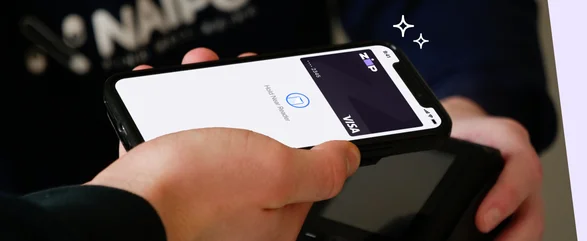
Pay later in a physical store
Use Zip in store with a digital card, anytime, wherever major credit cards are accepted. 1
Get the Zip app
Popular


Zip Exclusives








Loved by millions of shoppers globally and counting
Reviews from the App Store
This is terrific
This is terrific. Unlike some other payment options this can literally be used anywhere that accepts VISA which is almost everywhere. Super easy to sign up.
Use it pretty much ANYWHERE!
Not only can you use this for online shopping and in store purchases, you can legit use it pretty much ANYWHERE! Gooooals.
ZIP is the way to go.
Shopping with Zip is fun, easy and smart. Fun because you can have your purchases immediately, checking out is easy and a smart budgeting decision. What are you waiting for?
LOVE ZIP!!
Zip allows me to make large purchases and split them into convenient and easy payments! I’ve been using zip for a while now and the convenience is what keeps me using it!
You can use it almost ANY and EVERYWHERE.
I LOVE!! This app. I have 2 other apps that offer pay in 4 but I love this one the most because you can use it almost ANY and EVERYWHERE.
Easy peasy!
Great App! Easy to access, quick results for your acceptance and lots of merchandise stores! I will be having fun on here!
Best thing since sliced bread
I love how this app allowed me to take control of my finances. I’m able to use it anywhere Visa is accepted. I’ve never felt more in control of my wallet!
Very convenient to use, especially in store!
I love this because you can use it mostly in any store that accepts Apple Pay. Gas station as well.
Download the app to get started!
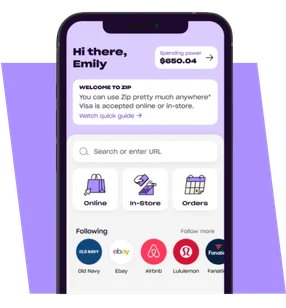
Get instant access to shop now, pay later at thousands of brands—online or instore!
Scan code to download the app

Scan the QR code to download the app
App store rating
Millions of shoppers globally and counting
References
- 1 Zip can only be used for US purchases. Certain merchant, product, goods, and service restrictions apply. For example, for a $335 purchase, you’d make four $85.25 payments every two weeks starting today for a 31.11% annual percentage rate and a total of payments of $341. A $6 installment fee is charged at commencement — you pay $1.50 of this fee as a prepaid finance charge when you make your initial payment today. The remaining $4.50 is included in your future payments. Actual installment fees vary and can range from $0 to $7.50 depending on the purchase price and Zip product used. Actual amount of fee for your purchase will be reflected in checkout. Estimation of installment payment and annual percentage rate excludes potential tax and shipping costs. Zip Pay Anywhere and Zip Checkout financing through Zip issued by WebBank, except for Zip-originated loans in CO, NV, MA, and MD. All loans are subject to credit approval.
- 2 For full details, visit https://zip.co/us/refer-a-friend.
- Testimonials reflect the individual’s opinion and may not be Illustrative of all individual experiences with Zip.
- Become a Zip Merchant
- Merchant Sign In
- Merchant Resources
- Documentation
- API Reference
- PCI DSS Compliance
- Help
- Privacy Policy
- System Status
- Terms of Service
- Licenses
- Vulnerability Disclosure Program
© 2023 ‘Quadpay’, ‘Zip’, the ‘Q Logo’ and ‘Zip’ Logos, and all tag lines used in conjunction therewith including ‘Any Store Split in 4’ and ‘Can I Zip It?’ are trademarks of Zip Co Ltd. or its subsidiaries in the jurisdictions in which any of them operate. All other product names, logos, brands, trademarks and registered trademarks are property of their respective owners. All company, product and service names used in this website are for identification purposes only. Use of these names, trademarks and brands does not imply endorsement. Zip Co US Inc (Zip Co US) NMLS ID 1963958 NMLS Consumer Access .
Loans through the Zip app and Zip Checkout are originated by WebBank, except for Zip-originated loans in CO, NV, MA, and MD.
Late fees may apply. Eligibility Criteria apply. Loans to California residents, other than loans through the Zip App, Zip Checkout, and Zip Card, are made or arranged pursuant to California Lenders Law license #60DBO-110414.
LOAN SOLICITATION ONLY. ZIP CO US INC IS NOT THE LENDER. INFORMATION RECEIVED WILL BE SHARED WITH ONE OR MORE THIRD PARTIES IN CONNECTION WITH YOUR LOAN INQUIRY. THE LENDER MAY NOT BE SUBJECT TO ALL VERMONT LENDING LAWS. THE LENDER MAY BE SUBJECT TO FEDERAL LENDING LAWS. (Added 2017, No. 22, § 25.)
This site is protected by reCAPTCHA Enterprise and the Google Privacy Policy and Terms of Service apply.
How to Unzip a File
This article was co-authored by wikiHow staff writer, Nicole Levine, MFA. Nicole Levine is a Technology Writer and Editor for wikiHow. She has more than 20 years of experience creating technical documentation and leading support teams at major web hosting and software companies. Nicole also holds an MFA in Creative Writing from Portland State University and teaches composition, fiction-writing, and zine-making at various institutions.
The wikiHow Tech Team also followed the article’s instructions and verified that they work.
This article has been viewed 463,252 times.
This wikiHow teaches you how to extract (or «unzip») a ZIP folder’s contents. Extracting files from a ZIP folder will decompress the files, allowing you to open and run them properly. You can easily unzip ZIP folders by using the built-in software on both Windows and Mac computers.
Things You Should Know
- To unzip on Windows, double-click the file, select «Extract All,» select a folder, and then click «Extract.»
- On a Mac, simply double-click the file to unzip it.
- If you’re using the Linux command line, use unzip filename.zip to unzip the file.
Method 1 of 5:
Windows

Fair Use (screenshot)
\n»>
Double-click the ZIP file. This displays the contents in a File Explorer window.

Fair Use (screenshot)
\n»>
Click Extract all . It’s the icon that looks like a folder with a zipper and four blue squares near the top of the window.
Advertisement

Fair Use (screenshot)
\n»>
Check the box next to «Show extracted files when complete.» It’s at the bottom-left corner of the window. This makes it so you’ll be taken to the unzipped files as soon as they are unzipped.

Fair Use (screenshot)
\n»>
- Click Browse. on the right side of the window.
- Click the name of the folder in which you want to store the unzipped folder.
- Click Select Folder.

Fair Use (screenshot)
\n»>
Click Extract . It’s at the bottom of the window. Your ZIP file’s contents will extract to an unzipped folder in the selected location. Now you can work with the files inside the folder.
Advertisement
Method 2 of 5:
Mac

Fair Use (screenshot)
\n»>
- Click once the ZIP folder to select it.
- Click Edit in the upper-left side of the screen.
- Click Copy in the drop-down menu.
- Go to the folder in which you want to store the ZIP folder.
- Click Edit again, then click Paste.

Fair Use (screenshot)
\n»>
Double-click the ZIP folder. The contents of the ZIP will now extract to a new folder in the current folder. When the files are finished extracting, the folder containing your files will appear.
Advertisement
Method 3 of 5:
Linux

Fair Use (screenshot)
\n»>
Open a terminal window. Click the Terminal app icon on your desktop or press Ctrl + Alt + T to open one now.

Fair Use (screenshot)
\n»>
- For example, if the ZIP file is in the «Downloads» directory, you would enter cd Downloads into Terminal.
- If the ZIP file is in a folder called «ZIP» inside the «Downloads» folder, you would need to enter cd /home/name/Downloads/ZIP (where name is your username) instead.

Fair Use (screenshot)
\n»>
- If the file’s name has spaces in it, you’ll place quotation marks on either side of «file.zip» (e.g., unzip «this is a zipped folder.zip» ).
- The Linux unzip command doesn’t create a new folder for the unzipped files.
Advertisement
Method 4 of 5:
iPhone/iPad

Fair Use (screenshot)
\n»>
Open the Files app. It’s the blue icon labeled «Files» in your app list. You can also find it by swiping right across the home screen until you reach the «App Library» screen and tapping the Productivity & Finance folder. [1] X Research source

Fair Use (screenshot)
\n»>
Go to the location of the ZIP file. If the file is on your iPhone, for example, tap On My iPhone. And if it’s saved in a certain folder, tap that folder to open it now.

Fair Use (screenshot)
\n»>
- You can rename this folder if you’d like. Tap and hold the folder and select Rename to do so.

Fair Use (screenshot)
\n»>
Tap the folder to open it. This displays the contents of the ZIP file.
Advertisement
Method 5 of 5:
Android

Fair Use (screenshot)
\n»>
- Open the Play Store.
- Type files by google into the search bar.
- Tap Files by Google in the search results.
- Tap Install to download the app. If you already have the app, you won’t see this option—you’ll see Open instead.

Fair Use (screenshot)
\n»>
Open Files by Google. It’s the blue folder icon with a turned-down corner that’s several different colors. [2] X Research source

Fair Use (screenshot)
\n»>
Tap Browse . It’s the folder icon with a magnifying glass.

Fair Use (screenshot)
\n»>
Go to the folder that contains your ZIP file. For example, if it’s in your Downloads folder, select that folder.

Fair Use (screenshot)
\n»>
Tap the ZIP file. A pop-up will appear, showing you what’s inside the file.

Fair Use (screenshot)
\n»>
- If you want to delete the ZIP file after decompressing the file, check the box next to «Delete ZIP file» now.

Fair Use (screenshot)
\n»>
Tap Done . The contents of the ZIP file are now extracted to the current folder.
Advertisement
You Might Also Like

6 Easy Ways to Use Shortcut Keys to Shut Down a Windows PC

4 Easy Ways to Paste Text Using Keyboard Shortcuts

Make a Zip File

How to Reset Your Graphics Drivers

Automatically Shut Down Your Computer at a Specified Time

Select All

Copy and Paste

How to Open Windows Task Manager: Menus, Shortcuts, & More

Restart Windows 10

How to Check Your Mouse DPI on Windows & Mac

Bring an Off Screen Window Back on Windows

Copy and Paste a Link

Change the Input on an LG TV Without a Remote

How To Refresh a Webpage: Desktop & Mobile
Advertisement
Community Q&A
What about for an Android? I can’t figure it out.
Community Answer
If you have an android phone, you can download the RAR program from the Play Store. When you finish your download, open your RAR program and find the ZIP file that you want to Unzip, then hold your finger on the file and a popup screen will show up. Press Extract Here or Extract Files and you are done!
Thanks! We’re glad this was helpful.
Thank you for your feedback.
As a small thank you, we’d like to offer you a $30 gift card (valid at GoNift.com). Use it to try out great new products and services nationwide without paying full price—wine, food delivery, clothing and more. Enjoy! Claim Your Gift If wikiHow has helped you, please consider a small contribution to support us in helping more readers like you. We’re committed to providing the world with free how-to resources, and even $1 helps us in our mission. Support wikiHow
How do I unzip a file on my phone?
Community Answer
It depends on what kind of phone you have. However, if you have an iPhone, you cannot unzip a file without jail breaking your iPhone or voiding the warranty. .zip files are compressed files that have a lossless compression (which is why they are so popular for image transfer). The de-compression program that’s in OSX+ is not an ideal program to include in iOS from Apple’s perspective (because they want you to buy an iPhone AND a Macbook), so getting a de-compressor application in your iPhone without jail breaking it and forcing it into the file system is practically impossible.
Thanks! We’re glad this was helpful.
Thank you for your feedback.
As a small thank you, we’d like to offer you a $30 gift card (valid at GoNift.com). Use it to try out great new products and services nationwide without paying full price—wine, food delivery, clothing and more. Enjoy! Claim Your Gift If wikiHow has helped you, please consider a small contribution to support us in helping more readers like you. We’re committed to providing the world with free how-to resources, and even $1 helps us in our mission. Support wikiHow
How do I do it on a Mac?
Community Answer
Open it, and drag the stuff inside of it out into a new folder.
Thanks! We’re glad this was helpful.
Thank you for your feedback.
As a small thank you, we’d like to offer you a $30 gift card (valid at GoNift.com). Use it to try out great new products and services nationwide without paying full price—wine, food delivery, clothing and more. Enjoy! Claim Your Gift If wikiHow has helped you, please consider a small contribution to support us in helping more readers like you. We’re committed to providing the world with free how-to resources, and even $1 helps us in our mission. Support wikiHow