Import XML data
If you previously created an XML Map, you can use it to import XML data into cells that are mapped, but there also are several methods and commands for importing XML data without an XML Map.
If you have an XML Map, do this to import XML data into mapped cells:
- In the XML Map, select one of the mapped cells.
- Click Developer >Import. If you don’t see the Developer tab, see Show the Developer tab.
- In the Import XML dialog box, locate and select the XML data file (.xml) you want to import, and click Import.
Other ways to import XML data
- Import an XML data file as an XML table
- Import multiple XML data files
- Import multiple XML data files as external data
- Open an XML data file to import its data
For more information about issues, see Common issues with importing XML data at the end of this article.
Import an XML data file as an XML table
- Click Developer >Import. If you don’t see the Developer tab, see Show the Developer tab.
- In the Import XML dialog box, locate and select the XML data file (.xml) you want to import, and click Import. If the XML data file doesn’t refer to a schema, Excel infers the schema from the XML data file.
- In the Import Data dialog box, do one of the following:
- Select XML table in existing worksheet to import the contents of the XML data file into an XML table in your worksheet at the specified cell location.
- Select XML table in new worksheet to import the contents of the file into an XML table in a new worksheet starting at cell A1. The schema of the XML data file is displayed in the XML Source task pane.
Import multiple XML data files
- Select a mapped cell to import multiple XML files into a single set of mapped cells. If you want to import multiple XML files into multiple sets of mapped cells, click a cell anywhere on the worksheet that isn’t mapped.
- Click Developer >Import. If you don’t see the Developer tab, see Show the Developer tab.
- In the Import XML dialog box, locate and select the XML data file (.xml) you want to import.
- If the files are contiguous, press Shift, and click the first and the last file in the list. All of the data from the XML files will be imported and appended to the mapped cells.
- If the files aren’t contiguous, press and hold Ctrl, and click each file you want to import in the list.
- Click Import. If you selected files that aren’t contiguous, the Importing .xml dialog box appears. Select the XML Map that corresponds to the XML data file you’re importing for each file. To use a single map for all of the selected files that aren’t yet imported, select Use this XML Map for all selected files of this schema.
Import multiple XML data files as external data
To import multiple XML files that use the same namespace but different XML schemas, you can use the From XML Data Import command. Excel creates a unique XML Map for each XML data file you import.
Note: If you’re importing multiple XML files that don’t define a namespace, these XML files are treated as if they use the same namespace.
- If you’re using Excel with a Microsoft 365 subscription, click Data >Get Data >From File >From XML. If you’re using Excel 2016 or earlier, click Data >From Other Sources >From XML Data Import.
- Go to the drive, folder, or Internet location that has the XML data file (.xml) you want to import.
- Select the file and click Open.
- In the Import Data dialog box, do one of the following:
- XML table in existing worksheet The contents of the file are imported into a new XML table in a new worksheet. If the XML data file doesn’t refer to a schema, Excel infers the schema from the XML data file.
- Existing worksheet The XML data is imported in a two-dimensional table with rows and columns that shows XML tags as column headings, and data in rows below the column headings. The first element (the root node) is used like a title and is displayed in the specified cell location. The rest of the tags are sorted alphabetically across the second row. In this case, Excel doesn’t infer a schema, and you can’t use an XML Map.
- New worksheet Excel adds a new worksheet to your workbook and automatically puts the XML data in the upper-left corner of the new worksheet. If the XML data file doesn’t refer to a schema, Excel infers the schema from the XML data file.
- To control the behavior of XML data, such as data binding, format, and layout, click Properties, which displays the XML Map properties dialog box. For example, existing data in a mapped range is overwritten when you import data by default, but you can change this.
Open an XML data file to import its data
- Click File >Open. If you’re using Excel 2007, click Microsoft Office Button >Open.
- In the Open dialog box, click the drive, folder, or Internet location that has the file that you want to open.
- Select the file and click Open.
- If the Import XML dialog box appears, the file you opened refers to one or more Extensible Stylesheet Language Transformation (XSLT) style sheets, so you can click one of the following options:
- Open the file without applying a style sheet The XML data is imported in a two-dimensional table with rows and columns that shows XML tags as column headings, and data in rows below the column headings. The first element (the root node) is used like a title and is displayed in the specified cell location. The rest of the tags are sorted alphabetically across the second row. In this case, Excel doesn’t infer a schema, and you can’t use an XML Map.
- Open the file with the following style sheet applied (select one) Select the style sheet that you want to apply, and then click OK. The XML data is formatted according to the style sheet that you selected.
Note: The XML data is opened as read-only in Excel so that you don’t accidentally save your original source file in the Excel Macro-Enabled Workbook file format (.xlsm). In this case, Excel doesn’t infer a schema, and you can’t use an XML Map.
- Click As an XML table to create an XML table in a new workbook. The contents of the file are imported into the XML table. If the XML data file doesn’t refer to a schema, Excel infers the schema from the XML data file.
- Click As a read-only workbook. The XML data is imported in a two-dimensional table with rows and columns that shows XML tags as column headings, and data in rows below the column headings. The first element (the root node) is used like a title and is displayed in the specified cell location. The rest of the tags are sorted alphabetically across the second row. In this case, Excel doesn’t infer a schema, and you can’t use an XML Map. The XML data is opened as read-only in Excel so that you don’t accidentally save your original source file in the Excel Macro-Enabled Workbook file format (.xlsm). In this case, Excel doesn’t infer a schema, and you can’t use an XML Map.
- Click Use the XML Source task pane. The schema of the XML data file is displayed in the XML Source task pane. You can then drag elements of the schema to the worksheet to map those elements to the worksheet. If the XML data file doesn’t refer to a schema, Excel infers the schema from the XML data file.
Common issues with importing XML data
Excel displays the XML Import Error dialog box when it can’t validate data according to the XML Map. In this dialog box, click Details for additional information about each error. The following table lists some common import errors:
What happened
Failed schema validation
When you clicked Validate data against schema for import and export in the XML Map Properties dialog box, the data was imported, but the data wasn’t validated against the specified XML Map.
Some data was imported as text
Some or all of the data you imported was converted from its declared data type to text. To use this data in a calculation, you’ll need to convert the data from text to numbers or dates. For example, a date value converted to text won’t work as intended in the YEAR function until you convert it to the Date data type. Excel converts data to text when:
- The data is in a format Excel doesn’t support.
- The data is incompatible with the Excel internal representation of the XSD data type. To fix this problem, check each data type declaration to make sure your XML data is valid according to the XML schema.
XML parse error
The XML parser can’t open the specified XML file. Make sure the XML file doesn’t have syntax errors, and that the XML is well-formed.
Can’t find an XML Map that corresponds to the data
This problem can occur when you select more than one XML data file to import, and Excel can’t find a matching XML Map for one of the files. For the file named in the title bar of the dialog box, import an appropriate schema first, and then try importing the file again.
An XML table can’t be resized to accommodate data
You’re attempting to add rows by importing or appending data to the XML table, but there’s no room for the table to expand. An XML table can only expand from the bottom down. For example, there may be an object, such as a picture or another table, immediately below the XML table that prevents the XML table from expanding. Or, for the XML table to expand, it will exceed the Excel row limit of 1,048,576. To fix this problem, rearrange the tables and objects on the worksheet to allow the XML table to expand from the bottom down.
The specified XML file doesn’t refer to a schema
The XML file you’re trying to open doesn’t refer to an XML schema. To work with the XML data that’s in the file, Excel needs a schema based on the contents of the XML file. If that schema is incorrect or insufficient, remove it from your workbook. Then create an XML schema file and edit the XML data file so that the XML data file refers to the schema. For more information, see Map XML elements to cells in an XML Map.
Note: You can’t export the Excel inferred schema as a separate XML schema data file (.xsd). Although there are XML schema editors and other methods for creating an XML schema file, you may not have convenient access to them or know how to use them.
Follow these steps to remove the schema that Excel created from your workbook:
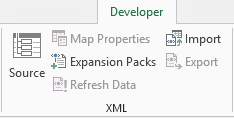
- Click Developer >Source. If you don’t see the Developer tab, see Show the Developer tab.
- In the XML Source task pane, click XML Maps.
- In the XML Maps dialog box, click the XML Map Excel created, and click Delete.
Importing multiple XML files that use the same namespace but different schemas doesn’t work as expected
When you work with multiple XML data files and XML schemas, you typically create an XML Map for each schema, map the elements you want, and then import each XML data file to the appropriate XML Map. Using the Import command to open multiple XML files with the same namespace, you can only use one XML schema. When you use this command to open multiple XML files that use the same namespace but different schemas, you can get unexpected results. For example, data may get overwritten, or the files won’t open.
To import multiple XML files that use the same namespace but different XML schemas, try use the From XML Data Import command (click Data > From Other Sources). This command allows multiple XML files with the same namespace to use multiple XML schemas. Excel creates a unique XML Map for each XML data file you want to import.
Note: If you’re importing multiple XML files that don’t define a namespace, these XML files are treated as if they use the same namespace.
Show the Developer tab
If you don’t see the Developer tab, do the following to display it:
- In Excel 2013 and Excel 2010:
- Click File >Options.
- Click the Customize Ribbon category.
- Under Main Tabs, check the Developer box, and click OK.
- In Excel 2007:
- Click the Microsoft Office Button >Excel Options.
- Click the Popular category.
- Under Top options for working with Excel, check the Show Developer tab in the Ribbon box, and click OK.
Как загрузить xml в excel
XML (Extended Markup Language) является универсальным форматом для обмена структурированными данными между различными программами. Он широко используется в веб-разработке, базах данных и электронных таблицах. Если вам необходимо импортировать данные из XML-файла в Microsoft Excel, вы попали по адресу! В этом руководстве мы расскажем, как загрузить XML-документ в Excel и работать с ним.
Microsoft Excel предоставляет несколько вариантов для загрузки XML-файлов. Вы можете использовать мастер импорта XML или импортировать XML-файл как таблицу. Мы рассмотрим оба способа и подробно объясним каждый из них.
Мастер импорта XML:
В Microsoft Excel есть специальный мастер, который поможет вам импортировать данные из XML-файла. Чтобы воспользоваться им, вам потребуется открыть Excel и выбрать вкладку «Данные» в верхней части экрана. Затем нажмите на кнопку «Из других источников» и выберите пункт «Из XML». После этого мастер позволит вам выбрать XML-файл, указать нужные параметры для импорта данных и загрузить их в Excel.
Импорт XML-файла в виде таблицы:
Если у вас есть XML-файл, который вы хотите импортировать в Excel, вы можете также использовать функцию импорта XML-файла в виде таблицы. Для этого откройте Excel и выберите вкладку «Данные». Затем щелкните на кнопке «Импортировать» и выберите пункт «Из XML». Затем укажите путь к XML-файлу и нажмите на кнопку «Открыть». Excel автоматически преобразует XML-документ в табличный формат и отобразит его на листе.
Важно: перед импортом XML-файла в Excel убедитесь, что ваш XML-документ соответствует формату, принятому в Excel. Если формат XML не поддерживается, вам необходимо будет преобразовать его в формат Excel с помощью соответствующих инструментов.
Теперь, когда вы знаете основные способы загрузки XML в Excel, вы без проблем сможете импортировать данные из XML-файлов и удобно работать с ними в электронных таблицах Microsoft Excel.
Загрузка XML в Excel
Загрузка XML данных в Excel может быть полезной для анализа и обработки данных в удобном табличном формате. Чтобы загрузить XML в Excel, следуйте инструкциям ниже:
- Откройте Excel и создайте новую книгу.
- На вкладке «Данные» выберите опцию «Из текста».
- Выберите XML файл, который вы хотите загрузить, и нажмите «Открыть».
- В появившемся диалоговом окне выберите опции импорта данных, такие как разделитель и формат столбцов, если необходимо.
- Нажмите «Готово» и Excel загрузит данные из XML файла в таблицу.
Если XML файл содержит сложные структуры данных, Excel может предложить различные варианты импорта. Вы можете выбрать нужные опции импорта и настроить структуру данных при загрузке XML.
После загрузки данных из XML, вы можете использовать стандартные функции и инструменты Excel для анализа данных. Это может включать фильтрацию, сортировку, вычисление сумм и другие операции над данными.
Если вы хотите обновить данные в Excel из исходного XML файла, вы можете использовать опцию «Обновление данных» на вкладке «Данные». Это обновит таблицу данными из XML файла.
Загрузка XML в Excel предоставляет удобный способ для работы с данными из XML файлов в удобном табличном формате. Следуйте инструкциям выше, чтобы загрузить XML в Excel и начать анализировать данные уже сейчас!
Почему загружать XML в Excel
Загрузка XML в Excel может быть полезна по нескольким причинам:
1. Анализ данных:
С помощью Excel можно проводить разнообразный анализ данных, используя функции и формулы программы. Вы можете сортировать и фильтровать данные, проводить расчеты, строить графики и диаграммы для получения более наглядного представления информации.
2. Удобная работа с данными:
Excel предоставляет различные опции для работы с данными, такие как сортировка, фильтрация и форматирование. Вы можете легко настраивать таблицу, подгоняя ее под ваши нужды. Excel также предлагает множество функций и инструментов для редактирования и обработки данных.
3. Обмен данных с другими системами:
XML является одним из самых распространенных форматов для обмена данными между различными системами. Загрузка XML в Excel позволяет вам легко преобразовывать и анализировать данные, полученные из разных источников или передавать данные из Excel в другие системы.
4. Возможность автоматизации:
Excel предоставляет широкие возможности для автоматизации работы с данными. Вы можете использовать макросы и программирование на языке VBA (Visual Basic for Applications) для создания автоматических процессов загрузки и обработки данных из XML-файлов.
Загрузка XML в Excel предоставляет широкие возможности для работы с данными, и это является одним из наиболее эффективных способов организации и анализа больших объемов информации.
Обзор XML в Excel
В Microsoft Excel можно легко импортировать данные XML, созданные в других базах данных и приложениях, сопоставить XML-элементы из схемы XML с ячейками листа и экспортировать обработанные данные XML для взаимодействия с другими базами данных и приложениями. Эти функциональные возможности позволяют использовать Office Excel как генератор файлов данных XML со знакомым пользовательским интерфейсом.
В этой статье
- Причины использования XML в Excel
- Данные XML и файлы схемы
- Ключевые сценарии XML и Excel
- Использование области задач источника XML
- Типы элементов и их значки
- Работа с ячейками с точечным сопоставлением
- Работа с повторяющимися ячейками в XML-таблицах
- Обеспечение безопасности карт XML
- Импорт данных XML
- Работа с полученной схемой
- Экспорт данных XML
- Использование файла Excel формата Office Open XML с поддержкой макросов
Причины использования XML в Excel
XML является технологией, разработанной для управления структурированными данными и отображения этих данных в виде удобочитаемого текстового файла. Язык XML соответствует отраслевым стандартам и может быть обработан многими базами данных и приложениями. С помощью XML многие разработчики могут создавать собственные настроенные теги, структуры данных и схемы. В целом XML существенно облегчает определение, передачу, проверку и интерпретацию данных в различных базах данных, приложениях и организациях.
Данные XML и файлы схемы
Excel работает преимущественно с двумя типами XML-файлов:
- файлами данных XML (XML), которые содержат настраиваемые теги и структурированные данные;
- Файлы схемы (XSD), которые содержат теги схемы, в которых действуют правила, например тип данных и проверка.
В стандарте XML также определяются файлы преобразования XSLT, которые используются для применения стилей и преобразования данных XML в другие форматы. Вы можете использовать эти преобразования перед импортом XML-файлов в Excel и после экспорта XML-файлов из Excel. Если XSLT-файлы связаны с XML-файлами данных, импортированными в Excel, вы можете применить форматирование перед добавлением данных на лист, только открыв XML-файл в Excel с помощью команды Открыть. Прежде чем нажать кнопку Открыть, выберите тип файлов XML (*.XML), чтобы просмотреть XML-файлы в папке.
Ключевые сценарии XML и Excel
С помощью XML и Excel вы можете управлять книгами и данными такими способами, которые ранее были невозможны или представляли трудности. Используя карты XML, вы можете легко добавлять, идентифицировать и извлекать определенные фрагменты бизнес-данных из документов Excel. Например, счет-фактура, содержащий имя и адрес покупателя, или отчет с финансовыми показателями за предыдущий квартал больше не будут статичными отчетами. Эти сведения можно с легкостью импортировать из баз данных и приложений, изменять, а также экспортировать в те или иные базы данных и приложения.
Вот ключевые сценарии, для работы с которыми предназначены возможности XML:
- расширение функциональных возможностей существующих шаблонов Excel путем сопоставления XML-элементов с существующими ячейками. Это облегчает удаление и добавление данных XML в шаблонах, не изменяя сами шаблоны;
- использование данных XML в качестве входных данных для существующих моделей вычислений путем сопоставления XML-элементов с существующими листами;
- импорт файлов данных XML в новую книгу;
- импорт данных XML из веб-службы на лист Excel;
- экспорт данных в сопоставленных ячейках в файлы данных XML независимо от других данных в книге.
Основной процесс использования данных XML в Excel
На следующей схеме показано, как взаимодействуют различные файлы и операции при использовании XML в Excel. Фактически этот процесс состоит из пяти этапов.
добавление файла схемы XML (XSD) в книгу
сопоставление элементов схемы XML с отдельными ячейками или XML-таблицами
импорт файла данных XML (.xml) и привязку XML-элементов к ячейкам
ввода данных, перемещения соедини ячеек и Excel функциональных возможностей, сохранения структуры и определений XML
экспорт измененных данных из картографовых ячеек в файл данных XML
Работа с картами XML
Вы можете создать или открыть книгу в Excel, прикрепить файл схемы XML (XSD) к книге, а затем с помощью области задач Источник XML соедиировать XML-элементы схемы с отдельными ячейками или таблицами. Выполнив такое сопоставление, вы можете импортировать и экспортировать данные XML в ячейки таблицы и из них соответственно.
При добавлении файла схемы XML (XSD) в книгу создается карта XML. Как правило, карты XML используются для создания сопоставленных ячеек и управления взаимосвязью между такими ячейками и отдельными элементами схемы XML. Кроме того, эти карты используются для привязки содержимого сопоставленных ячеек к элементам схемы при импорте или экспорте файлов данных XML (XML).
Вы можете создавать сопоставленные ячейки двух видов: ячейки с точечным сопоставлением и повторяющиеся ячейки (отображаемые в виде XML-таблиц). Для более гибкой разработки книги вы можете перемещать сопоставленные ячейки в любое место на листе и в любой последовательности, даже отличающейся от последовательности, заданной в схеме XML. Вы также можете выбрать, какие элементы следует сопоставлять.
Важно знать такие правила использования карт XML:
- книга может содержать одну или несколько карт XML;
- одновременно можно сопоставить только один элемент с одним расположением в книге;
- каждая карта XML независима от других, даже если несколько карт XML в одной книге относятся к одной и той же схеме;
- карта XML может содержать только один корневой элемент. При добавлении схемы, определяющей более одного корневого элемента, появится запрос на выбор корневого элемента, который будет использоваться в новой карте XML.
Использование области задач источника XML
Используйте область задач Источник XML для управления картами XML. Чтобы ее открыть, на вкладке Разработчик в группе XML нажмите Источник. На следующей схеме показаны основные функциональные возможности этой области задач.
1. Отображение карт XML, добавленных в книгу.
2. Отображение иерархического списка XML-элементов в текущей карте XML.
3. Установка параметров при работе с областью задач Источник XML и данными XML (например, параметров, отвечающих за предварительный просмотр данных и управление заголовками).
4. Открытие диалогового окна Карты XML, которое служит для добавления, удаления или переименования карт XML.
5. Проверка возможности экспорта данных XML через текущую карту XML.
Типы элементов и их значки
В следующей таблице приведены все типы XML-элементов, с которыми может работать Excel, и значки, используемые для представления каждого типа элементов.
Тип элемента
Обязательный родительский элемент
Повторяющийся родительский элемент
Обязательный повторяющийся родительский элемент
Обязательный дочерний элемент
Повторяющийся дочерний элемент
Обязательный повторяющийся дочерний элемент
Простое содержимое в сложной структуре
Обязательное простое содержимое в сложной структуре
Работа с ячейками с точечным сопоставлением
Ячейка с точечным сопоставлением — это ячейка, сопоставленная с неповторяющимся XML-элементом. Такую ячейку вы можете создать, переместив неповторяющийся XML-элемент из области задач Источник XML в отдельную ячейку листа.
Название перемещаемого на лист неповторяющегося XML-элемента вы можете назначить заголовком сверху или слева от ячейки с точечным сопоставлением при помощи смарт-тега. В качестве заголовка также можно использовать текущее значение ячейки.
Кроме того, в ячейке с точечным сопоставлением вы можете использовать формулу, если ячейка сопоставлена с XML-элементом, который имеет тип данных определения схемы XML (XSD), интерпретируемый Excel как число, дата или время.
Работа с повторяющимися ячейками в XML-таблицах
По внешнему виду и функциональным возможностям XML-таблицы подобны таблицам Excel. XML-таблицы являются таблицами Excel, сопоставленными с одним или несколькими повторяющимися XML-элементами. Каждый столбец XML-таблицы соответствует XML-элементу.
XML-таблица создается в следующих случаях:
- при использовании команды Импорт (в группе XML на вкладке Разработчик) для импорта файла данных XML;
- Используйте команду Открыть из Excel, чтобы открыть файл данных XML, а затем выберите В качестве XML-таблицы в диалоговом окне Открыть XML.
- при использовании команды Из импорта данных XML (кнопка команды Из других источников в группе Внешние данные на вкладке Данные) для импорта файла данных XML и дальнейшего выбора параметров XML-таблица на существующем листе или Новый лист в диалоговом окне Импорт данных;
- при перетаскивании на лист одного или нескольких повторяющихся элементов из области задач Источник XML.
При создании XML-таблицы названия XML-элементов автоматически используются в качестве названий столбцов. Вы можете изменить эти названия. Но при экспорте данных из сопоставленных ячеек автоматически будут использоваться исходные названия XML-элементов.
При работе с XML-таблицами полезны два параметра, доступные с помощью кнопки Параметры в области задач Источник XML.
- Автоматически объединять элементы при сопоставлении. Если установлен соответствующий флажок, в Excel создается одна XML-таблица из нескольких полей, перенесенных на лист. Этот параметр работает, пока поля перемещаются в одну строку в виде последовательного ряда. Если флажок снят, каждый элемент отображается в виде отдельной XML-таблицы.
- Данные с заголовками. Если установлен соответствующий флажок, существующие данные заголовков используются в качестве названий столбцов для повторяющихся элементов, сопоставляемых на листе. Если флажок снят, названия XML-элементов используются в качестве названий столбцов.
С помощью XML-таблиц вы можете импортировать, экспортировать, сортировать, фильтровать и печатать данные, основанные на источнике данных XML. Но существуют некоторые ограничения относительно расположение XML-таблиц на листе.
- XML-таблицы основаны на строках, то есть вырастают из строки с заглавной строкой вниз. Добавить новые записи над существующими строками невозможно.
- Невозможно транспонировать XML-таблицу так, чтобы новые записи добавлялись справа.
Вы можете использовать формулы в столбцах, сопоставленных с XML-элементами, которые имеют тип данных определения схемы XML (XSD), интерпретируемый Excel как число, дата или время. В XML-таблице, как и в таблице Excel, формулы копируются вниз по столбцу по мере добавления новых строк.
Обеспечение безопасности карт XML
Карта XML и содержащиеся в ней сведения об источнике данных сохраняются в книге Excel, а не на определенном листе. Злоумышленник может просмотреть эти данные карты с помощью макроса VBA (Microsoft Visual Basic для приложений). Более того, если книга сохранена в файле Excel формата Open XML с поддержкой макросов, данные карты можно просмотреть с помощью Блокнота или другого текстового редактора.
Если вы хотите по-прежнему использовать сведения о карте, но при этом скрыть конфиденциальные данные, вы можете удалить из книги определение источника данных схемы XML, не прекращая экспорт данных XML. Для этого снимите флажок Сохранять определение источника данных в книге в диалоговом окне Свойства карты XML, которое можно открыть, выбрав Свойства карты в группе XML на вкладке Разработчик.
Если удалить лист до удаления карты, сведения карты об источниках данных и, возможно, другие конфиденциальные сведения останутся в книге. При обновлении книги для удаления конфиденциальных сведений обязательно удалите карту XML до удаления листа, чтобы окончательно удалить данные карты из книги.
Импорт данных XML
Вы можете импортировать данные XML в имеющуюся в книге карту XML. При этом данные из файла привязываются к карте XML, хранящейся в этой книге. Это означает, что каждый элемент данных в файле данных XML имеет соответствующий элемент в схеме XML, который был сопоставлен из файла схемы XML или из полученной схемы. Каждая карта XML может содержать только одну привязку данных XML, которая при этом связана со всеми сопоставлениями, созданными на основе единой карты XML.
В диалоговом окне Свойства карты XML (на вкладке Разработчик в группе XML выберите пункт Свойства карты) расположены три параметра, используемые по умолчанию, с помощью которых вы можете управлять привязкой данных XML:
Проверять данные на соответствие схеме при импорте и экспорте . Указывает, следует ли Excel проверять данные по карте XML при импорте. Установите флажок, если нужно, чтобы импортируемые данные XML соответствовали схеме XML.Заменять существующие данные новыми . Указывает, следует ли заменять данные при импорте. Установите флажок, если необходимо заменять текущие данные новыми (например, если в новом файле данных XML содержатся обновленные данные).Добавлять новые данные в существующие XML-таблицы . Указывает, следует ли добавлять содержимое источника данных к существующим данным на листе. Используйте этот параметр, если, например, вам необходимо объединить данные из нескольких похожих файлов данных XML в одну XML-таблицу или вы не хотите, чтобы содержимое ячейки с функцией было перезаписано.
При импорте данных XML вам может понадобиться заменить некоторые сопоставленные ячейки. Например, если сопоставленные ячейки содержат формулы и эти формулы не следует заменять при импорте XML-файла. Эту проблему можно решить двумя способами:
- перед импортом данных XML отмените сопоставление элементов, которые не следует заменять. По завершении импорта данных XML вы можете повторно сопоставить XML-элементы ячейкам с формулами, чтобы экспортировать в файл данных XML результаты, полученные после применения формул;
- создайте две карты XML на основе одной схемы XML. Используйте одну карту XML для импорта данных XML. В этой «карте импорта» не сопоставляйте элементы с ячейками, содержащим формулы или другие данные, которые не следует заменять. Другую карту XML используйте для экспорта данных. В этой «карте экспорта» сопоставьте с XML-файлом элементы, которые необходимо экспортировать.
Примечание: Возможность импорта данных XML из веб-службы с помощью файла подключения службы извлечения данных (UXDC) для подключения к источнику данных больше не поддерживается в пользовательском интерфейсе более новых версий, чем Excel 2003. Если вы откроете книгу, созданную в Excel 2003, вы сможете только просмотреть их, но не сможете изменить или обновить исходные данные.
Работа с полученной схемой
При импорте данных XML без добавления соответствующей схемы XML для создания карты XML Excel пытается получить схему, основываясь на тегах, определенных в файле данных XML. Полученная схема хранится в книге и позволяет работать с данными XML, даже если файл схемы XML не связан с книгой.
При работе с импортированными данными XML, которые имеют полученную схему, вы можете настроить область задач Источник XML. Выберите параметр Предварительный просмотр данных в области задач на кнопке Параметры, чтобы отобразить первую строку данных в качестве образца данных в списке элементов, если вы импортировали данные XML, связанные с картой XML в текущем сеансе Excel.
Полученную схему Excel невозможно экспортировать как отдельный файл данных схемы XML (XSD). Несмотря на наличие редакторов схем XML и других методов создания файлов схем XML, они могут оказаться недоступными или неудобными в работе. Вместо них вы можете воспользоваться надстройкой Excel 2003 XML Tools 1.1, с помощью которой можно создавать файлы схемы на основе карты XML. Дополнительные сведения см. в Excel XML Tools версии 1.1.
Экспорт данных XML
Экспорт данных XML осуществляется путем экспорта содержимого сопоставленных ячеек листа. При экспорте данных в Excel применяются такие правила для определения данных и способов их сохранения:
- пустые элементы не создаются при наличии пустых ячеек для дополнительного элемента, но они создаются при наличии пустых ячеек для обязательного элемента;
- запись данных производится в кодировке UTF-8;
- все пространства имен определяются в корневом XML-элементе;
- Excel перезаписывать существующие префиксы пространства имен. По умолчанию области имен назначен префикс ns0. Последовательные пространства имен обозначаются ns1, ns2 для ns<>, где — количество пространства имен, записанное в XML-файл.
- узлы комментариев не сохраняются.
Вы можете отобразить диалоговое окно Свойства карты XML (нажмите кнопку Свойства карты в группе XML на вкладке Разработчик).) а затем используйте параметр Проверить данные на схеме для импорта и экспорта (активны по умолчанию), чтобы указать, Excel проверяет данные на карте XML при экспорте. Выберите этот параметр, если вы хотите, чтобы экспортируемая XML-информация соответствовала схеме XML.
Использование файла Excel формата Office Open XML с поддержкой макросов
Книгу Excel можно сохранять в различных форматах файла, включая файлы Excel формата Office Open XML (XLSM) с поддержкой макросов. Excel содержит схему XML, определяющую содержимое книги Excel, в том числе теги XML, в которых хранятся все сведения книги (например, данные и свойства), а также всю структуру книги. Файл Excel формата Office XML с поддержкой макросов может применяться в пользовательских приложениях. Например, разработчики могут создать приложение, которое выполняет поиск данных в нескольких книгах, сохраненных в этом формате, и создает систему отчетов на основании полученных данных.
Дополнительные сведения
Вы всегда можете задать вопрос эксперту в Excel Tech Community или получить поддержку в сообществах.
Overview of XML in Excel
Microsoft Excel makes it easy to import Extensible Markup Language (XML) data that is created from other databases and applications, to map XML elements from an XML schema to worksheet cells, and to export revised XML data for interaction with other databases and applications. Think of these XML features as turning Office Excel into an XML data file generator with a familiar user interface.
In this article
- Why use XML in Excel?
- XML data and schema files
- Key XML and Excel scenarios
- Using the XML Source task pane
- Element types and their icons
- Working with single-mapped cells
- Working with repeating cells in XML tables
- XML map security considerations
- Importing XML data
- Working with an inferred schema
- Exporting XML data
- Using the Excel macro-enabled Office Open XML Format file
Why use XML in Excel?
XML is a technology that is designed for managing and sharing structured data in a human-readable text file. XML follows industry-standard guidelines and can be processed by a variety of databases and applications. Using XML, application designers can create their own customized tags, data structures, and schemas. In short, XML greatly eases the definition, transmission, validation, and interpretation of data between databases, applications, and organizations.
XML data and schema files
Excel works primarily with two types of XML files:
- XML data files (.xml), which contain the custom tags and structured data.
- Schema files (.xsd), which contain schema tags that enforce rules, such as data type and validation.
The XML standard also defines Extensible Stylesheet Language Transformation (XSLT) (.xslt) files, which are used to apply styles and transform XML data into different presentation formats. You can apply these transforms before you import XML files into Excel and after you export XML files from Excel. If XSLT files are linked to XML data files that you import into Excel, you do have the option to apply or not apply the formatting before the data is added to the worksheet, but only when you open an XML file by using the Open command from within Excel. Choose the XML Files (*.xml) file type before you click the Open button to see the XML files in the folder.
Key XML and Excel scenarios
By using XML and Excel, you can manage workbooks and data in ways that were previously impossible or very difficult. By using XML maps, you can easily add, identify, and extract specific pieces of business data from Excel documents. For example, an invoice that contains the name and address of a customer or a report that contains last quarter’s financial results are no longer just static reports. You can easily import this information from databases and applications, revise it, and export it to the same or other databases and applications.
The following are key scenarios that the XML features are designed to address:
- Extend the functionality of existing Excel templates by mapping XML elements onto existing cells. This makes it easier to get XML data into and out of your templates without having to redesign them.
- Use XML data as input to your existing calculation models by mapping XML elements onto existing worksheets.
- Import XML data files into a new workbook.
- Import XML data from a Web service into your Excel worksheet.
- Export data in mapped cells to XML data files independent from other data in the workbook.
The basic process of using XML data in Excel
The following diagram shows how the different files and operations work together when you use XML with Excel. Essentially, there are five phases to the process:
Adding an XML schema file (.xsd) to a workbook
Mapping XML schema elements to individual cells or XML tables
Importing an XML data file (.xml) and binding the XML elements to mapped cells
Entering data, moving mapped cells, and leveraging Excel functionality, while preserving XML structure and definitions
Exporting revised data from mapped cells to an XML data file
Working with XML maps
You can create or open a workbook in Excel, attach an XML schema file (.xsd) to the workbook, and then use the XML Source task pane to map XML elements of the schema to individual cells or tables. After you map the XML elements to your worksheet, you can import and export XML data into and out of the mapped cells.
When you add an XML schema file (.xsd) to your workbook, you create an XML map. In general, XML maps are used to create mapped cells and to manage the relationship between mapped cells and individual elements in the XML schema. In addition, these XML maps are used to bind the contents of mapped cells to elements in the schema when you import or export XML data files (.xml).
There are two kinds of mapped cells that you can create: single-mapped cells and repeating cells (which appear as XML tables). To make designing your worksheet more flexible, you can drag the mapped cells anywhere on a worksheet and into any order — even one different from the XML schema. You can also choose which elements to map and not map.
The following rules about using XML maps are important to know:
- A workbook can contain one or more XML maps.
- You can only map one element to one location in a workbook at a time.
- Each XML map is an independent entity, even if multiple XML maps in the same workbook refer to the same schema.
- An XML map can only contain one root element. If you add a schema that defines more than one root element, you are prompted to choose the root element to use for the new XML map.
Using the XML Source task pane
You use the XML Source task pane to manage XML maps. To open it, on the Developer tab, in the XML group, click Source. The following diagram shows the main features of this task pane.
1. Lists XML maps that were added to the workbook
2. Displays a hierarchical list of XML elements in the currently listed XML map
3. Sets options when working with the XML Source task pane and the XML data, such as how to preview the data and control headings
4. Opens the XML Maps dialog box, which you can use to add, delete, or rename XML maps
5. Verifies whether you can export XML data through the current XML map
Element types and their icons
The following table summarizes each type of XML element that Excel can work with and the icon that is used to represent each type of element.
Element type
Required parent element
Repeating parent element
Required repeating parent element
Required child element
Repeating child element
Required repeating child element
Simple content in a complex structure
Required simple content in a complex structure
Working with single-mapped cells
A single-mapped cell is a cell that has been mapped to a nonrepeating XML element. You create a single-mapped cell by dragging a nonrepeating XML element from the XML Source task pane onto a single cell in your worksheet.
When you drag a nonrepeating XML element onto the worksheet, you can use a smart tag to choose to include the XML element name as a heading above or just to the left of the single-mapped cell, or you can use an existing cell value as a heading.
You can also use a formula in a single-mapped cell, if the cell is mapped to an XML element with an XML Schema Definition (XSD) data type that Excel interprets as a number, date, or time.
Working with repeating cells in XML tables
XML tables are similar in appearance and functionality to Excel tables. An XML table is an Excel table that has been mapped to one or more XML repeating elements. Each column in the XML table represents an XML element.
An XML table is created when you:
- Use the Import command (in the XML group on the Developer tab) to import an XML data file.
- Use the Open command from within Excel to open an XML data file — and then select As an XML table in the Open XML dialog box.
- Use the From XML Data Import command (from the From Other Sources command button, in the Get External Data group, on the Data tab) to import an XML data file — and then select XML table in existing worksheet or New worksheet in the Import Data dialog box.
- Drag one or more repeating elements from the XML Source task pane to a worksheet.
When you create an XML table, the XML element names are automatically used as column headings. You can change these to any column headings that you want. However, the original XML element names are always used when you export data from the mapped cells.
Two options under the Options button in the XML Source task pane are useful when you work with XML tables:
- Automatically Merge Elements When Mapping When selected, Excel creates one XML table from multiple fields as they are dropped onto the worksheet. This option works as long as the multiple fields are dropped on the same row, one adjacent to the other. When this option is cleared, each element appears as its own XML table.
- My Data Has Headings When selected, existing heading data is used as column headings for repeating elements that you map to your worksheet. When this option is cleared, the XML element names are used as column headings.
Using XML tables, you can easily import, export, sort, filter, and print data based on an XML data source. However, XML tables do have some limitations regarding how they can be arranged on the worksheet.
- XML tables are row-based, meaning that they grow from the header row down. You cannot add new entries above existing rows.
- You cannot transpose an XML table so that new entries will be added to the right.
You can use formulas in columns that are mapped to XML elements with an XML Schema Definition (XSD) data type that Excel interprets as a number, date, or time. Just as in an Excel table, formulas in an XML table are filled down the column when new rows are added to the table.
XML map security considerations
An XML map and its data source information are saved with the Excel workbook, not a specific worksheet. A malicious user can view this map information by using a Microsoft Visual Basic for Applications (VBA) macro. Furthermore, if you save your workbook as a macro-enabled Excel Office Open XML Format File, this map information can be viewed through Microsoft Notepad or through another text-editing program.
If you want to keep using the map information but remove the potentially sensitive data source information, you can delete the data source definition of the XML schema from the workbook, but still export the XML data, by clearing the Save data source definition in workbook check box in the XML Map Properties dialog box, which is available from the Map Properties command in the XML group on the Developer tab.
If you delete a worksheet before you delete a map, the map information about the data sources, and possibly other sensitive information, is still saved in the workbook. If you are updating the workbook to remove sensitive information, make sure that you delete the XML map before you delete the worksheet, so that the map information is permanently removed from the workbook.
Importing XML data
You can import XML data into an existing XML map in your workbook. When you import data, you bind the data from the file to an XML map that is stored in your workbook. This means that each data element in the XML data file has a corresponding element, in the XML schema, that you mapped from an XML Schema file or inferred schema. Each XML map can only have one XML data binding, and an XML data binding is bound to all of the mappings that were created from a single XML map.
You can display the XML Map Properties dialog box (Click Map Properties in the XML group on the Developer tab.), which has three options, all selected by default, that you can set or clear to control the behavior of an XML data binding:
- Validate data against schema for import and export Specifies whether Excel validates data against the XML map when importing data. Click this option when you want to ensure that the XML data that you import conforms to the XML schema.
- Overwrite existing data with new data Specifies whether data is overwritten when you import data. Click this option when you want to replace the current data with new data, for example, when up-to-date data is contained in the new XML data file.
- Append new data to existing XML tables Specifies whether the contents of the data source are appended to the existing data on the worksheet. Click this option, for example, when you are consolidating data from several similar XML data files into an XML table, or you do not want to overwrite the contents of a cell that contains a function.
When you import XML data, you may want to overwrite some mapped cells but not others. For example, some mapped cells may contain formulas and you don’t want to overwrite the formula when you import an XML file. There are two approaches that you can take:
- Unmap the elements that you don’t want overwritten, before you import the XML data. After you import the XML data, you can remap the XML element to the cells containing the formulas, so that you can export the results of the formulas to the XML data file.
- Create two XML maps from the same XML schema. Use one XML map for importing the XML data. In this «Import» XML map, don’t map elements to the cells that contain formulas or other data that you don’t want overwritten. Use another XML map for exporting the data. In this «Export» XML map, map the elements that you want to export to an XML file.
Note: The ability to import XML data from a Web service by using a Data Retrieval Service Connection (.uxdc) file to connect to a data source is no longer supported in versions later than Excel 2003 through the user interface. If you open a workbook that was created in Excel 2003, you can still view the data, but you cannot edit or refresh the source data.
Working with an inferred schema
If you import XML data without first adding a corresponding XML schema to create an XML map, Excel tries to infer a schema for you based on the tags that are defined in the XML data file. The inferred schema is stored with the workbook, and the inferred schema allows you to work with XML data if an XML schema file isn’t associated with the workbook.
When you work with imported XML data that has an inferred schema, you can also customize the XML Source task pane. Select the Preview Data in Task Pane option from the Options button to display the first row of data as sample data in the element list, if you imported XML data associated with the XML map in the current session of Excel.
You cannot export the Excel inferred schema as a separate XML schema data file (.xsd). Although there are XML schema editors and other methods for creating an XML schema file, you may not have convenient access to them or know how to use them. As an alternative, you can use the Excel 2003 XML Tools Add-in Version 1.1, which can create a schema file from an XML map. For more information, see Using the Excel 2003 XML Tools Add-in Version 1.1.
Exporting XML data
You export XML data by exporting the contents of mapped cells on the worksheet. When you export data, Excel applies the following rules to determine what data to save and how to save it:
- Empty items are not created when blank cells exist for an optional element, but empty items are created when blank cells exist for a required element.
- Unicode Transformation Format-8 (UTF-8) encoding is used to write the data.
- All namespaces are defined in the Root XML element.
- Excel overwrites existing namespace prefixes. The default namespace is assigned a prefix of ns0. Successive namespaces are designated ns1, ns2 to ns where is the number of namespaces written to the XML file.
- Comment nodes are not preserved.
You can display the XML Map Properties dialog box (Click Map Properties in the XML group on the Developer tab.) and then use the Validate data against schema for import and export option (active by default) to specify whether Excel validates data against the XML map when exporting data. Click this option when you want to ensure that the XML data you export conforms to the XML schema.
Using the Excel Macro-enabled Office Open XML Format File
You can save an Excel workbook in a variety of file formats, including the Excel macro-enabled Office Open XML Format File (.xlsm). Excel has a defined XML schema that defines the contents of an Excel workbook, including XML tags that store all workbook information, such as data and properties, and define the overall structure of the workbook. Custom applications can use this Excel macro-enabled Office XML Format File. For example, developers may want to create a custom application to search for data in multiple workbooks that are saved in the this format and create a reporting system based on the data found.
Need more help?
You can always ask an expert in the Excel Tech Community or get support in Communities.