How to Fix Autoit Error Line 0 in Windows 11 or 10 (Solved!)
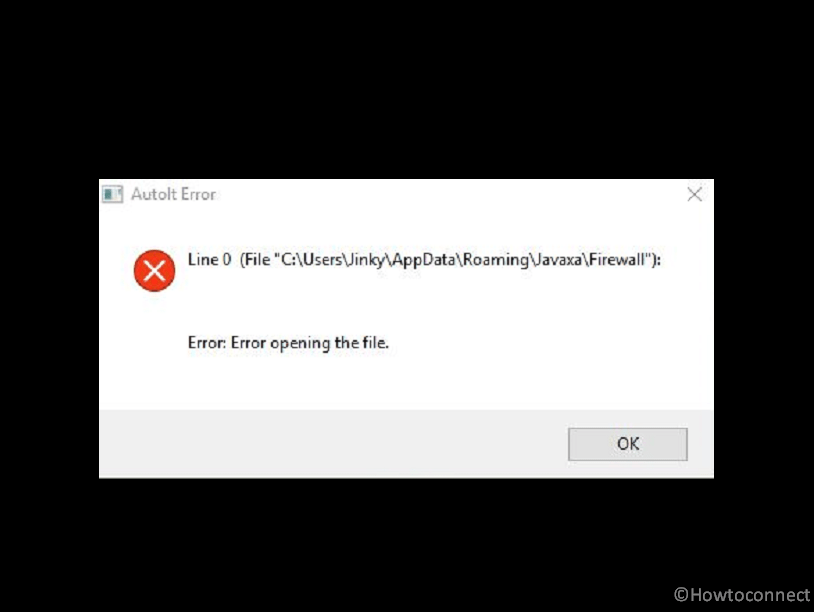
Do you come across a message AutoIt Error Line 0 (File “C:\Users\Username\AppData\Roaming\xyz…”) that mostly appears at the startup of your computer? If yes then let’s see the solutions and meaning of this issue as well in this post. First of all; what is autoit error? AutoIt is a scripting language that enables users to automate Windows processes, it is frequently employed in software testing, system management, and other forms of automation. AutoIt scripts may be converted into executable files that can be executed on any Windows machine. Unfortunately, while running the scripts, users may occasionally receive an “AutoIt Error Line 0”. This error often indicates a problem with the script and can be caused by several reasons.
Some common factors responsible for this issue include outdated scripts, corrupted files, certain missing libraries or dependencies, or presence of malware. Eliminating all these reasons must assist in correctly resolving this problem. See – How to Fix PhoneExperienceHost.exe Error in Windows 11 or 10.
Autoit Error Line 0 in Windows 11 or 10
Here is How to Fix Autoit Error Line 0 in Windows 11 or 10 –
Way-1: Remove problematic files
Interference of scheduled tasks in running Autoit scripts may trigger the error message. Therefore, deleting the process can work like a resolver, particularly with the help of Autoruns for Windows Sysinternals tool. Furthermore, disabling the AutoIt script interfering with other processes running at Windows startup may fix the error.
When you switch on a Windows computer, several-configured apps, and background services begin to function. If one of these apps is an AutoIt script, removing it from the startup list may help.
- Download the Autoruns for Windows Sysinternals tool from this link.
- Double-click on Autoruns64.exe to start the application.
- Allow the tool to fully load.
- Type vapihas in the Quick filter bar.
- You should see a scheduled task called \Service\Diagnostic.
- Right-click on this item and select Delete.
- Launch File Explorer and navigate to C:\Users\yourusername\AppData\Roaming.
- Find ServiceGet folder and delete it. Note: Check the error message; if it is showing another file or folder, delete that one. Close the File Explorer.
- Press Windows+R and type %temp%.
- Press Enter.
- Select all items in the temp folder and delete them.
- Again open the Run dialog box and enter temp.
- Delete the files and folders in the appearing window.
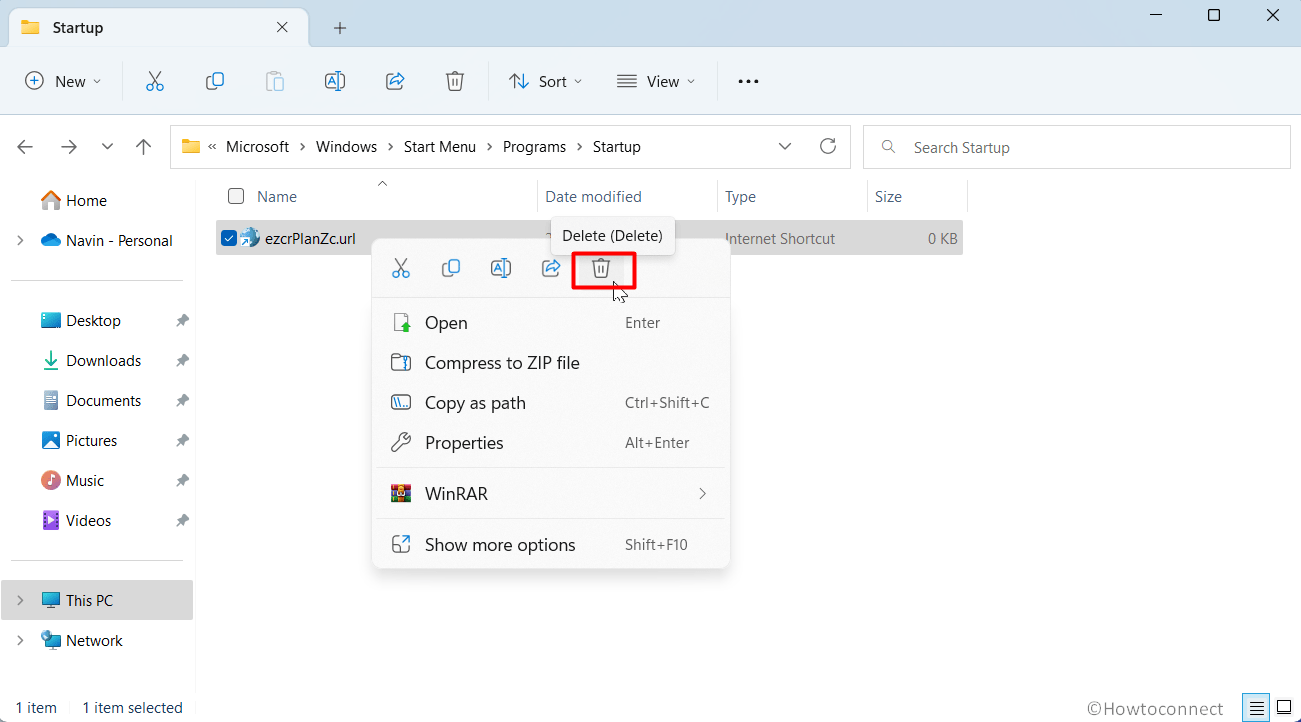
- Once more open the File Explorer, type shell:startup in address bar, and hit Enter key.
- Look for any item name having suffix .url. They may be having weird names such as ezcrPlanZc.url. Delete all of them.
- Restart your computer and check if Autoit Error Line 0 is fixed.
- In case it is not resolved, Open Autoruns click on Category, and select Everything.
- Look for references to a3x and Google Chrome in the image path column of the Logon tab.
- Right-click on them and select Delete.
- A confirmation window will appear. Click the OK button.
- If you go to the Everything tab and can’t discover any such entries use Search bar to find Google Chrome.
- Once you’ve located the item, uncheck the checkbox next to it. This will remove the Registry record for that.
- Lastly, restart your computer, and you should no longer notice the AutoIt problem.
Way-2: Run Windows Defender Full Scan
A Windows security scan may be a potentially viable option to resolve AutoIt Error Line 0, particularly if the problem is caused by threats or other protection risks. Malware, which usually consists of viruses, spyware, and other sorts of malicious programs, may cause various computer problems, including the running one.
This is because threats may disrupt the operation of applications and AutoIt script, and may even change or delete important files. These steps you must follow for the same:
- Press the – Win+Q.
- Type – Security.
- Hit – Enter.
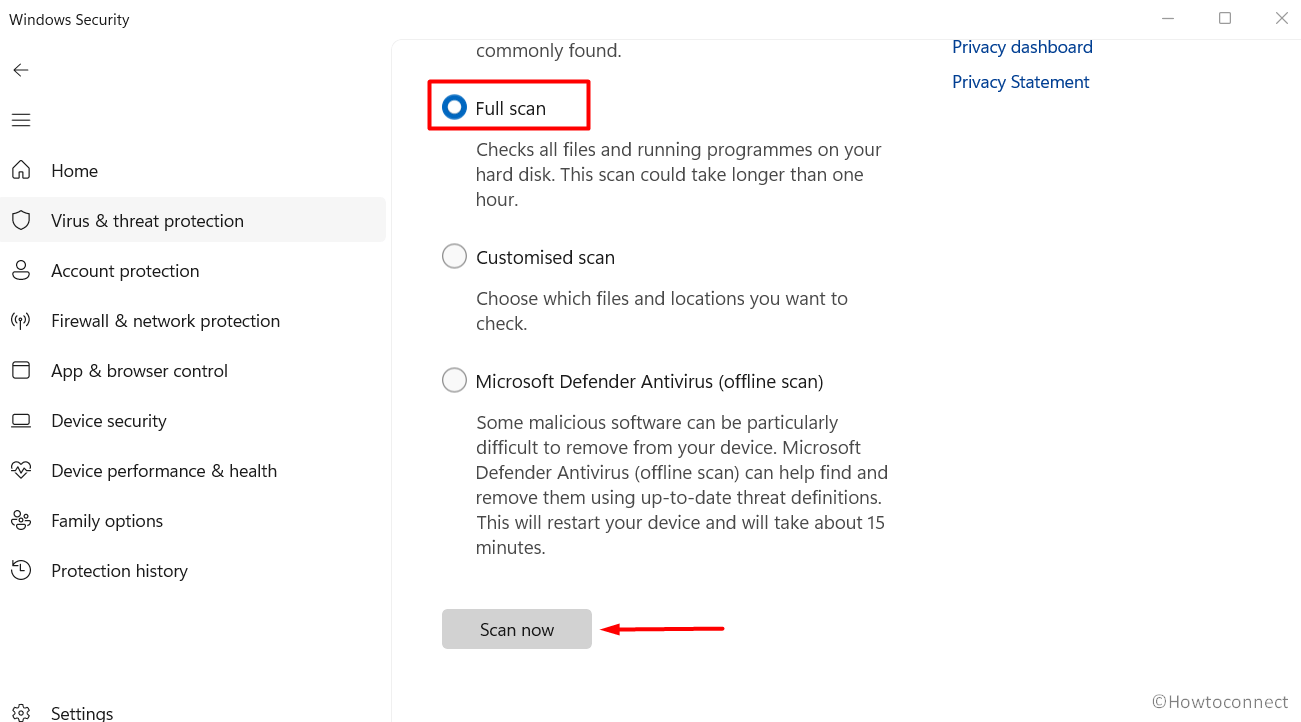
- At the very top, click on – Virus & threat protection.
- Choose the Scan options link.
- Choose the radio button that is located before the Full scan option.
- Click the Scan now.
- Once the scanning is completed, go to Windows security > Virus & threat protection > Protection history to remove any malware that may have been discovered during the scanning process.
- Select the Actions.
- Click the Remove.
- Finally, you need to restart the Windows.
Way-3: Use System File Checker or SFC and DISM utilities to resolve Autoit Error Line 0
Malfunctioning system files and broken registry might be the root cause of Autoit Error Line 0. If you are clueless about what to do in this case System File checker can rescue you from the error running on Command Prompt which replaces the elements with the same located in cache folder.
Moreover, the DISM has the capability to repair the installation files and .wim which can solve the present issue. So run both utilities in following ways –
- Press Winkey+R.
- Type – cmd.
- Then, press “Ctrl +Shift + Enter”.
- On the User account control box, click – Yes.
- When “Administrator: Command Prompt” appears, write SFC /SCANNOW and hit Enter.
- You will see –
“Beginning verification phase of system scan.
Verification 100% complete.
Windows Resource Protection did not find any integrity violations.”
- Restart your computer to confirm that no problem occurs further.
- Oppositely, if Autoit Error Line 0 again shows up, run the below command lines sequentially –
DISM /Online /cleanup-Image /checkhealth DISM /Online /cleanup-Image /scanhealth DISM /Online /cleanup-Image /restorehealth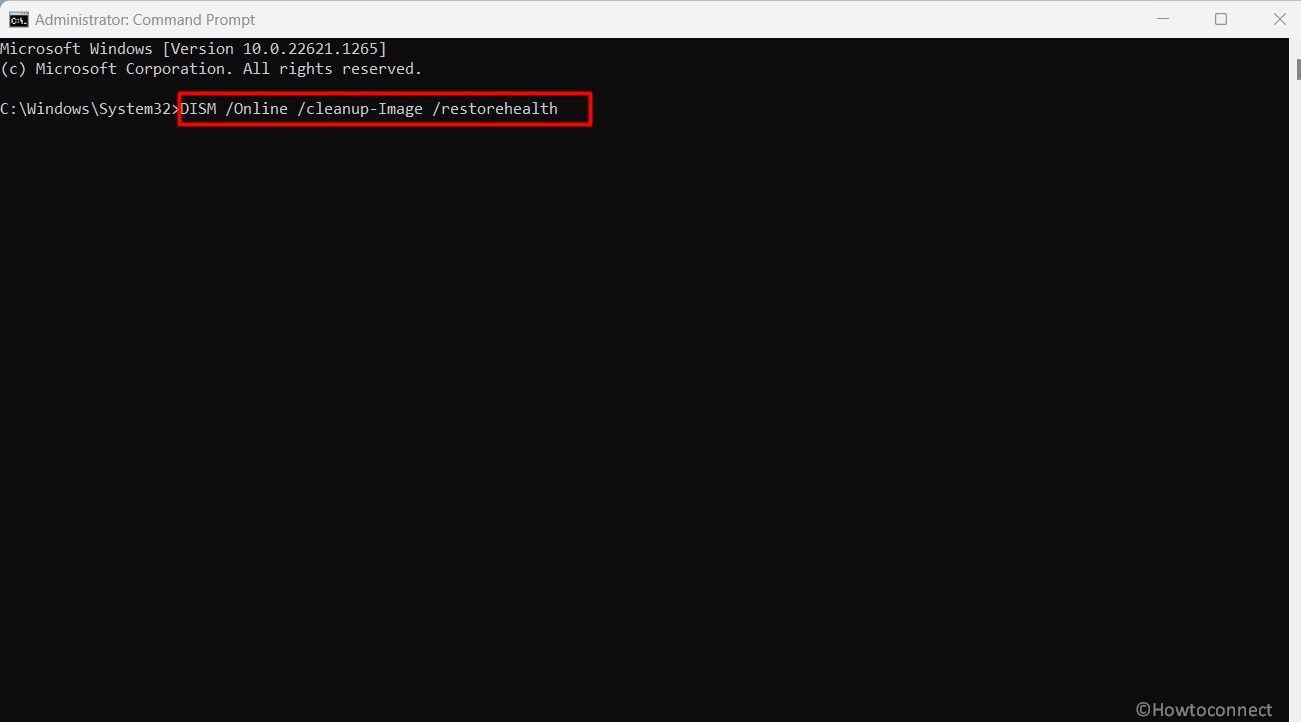
- When completed, reboot the PC to solve the issue.
Way-4: Remove or Edit the AutoIt String Values using Registry Editor
If any problem is caused or originated by a faulty or incorrect AutoIt entry, deleting, or editing this Registry can help potentially in repairing the error. Because the registry is an organized collection of data that maintains configuration settings for Windows and the applications that are installed on it.
AutoIt scripts may use this to store settings or other information which might be corrupted and be the reason behind displaying the error. To rescue this,, move forward with –
- Pressing the Windows logo keys and R together.
- In the Run box, type the command: regedit.
- To launch the Registry Editor, click OK and select “Yes”.
- In the Editor, click File from the top menu.
- Select the Export option.
- Provide a File name for the registry backup.
- Choose a location to store the file.
- Click the Save button.
- Open the following registry key path:
Computer\HKEY_CURRENT_USER\Software\Microsoft\Windows\CurrentVersion\Run- Look in the Run registry key for the following REG_SZ strings: Adobe Flash Player, Windows Update, Adobe Update, and Google Chrome.
- To remove the strings, right-click them and select Delete one by one.
- Next, in the Registry Editor , browse to reach this key:
Computer\HKEY_LOCAL_MACHINE\Software\Microsoft\Windows\CurrentVersion\Run
- Duplicate the previous steps for REG_SZ strings.
- Restart your computer after closing the Registry Editor.
Way-5: Unistall Autoit
If you are in the condition to sacrifice the program, uninstalling it can be one of the most basic and easiest steps in resolving “Autoit Error Line 0” issue. Hence, follow the instructions outlined below:
- Click on – Start.
- Then, type – appwiz.cpl.
- Hold down the Enter key to launch the Programs and Features window.
- Highlight the AutoIt by clicking on it from the list presented.
- Click the Uninstall option.
- If a confirmation window appears, select Yes to continue.
- Restart your PC after removing AutoIt.
Way-6: Perform Reset this PC
Another crucial reason for causing this problem may be faulty or damaged Windows system files, driver, and application which may be interfering with programming scripts. Reset this PC is a built-in arrangement in that might fix the AutoIt Error Line 0 keeping files and data.
As this reformat process in Windows will replace any damaged or corrupt files with new ones. The following are the procedures for the same:

- Launch the Settings application (Winkey+I), then click on Recovery.
- On the next page, click on Reset PC.
- Choose the option to Keep my files,
- Select – Local reinstall.
- Click on Next.
- Make sure that the PC is plugged in with Electric power and adhere to the on-screen instructions.
- Click on Reset.
- After the procedure of reset is completed see if the error is fixed.
We hope these 5 ways must have helped you resolve the AutoIt Error Line 0 in your Windows 11 or 10.
Repair any Windows problems such as Blue/Black Screen, DLL, Exe, application, Regisrty error and quickly recover system from issues using Reimage.
как исправить ошибка Autolt error line 0 error opening the file?
А файл там точно есть? ПКМ по ярдыку — Свойства, посмотрите, нет ли там в параметрах запуска чего-то странного.
Great_DoctorУченик (159) 8 лет назад
нету такой файл
Override.dll Просветленный (49183) Что вы делаете, чтобы получилась такая ошибка? Пытаетесь запустить компилятор? Может, в компилируемой программе на первой строке инструкция открыть этот файл, или кодировна неправильная, или компилятор повреждён и его надо переустановить?
Great_DoctorУченик (159) 8 лет назад
ya nichego ne delal, komputer skazal odnu vrednaya programma est, perezagruzit nado, potom ya perezagruzil. teper vot takaya oshibka tochno kajdiy minut. ya nashel svoystva komputeri est odin neizvestnaya uchetniy zapis. znachit eto virus da?
Override.dll Просветленный (49183) Да, похоже на то. Вы знаете, что такое AutoIt? Если нет, то скачайте Autoruns и удалите из автозапуска те элементы, которые имеют отношение к AutoIt. А ещё попробуйте http://freedrweb.com/cureit/
Great_DoctorУченик (159) 8 лет назад
u menya drweb 10, antivirus est, segodnya obnovlyal. Autolt chto eto, netu u menya takaya programma.
Override.dll Просветленный (49183) AutoIt — язык программирования и компилятор, если вы не знаете, как он у вас оказался, то он явно используется каким-то вирусом. Надо очистить автозапуск и удалить исполняемый файл AutoIt.
Скрипт выдал ошибку, что делать?
Обычно сообщение об ошибке достаточно информативно, чтобы исправить эту ошибку. Если сообщение указывает на строку, в которой нет ошибки, то скорее всего не закрыт цикл или условие.
Нашли строку, но не знаете что с ней делать? Поставьте перед сбойной строкой MsgBox с выводом значения переменной, чтоб увидеть, являются ли данные тем, что необходимо получить. И если переменная является массивом, то используйте _ArrayDisplay, добавив в начало скрипта #include
Если скрипт был найден на форуме, то попытайтесь выяснить версию AutoIt3, с которой использовался скрипт, например по дате поста. Проверьте чтобы все необходимые скрипту #include добавлены в папку \AutoIt3\Include или рядом со скриптом.
Одна из трудно выявляемых ошибок — одинаковая переменная счётчика $i для двух циклов For. Next, один из которых является вложенным в другой. Вполне понятно, что это нарушит работу циклов, иногда даже выдавая близкий к ожидаемому результат.
Если окно ошибки указывает на переменную являющуюся элементом массива, даже если вы уверены что с массивом всё в порядке, то очень вероятно, что цикл использует индекс превышающий существующие индексы в массиве. Используйте UBound ( $array ) — 1 или, если количество элементов хранится в $array [ 0 ] , то проверьте, что это значение соответствует действительности.
Фатальные ошибки AutoIt
Ниже приведен полный список фатальных ошибок AutoIt, возникающих при неправильном написании скриптов пользователем. Всего 74
| Текст ошибки | Перевод текста |
|---|---|
| Unable to open the script file. | Не удается открыть файл сценария. |
| Badly formatted «Func» statement. | Неправильный формат оператора «Func» |
| Unable to parse line. | Не удалось разобрать строку. |
| Missing right bracket ‘)’ in expression. | Отсутствует правая скобка ‘)’ в выражении. |
| Missing operator in expression. | Отсутствует оператор в выражении. |
| Unbalanced brackets in expression. | Незакрытые скобки в выражении. |
| Error in expression. | Ошибка в выражении |
| Error parsing function call. | Ошибка разбора (парсинга, синтаксиса) вызываемой функции |
| Incorrect number of parameters in function call. | Неверное количество параметров при вызове функции |
| «ReDim» used without an array variable. | «ReDim» используется с переменной не являющейся массивом |
| Illegal text at the end of statement (one statement per line). | Недопустимый текст в конце оператора (один оператор в строке) |
| «If» statement has no matching «EndIf» statement. | Оператор «If» не имеет сопровождающий его оператор «EndIf» |
| «Else» statement with no matching «If» statement. | Оператор «Else» не имеет сопровождающий его оператор «If» |
| «EndIf» statement with no matching «If» statement. | Оператор «EndIf» не имеет сопровождающий его оператор «If» |
| Too many «Else» statements for matching «If» statement. | Слишком много операторов «Else» для одного оператора «If» |
| «While» statement has no matching «Wend» statement. | Оператор «While» не имеет сопровождающий его оператор «Wend» |
| «Wend» statement with no matching «While» statement. | Оператор «Wend» не имеет сопровождающий его оператор «While» |
| Variable used without being declared. | Переменная используется без первоначального объявления |
| Array variable has incorrect number of subscripts or subscript dimension range exceeded. | Переменная массива имеет неверное количество индексов или индекс превышает размер массива. |
| Array variable subscript badly formatted. | Неправильный формат индекса в переменной массива. |
| Subscript used with non-Array variable. | Индекс используется с переменной не являющейся массивом |
| Too many subscripts used for an array. | Слишком много индексов для массива. Пример Dim $a[1] = [[1]] |
| Missing subscript dimensions in «Dim» statement. | Отсутствуют индексы измерений в операторе «Dim». Пример Dim $a[1] = 1 |
| No variable given for «Dim», «Local», «Global» or «Const» statement. | Отсутствует объявление переменной в операторах «Dim», «Local», «Global» или «Const» |
| Expected a » Func» statement has no matching «EndFunc». | Оператор «Func» не имеет сопровождающий его оператор «EndFunc» |
| Duplicate function name. | Дубликат имени функции (Одна и та же функция встречается в скрипте дважды) |
| Unknown function name. | Неизвестное имя функции (Вызов отсутствующей функции) |
| Unknown macro. | Неизвестное имя макроса (опечатка или устаревший макро) |
| Unable to execute the external program. | Не удается выполнить внешнюю программу. |
| Unknown option or bad parameter specified. | (?) Неизвестный параметр или плохо указанного параметра. |
| Unable to load the internet libraries. | (?) Не удается загрузить библиотеки Интернет |
| Unable to open file, the maximum number of open files has been exceeded. | Не удается открыть файл, превышено максимальное количество открытых файлов. |
| Invalid file handle used. | Используется неверный дескриптор файла |
| Invalid file filter given. | (?) Неверно задан файловый фильтр |
| Expected a variable in user function call. | Ожидается переменная при вызове пользовательской функции. Пример Func _FuncName(ByRef) |
| «Do» statement has no matching «Until» statement. | Оператор «Do» не имеет сопровождающий его оператор «Until» |
| «Until» statement with no matching «Do» statement. | Оператор «Until» не имеет сопровождающий его оператор «Do» |
| «For» statement is badly formatted. | Оператор «For» имеет неправильный формат |
| «Next» statement with no matching «For» statement. | Оператор «Next» не имеет сопровождающий его оператор «For» |
| «ExitLoop/ContinueLoop» statements only valid from inside a For/Do/While loop. | Операторы «ExitLoop/ContinueLoop» допускаются только внутри циклов For/Do/While. |
| «For» statement has no matching «Next» statement. | Оператор «For» не имеет сопровождающий его оператор «Next» |
| «Case» statement with no matching «Select»or «Switch» statement. | Оператор «Case» не имеет сопровождающий его оператор «Select» или «Switch» |
| «EndSelect» statement with no matching «Select» statement. | Оператор «EndSelect» не имеет сопровождающий его оператор «Select» |
| Recursion level has been exceeded — AutoIt will quit to prevent stack overflow. | Уровень рекурсии был превышен, AutoIt завершает работу, чтобы предотвратить переполнение стека |
| Unable to access RunAs API. | Не удается получить доступ RunAs API |
| String missing closing quote. | Строка не содержит закрывающую кавычку |
| Unterminated string. | Незавершенная строка |
| Badly formated variable or macro. | Неправильный формат переменной или макро |
| This keyword cannot be used after a «Then» keyword. | Это ключевое слово не может быть использована после ключевого слова «Then» |
| «Select» statement is missing «EndSelect» or «Case» statement. | Оператор «Select» не имеет сопровождающий его оператор «EndSelect» или «Case» |
| «If» statements must have a «Then» keyword. | Оператор «If» должен иметь ключевое слово «Then» |
| Cannot assign values to constants. | Невозможно присвоить значения константе. |
| Cannot make existing variables into constants. | Невозможно сделать существующие переменные в константы |
| Object referenced outside a «With» statement. | Объект ссылается за пределами оператора «With». |
| Nested «With» statements are not allowed. | Вложенные операторы «With» не допускается |
| Variable must be of type «Object». | Переменная должна быть типом «Object» |
| The requested action with this object has failed. | Запрашиваемое действие с этим объектом не удалось |
| Variable appears more than once in function declaration. | (?) Переменная появляется более одного раза в объявлении функции |
| ReDim array can not be initialized in this manner. | ReDim массива не может быть выполнен таким способом. Пример ReDim $arr1[1] = [1] |
| An array variable can not be used in this manner. | Переменная массива не может быть использована таким образом. |
| Can not redeclare a constant. | Невозможно декларировать константу повторно |
| Can not redeclare a parameter inside a user function. | Невозможно объявить переменную, переданную как параметр внутри пользовательской функции. |
| Can pass constants by reference only to parameters with «Const» keyword. | Можно передавать константы как ссылки только на параметры с ключевым словом «Const». Например _FuncName(ByRef $w) |
| Can not initialize a variable with itself. | текст |
| Incorrect way to use this parameter. | Неправильный способ использования этого параметра |
| «EndSwitch» statement with no matching «Switch» statement. | Оператор «EndSwitch» не имеет сопровождающий его оператор «Switch» |
| «Switch» statement is missing «EndSwitch» or «Case» statement. | Оператор «Switch» не имеет сопровождающий его оператор «EndSwitch» или «Case» |
| «ContinueCase» statement with no matching «Select»or «Switch» statement. | Оператор «ContinueCase» не имеет сопровождающий его оператор «Select» или «Switch» |
| Assert Failed! | Утверждение неудачно! |
| AutoIt has encountered a fatal crash as a result of:\r Unable to execute DLLCall. | AutoIt столкнулся с фатальным крахом в результате осуществления: не удается выполнить DLLCall |
| Obsolete function/parameter. | Устаревшая функция / параметр |
| Invalid Exitcode (reserved for AutoIt internal use). | Недопустимый Exitcode (зарезервировано для внутреннего использования AutoIt). |
| Cannot parse #include | Не удается выполнить разбор #include |
| Error opening the file | Ошибка при открытии файла (при несуществующем #include-файле) |
[FIX] AutoIt Error ‘Line 0: Error Opening the File’ on Windows 10 / 11
Some Windows 10 and Windows 11 are experiencing one or more startup errors like this one: “AutoIt Error Line 0 file C:\Users\65875\AppData\Roaming\ServiceGet\vapihas.dat”. This is just one variation, but there is a multitude of files that might be triggering this startup error every time the PC is started.
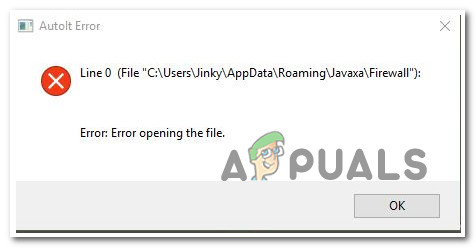
After investigating this issue, we discovered that there are actually several different underlying causes that might be at the root of this startup error. Here are several scenarios that you should consider:
- Remnant autoruns – One of the most common scenarios where you might see this type of error is when your PC contains one or more autoruns keys that are left behind by an application that no longer exists. In this case, the easiest way to resolve the issue is to use the Autoruns utility to identify and remove the problematic autorun file.
- Virus infection – A possible malware or virus infection that has infiltrated your Windows files is another item you should take into account. Start a security scan with your antivirus program to see if it can find and get rid of any virus infections.
- 3rd party program interference – The “AutoIt Error Line 0” error code may be the consequence of a conflict between a startup service or application and Windows. To check if this is the case, you can force Windows to boot with only the essential startup programs and drivers. Finding any program incompatibilities that can be the cause of this particular issue will be made easier with the use of this startup method (clean boot).
- System File corruption – files can result in issues with Windows like this one. This can occur at any time for unidentified reasons, but they are small ones that are simply fixable by running DISM and SFC scans. In more serious circumstances, you might need to go for a clean install or repair install.
Now that we went over every potential culprit with the possibility of triggering this issue, let’s go over every verified fix that other affected users have successfully used to get to the bottom of this issue.
1. Delete the Autorun key via Autoruns
If you’re experiencing startup errors linked to a particular file, your security suite may have deleted the malicious file that was a component of the infection, or there may be a remnant file that keeps getting called during startup even though the parent application is no longer installed on the computer.
Note: When dealing with infections, it’s not uncommon for some security suites to miss some files. Even though a malicious file has been destroyed by a security program, startup items and registry keys can occasionally still be found on the system and cause the malicious file to run. Windows will automatically display a pop-up error whenever this occurs.
There are a few approaches you can take in order to resolve an AutoIt Error ‘Line 0: Error, but let’s choose the simplest one.
Note: Microsoft-approved software called Autoruns can locate, group, and remove unnecessary runonce, run, startup directories, and registry keys.
In our situation, we may use it to find and delete the startup items (or registry keys) that are still using the deleted file. Here is a basic tutorial on how to set up and use Autoruns to fix Line 0 startup errors:
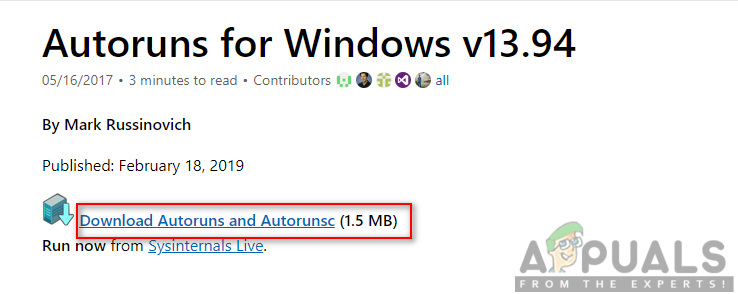
- Let’s start by downloading the most recent version of the Autoruns tool.
- To start the download, go to the Autoruns download page from any browser.
- After landing on the relevant website, select Download Autoruns and Autorunsc.
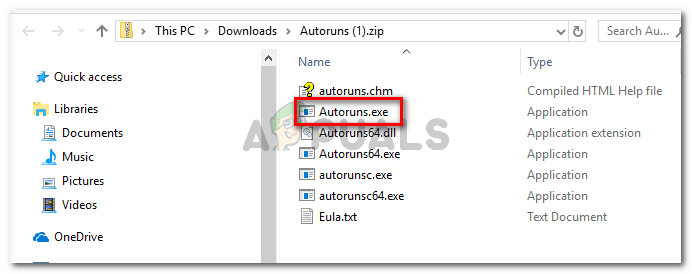
- After the download is finished, unzip the file, then double-click the Autoruns executable to launch it.
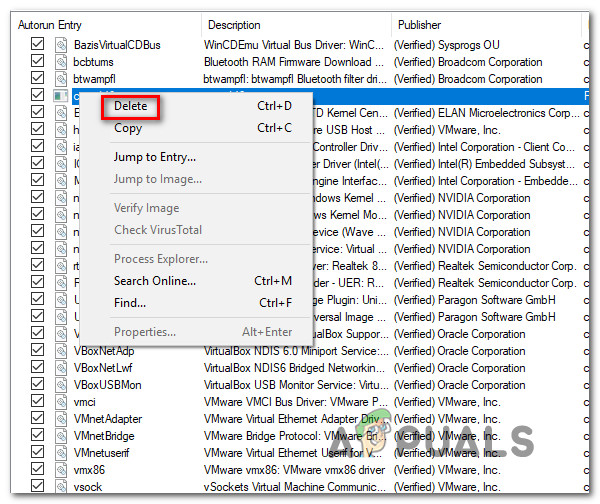
- After Autoruns has been launched, wait until the Everything list has been filled out. Then, scroll down the list of accessible Autorun entries and find the file that is specified at the conclusion of the error.
Note: For example, if your error is “AutoIt Error Line 0 file C:\Users\65875\AppData\Roaming\ServiceGet\vapihas.dat”, look for the vapihas.dat. You can either look for this manually or make use of the search functionality at the top of the app. - To stop the executable from being launched when the system boots, right-click on it and select Delete from the context menu.
- Restart your computer to check whether the same class of startup problem still appears.
Continue to the next method below if the problem is still unresolved or if you want to try an alternative strategy.
2. Eliminate a potential virus threat
Another thing that you should consider is a potential malware or virus infection that has successfully made its way among your Windows files. If you have an Antivirus, trigger a security scan and see if it manages to pinpoint and eliminate a virus infection.
Additionally, you should also take the time to deploy a Malwarebytes scan in order to go after pesky adware programs that are able to camouflage themselves as legitimate system processes.
As an extra security layer, you can also try running the Microsoft Safety Scanner in Safe Mode. By doing this, you can use the most potent virus-removal tool Microsoft has created without worrying about meddling from third parties.
The following is a fast guide for using Safe Mode to launch the Microsoft Safety scanner:
- Start your computer (or restart it if it’s currently running) and wait until the login screen appears.
- When the initial login window appears, select the power icon (bottom right corner).
- When the power contact menu appears, choose Restart while holding down the Shift key to force your computer to start in Safe Mode.
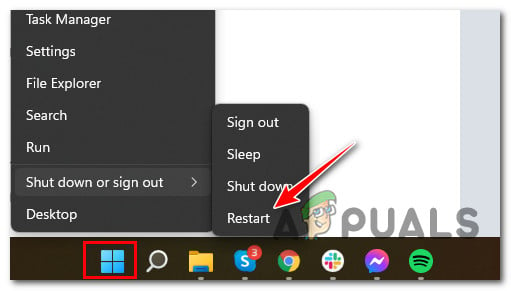
- Your computer will restart once you do this, enforcing the new state.
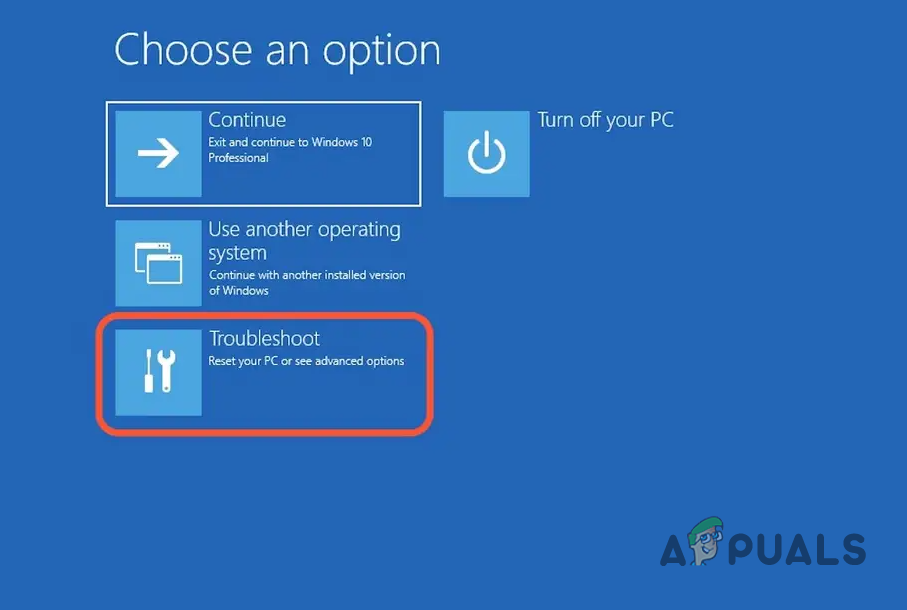
- Eventually, the Troubleshooting menu will appear on your computer. Click Troubleshoot when you see it.
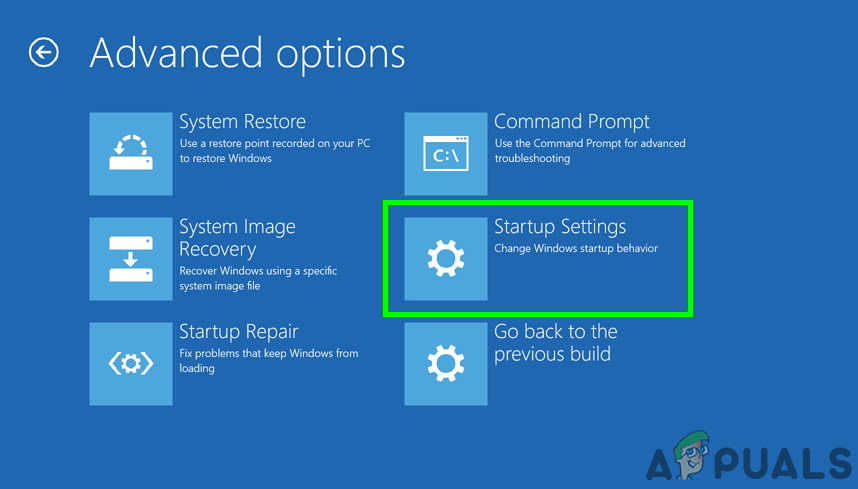
- Select Startup Settings from the lengthy list of possible options once you’re within the Advanced Options screen.
- To start the computer in Safe Mode with Networking, hit F5 in the Startup Settings window.
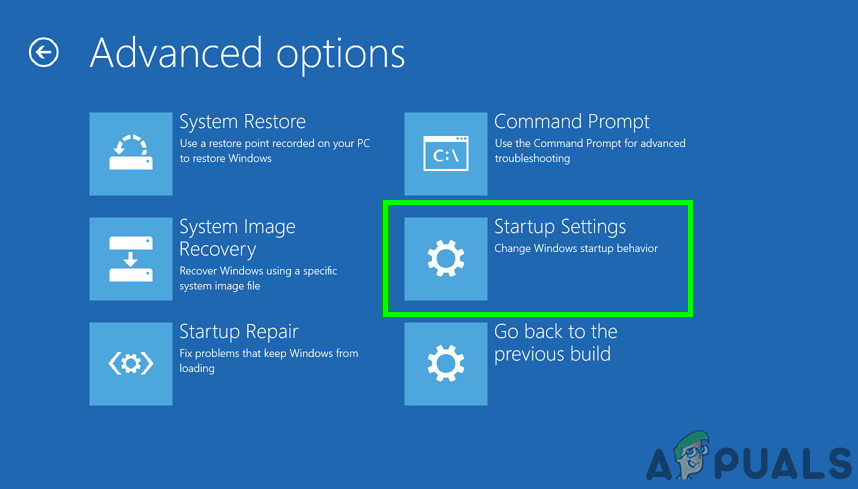 Note: It’s crucial that you start your computer in Safe Mode with Networking so that it can access the Internet later on when we download and run the WindowsSafety Scanner tool.
 - Download the most recent Microsoft Safety Scanner for your Windows bit version when your computer successfully boots into Safe Mode with Networking.
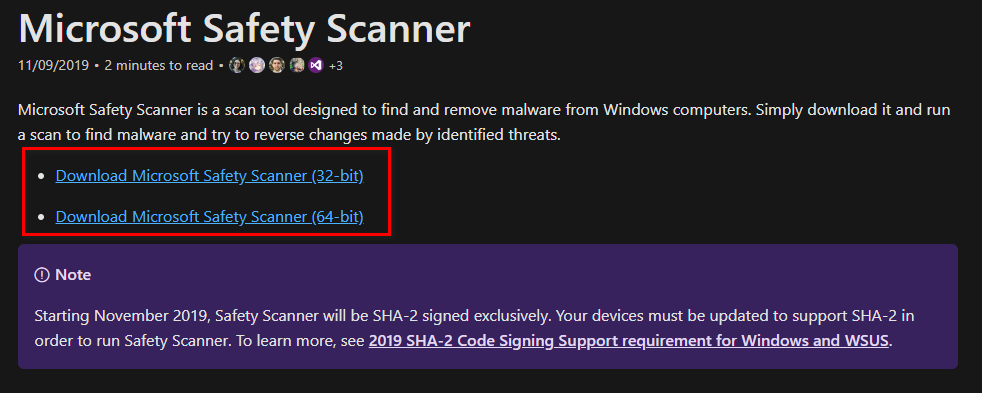
- Following the successful completion of the download, double-click the MSERT.exe file to launch Microsoft Safety Scanner. Click Yes to provide administrative access if the UAC(User Account Control) prompt appears.
- Complete the remaining instructions to run a Microsoft Safety Scanner scan.
- Be patient and wait till the procedure is finished.
- After the procedure is finished, restart your computer to start it in normal mode and check to see if the issue startup error has been eliminated.
If this approach wasn’t successful for you, try the next method below.
3. Perform a clean boot
The “AutoIt Error Line 0” error code could be a result of a disagreement between an application or service and one or more Windows startup process.
You can force Windows to boot with only the necessary startup apps and drivers to see if this is the case. This kind of startup (clean boot) will assist you in finding any software conflicts that may be the root of this specific problem.
Here are the steps to follow in order to clean boot Windows and determine whether a third-party startup item or service is to blame for the startup error:
- Ensure that you are logged in with an administrative Windows account.
- To launch the System Configuration window, press Windows key + R to bring up the Run dialog box, type “msconfig,” and then press Enter.
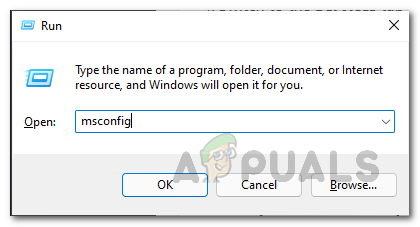
Note: If the User Account Control (UAC) asks you to grant administrator privileges, select Yes. - Next, Select the Services tab in the System Configuration window, then check the box next to Hide all Microsoft Services. This will ensure that you are not turning off any essential operating system functions.
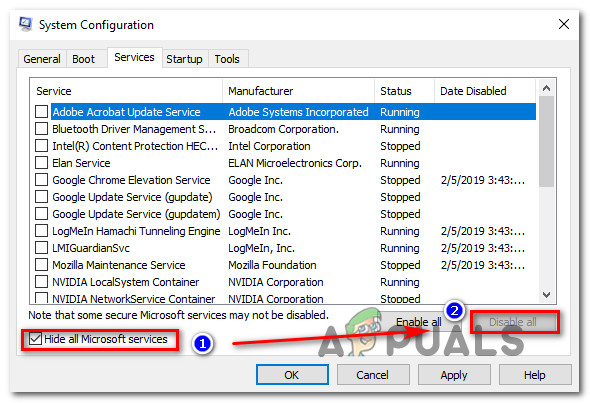
- Click the Disable all button to immediately stop all remaining services.
Note: This action will prevent any built-in or third-party services that are not absolutely necessary from triggering an app conflict that could result in the starting issue. - After all services have been turned off, click Apply changes, then click Open Task Manager under the Startup tab.
- To stop a service from starting up automatically, pick each one separately in Task Manager’s Status tab, then click Disable.
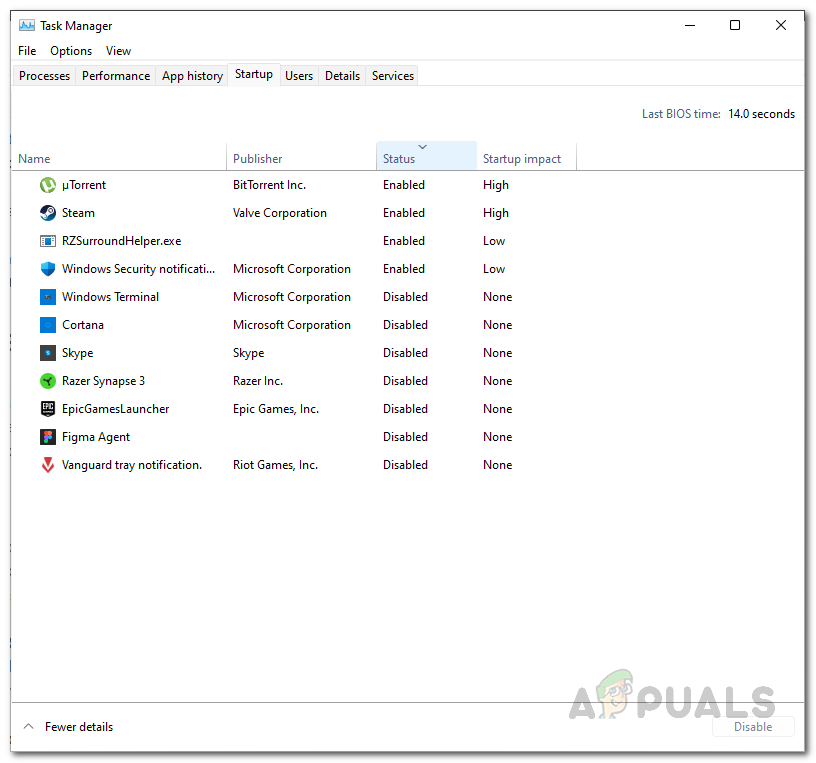
- After disabling all third-party services, quit Task Manager and restart your computer in Clean Boot mode.
- Check Microsoft Store to see whether you can download the program or game that was previously failing when the subsequent startup sequence is finished.
Note: If not, systematically re-enabling each item that was deactivated one at a time while performing regular reboots will help you figure out which conflicting software or service is the source of the problem.
Move on to the next technique below if this method has established that no application, service, or procedure from a third party is the source of the problem.
4. Deploy SFC and DISM scans
Affected people advise you to examine the faulty system files to discover if any malicious files are there. Corrupted files can result in issues with Windows like this one. This can occur at any time for unidentified reasons, but they are small ones that are simply fixable.
By checking your computer for damaged files using the Command Prompt with administrator rights, you can resolve this. Pasting some commands that will complete the task will make it easy to accomplish this.
Run SFC (System File Checker) and DISM (Deployment Image Servicing and Management) scan quickly one after the other to do this. You need to restart your computer after the procedure is finished to finish it.
Make sure you are linked to a reliable internet connection before moving on to the procedures of this approach.
Here are the procedures you need to do in case you don’t know how to scan your system for corrupted files:
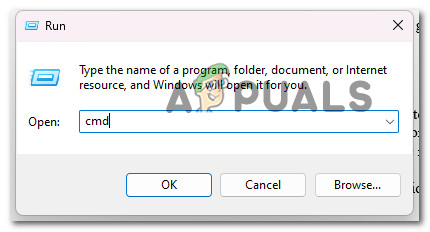
- You must first launch the Command Prompt with administrative rights. You must open the Run dialog box, type “cmd” into the search field, and then press CTRL + Shift + Enter to accomplish this.
- The User Account Control (UAC) will then ask you to confirm that you want to grant the administrator privileges. You must select Yes in order to move further.
- Once the Command Prompt is shown on your computer, you must copy and paste the following command before pressing Enter to execute it:
sfc /scannow
DISM /Online /Cleanup-Image /RestoreHealth
Continue to the next potential solution below if this strategy didn’t resolve your problem.
5. Clean install or Reinstall Windows
If you’ve read this far and you’re still getting the same ‘Line 0: Error Opening the File’ error, you obviously have a serious corruption problem that can’t be fixed in the usual way.
To ensure that all instances of faulty system files are eliminated in this situation, you must reset all Windows components.
The radical option, a clean install, which accomplishes the task but also deletes all personal data, including programs, games, media, and documents, is the one most users opt for.
You should choose a repair install if you wish to take a less drastic action that will allow you to update your Windows components without harming any of your personal stuff (games, apps, images, papers, etc.). You’ll be able to keep all of your personal information via this process.
If you want to carry out a repair install, go to this document for detailed information on how to do so.