КАК ЗАКОММЕНТИРОВАТЬ НЕСКОЛЬКО СТРОК В PYTHON VISUAL STUDIO
Чтобы закомментировать несколько строк кода в Python в среде Visual Studio, можно воспользоваться двумя различными способами:
1. Использование символов # для каждой строки кода, которую необходимо закомментировать:
# первая строка кода
# вторая строка кода
# третья строка кода
2. Использование тройных кавычек, чтобы заключить блок кода, который необходимо закомментировать:
»’
первая строка кода
вторая строка кода
третья строка кода
»’
Во втором случае, блок кода считается строкой, но Python игнорирует все, что находится внутри тройных кавычек как комментарий.
Например, если есть код, который нужно закомментировать:
for i in range(10):
print(i)
print(i * 2)
Можно закомментировать каждую строку вручную, добавив символ #.
# for i in range(10):
# print(i)
# print(i * 2)
Можно также заключить блок кода внутри тройных кавычек:
В этом случае, блок кода считается строкой, но Python не выполняет его.

ГОРЯЧИЕ КЛАВИШИ / HotKeys / Visual Studio Code
Как закомментировать код в html, css, js. Урок 8
Как закомментировать несколько строк в редакторе vim
Как в Visual Studio Code комментировать код
Курс Python: Урок #5. Комментирование кода
python. idle. Комментирование кода. Горячие клавиши. Александр Килинкаров.
How to comment out multiple lines of Code in Visual Studio Code Python — ZDev-9 Tutorials
Как ЗАКОММЕНТИРОВАТЬ код в python PYCHARM. Как в python закомментировать НЕСКОЛЬКО строк.
Как быстро закомментировать многострочный код в текстовом редакторе?
BLGPG-BACC2D8D8159-23-12-08-15
Новые материалы:
- Python сортировка выбором
- Python время utc
- Программы на python для начинающих простые
- Метод pack tkinter python
- Чтение с консоли python
- Python jupiter notebook перенос строки
- Django смена пароля
- Bm25 алгоритм python
- Python матрица расстояний
- Python 8 класс презентация
- Функция clear python
Work with Python in Visual Studio on Windows
Applies to:  Visual Studio
 Visual Studio for Mac Visual Studio Code
Python is a popular programming language that is reliable, flexible, easy to learn, free to use on all operating systems, and supported by both a strong developer community and many free libraries. Python supports all manners of development, including web applications, web services, desktop apps, scripting, and scientific computing. Scientists, casual developers, professional developers, and many universities alike use Python for programming. You can learn more about the language on python.org and Python for Beginners.
Visual Studio is a powerful Python IDE on Windows. Visual Studio provides open-source support for the Python language through the Python Development and Data Science workloads (Visual Studio 2017 and later) and the free Python Tools for Visual Studio extension (Visual Studio 2015 and earlier). Tour the Visual Studio IDE to familiarize yourself with the IDE features that you’ll use to write and edit Python code.
Visual Studio doesn’t support Python on Mac now. But it’s available on Mac and Linux through Visual Studio Code. (see questions and answers).
- Follow the installation instructions to set up the Python workload.
- Familiarize yourself with the Python capabilities of Visual Studio through the sections in this article.
- Go through one or more of the Quickstarts to create a project. If you’re unsure, start with Quickstart: Open and run Python code in a folder or Create a web app with Flask.
- Follow the Work with Python in Visual Studio tutorial for a full end-to-end experience.
Support for multiple interpreters
Visual Studio’s Python Environments window (shown below in a wide, expanded view) gives you a single place to manage all of your global Python environments, conda environments, and virtual environments. Visual Studio automatically detects installations of Python in standard locations, and allows you to configure custom installations. With each environment, you can easily manage packages, open an interactive window for that environment, and access environment folders.
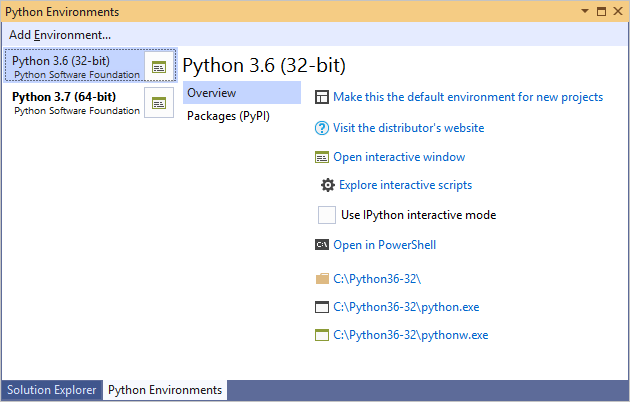
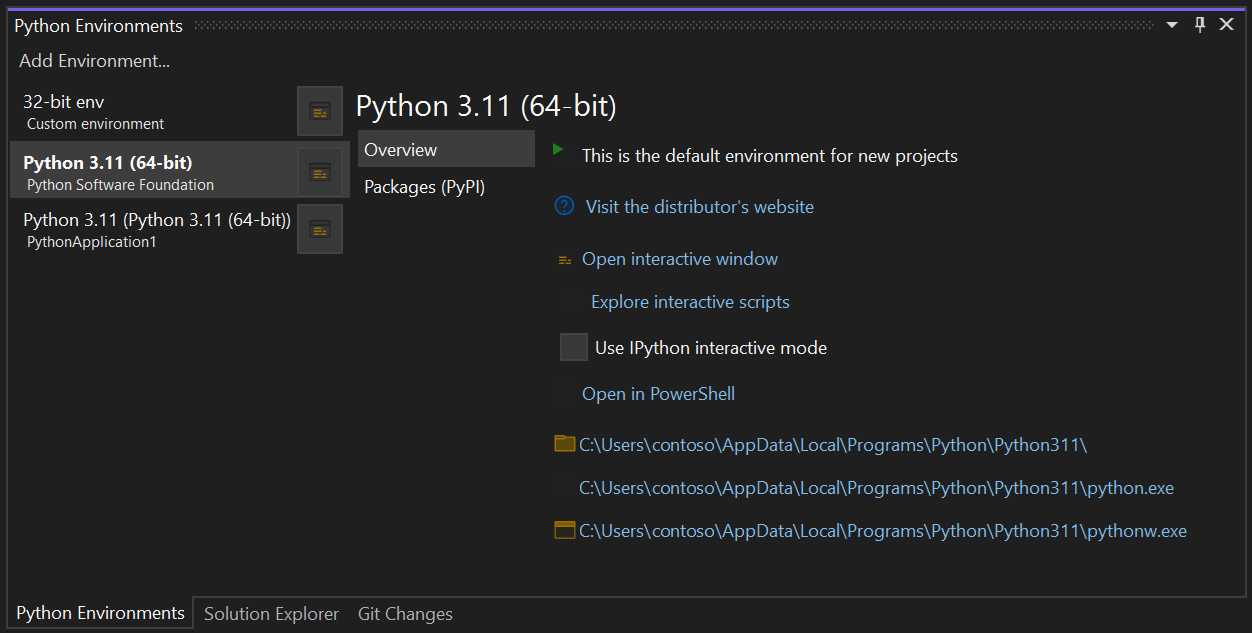
Use the Open interactive window command to run Python interactively within the context of Visual Studio. Use the Open in PowerShell command to open a separate command window in the folder of the selected environment. From that command window you can run any python script.
For more information:
- Manage Python environments
- Python Environments reference
Rich editing, IntelliSense, and code comprehension
Visual Studio provides a first-class Python editor, including syntax coloring, autocomplete across all your code and libraries, code formatting, signature help, refactoring, linting, and type hints. Visual Studio also provides unique features like class view, Go to Definition, Find All References, and code snippets. Direct integration with the Interactive window helps you quickly develop Python code that’s already saved in a file.
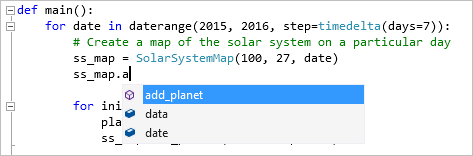
For more information:
- Docs: Edit Python code
- Docs: Format code
- Docs: Refactor code
- Docs: Use a linter
- General Visual Studio feature docs: Features of the code editor
Interactive window
For every Python environment known to Visual Studio, you can easily open the same interactive (REPL) environment for a Python interpreter directly within Visual Studio, rather than using a separate command prompt. You can easily switch between environments as well. (To open a separate command prompt, select your desired environment in the Python Environments window, then select the Open in PowerShell command as explained earlier under Support for multiple interpreters.)
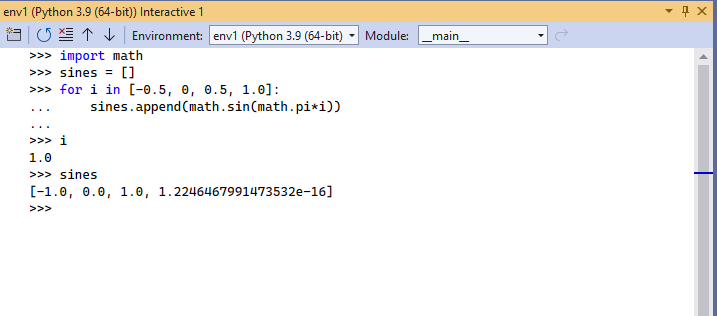
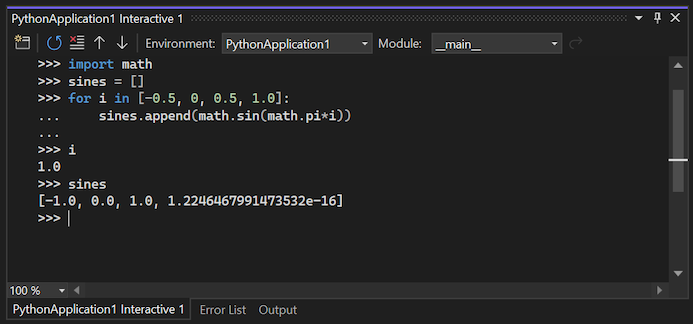
Visual Studio also provides tight integration between the Python code editor and the Interactive window. The Ctrl+Enter keyboard shortcut conveniently sends the current line of code (or code block) in the editor to the Interactive window, then moves to the next line (or block). Ctrl+Enter lets you easily step through code without having to run the debugger. You can also send selected code to the Interactive window with the same keystroke, and easily paste code from the Interactive window into the editor. Together, these capabilities allow you to work out details for a segment of code in the Interactive window and easily save the results in a file in the editor.
Visual Studio also supports IPython/Jupyter in the REPL, including inline plots, .NET, and Windows Presentation Foundation (WPF).
For more information:
- Python Interactive window
- IPython in Visual Studio
Project system, and project and item templates
Visual Studio 2019 supports opening a folder containing Python code and running that code without creating Visual Studio project and solution files. For more information, see Quickstart: Open and run Python code in a folder. There are, however, benefits to using a project file, as explained in this section.
Visual Studio 2022 supports opening a folder containing Python code and running that code without creating Visual Studio project and solution files. For more information, see Quickstart: Open and run Python code in a folder. There are, however, benefits to using a project file, as explained in this section.
Visual Studio helps you manage the complexity of a project as it grows over time. A Visual Studio project is much more than a folder structure: it includes an understanding of how different files are used and how they relate to each other. Visual Studio helps you distinguish app code, test code, web pages, JavaScript, build scripts, and so on, which then enable file-appropriate features. A Visual Studio solution, moreover, helps you manage multiple related projects, such as a Python project and a C++ extension project.
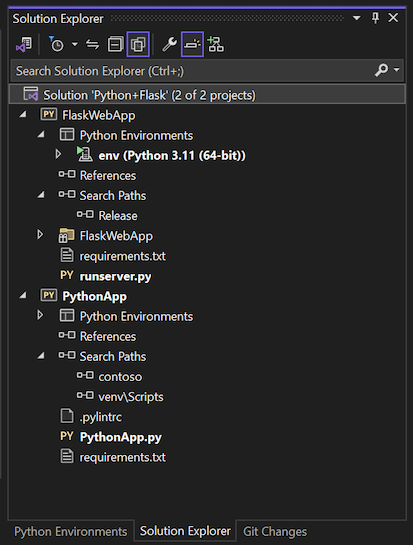
Project and item templates automate the process of setting up different types of projects and files, saving you valuable time and relieving you from managing intricate and error-prone details. Visual Studio provides templates for web, Azure, data science, console, and other types of projects, along with templates for files like Python classes, unit tests, Azure web configuration, HTML, and even Django apps.
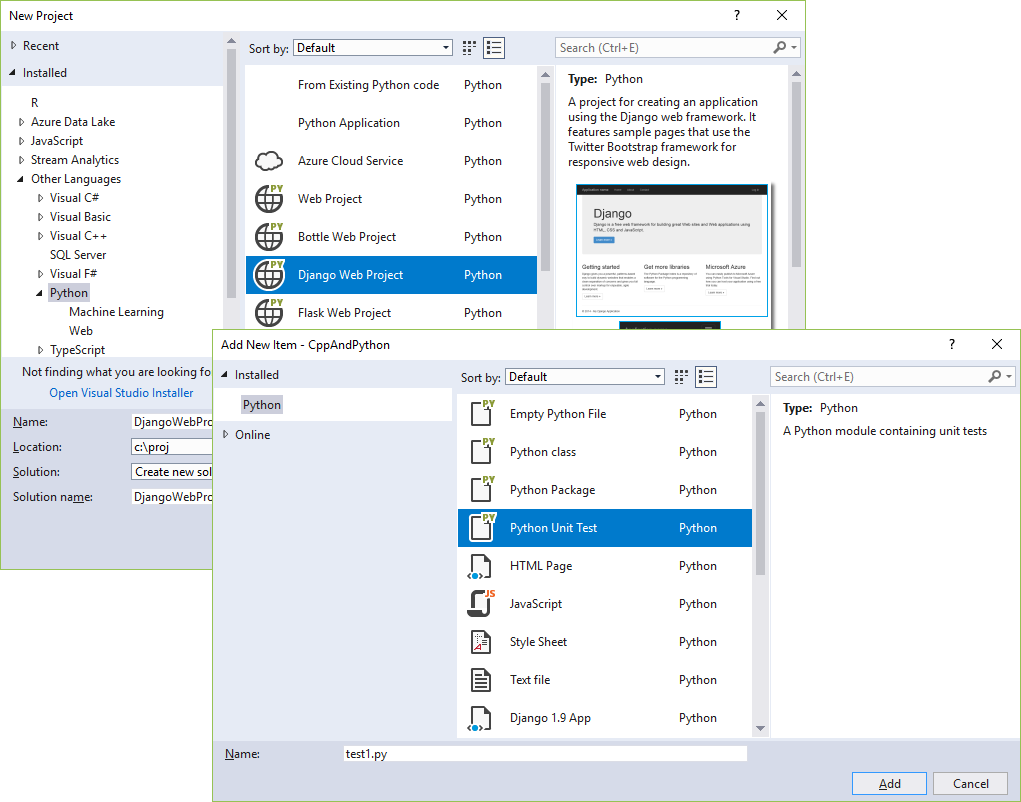
For more information:
- Docs: Manage Python projects
- Docs: Item templates reference
- Docs: Python project templates
- Docs: Work with C++ and Python
- General Visual Studio feature docs: Project and item templates
- General Visual Studio feature docs: Solutions and projects in Visual Studio
Full-featured debugging
One of Visual Studio’s strengths is its powerful debugger. For Python in particular, Visual Studio includes Python/C++ mixed-mode debugging, remote debugging on Linux, debugging within the Interactive window, and debugging Python unit tests.
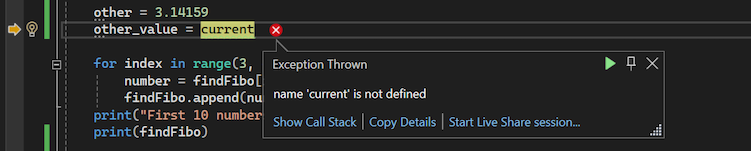
In Visual Studio 2019, you can run and debug code without having a Visual Studio project file. See Quickstart: Open and run Python code in a folder-2019 for an example.
In Visual Studio 2022, you can run and debug code without having a Visual Studio project file. See Quickstart: Open and run Python code in a folder-2022 for an example.
For more information:
- Docs: Debug Python
- Docs: Python/C++ mixed-mode debugging
- Docs: Remote debugging on Linux
- General Visual Studio feature docs: Feature tour of the Visual Studio Debugger
Profiling tools with comprehensive reporting
Profiling explores how time is being spent within your application. Visual Studio supports profiling with CPython-based interpreters and includes the ability to compare performance between different profiling runs.
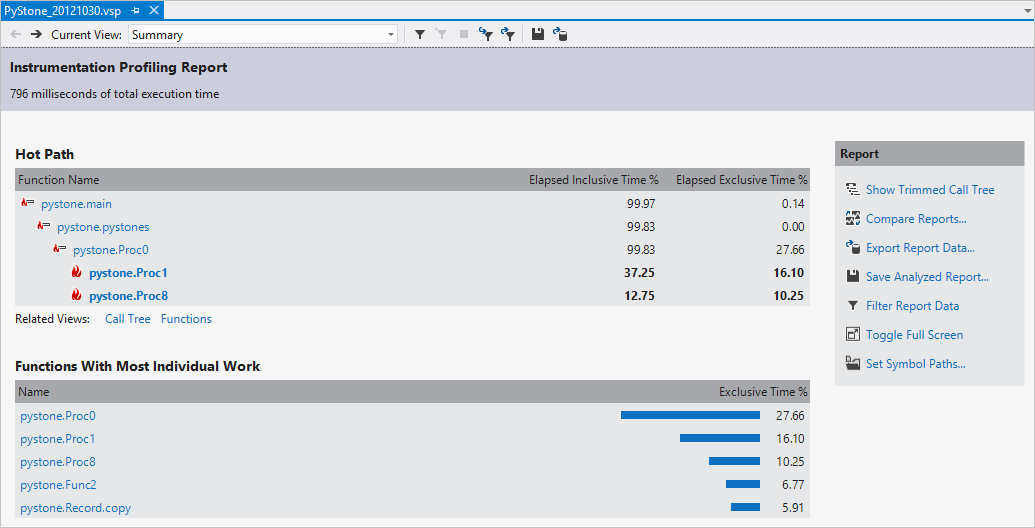
For more information:
- Docs: Python profiling tools
- General Visual Studio feature docs: Profiling Feature Tour. (Not all Visual Studio profiling features are available for Python).
Unit testing tools
Discover, run, and manage tests in Visual Studio Test Explorer, and easily debug unit tests.
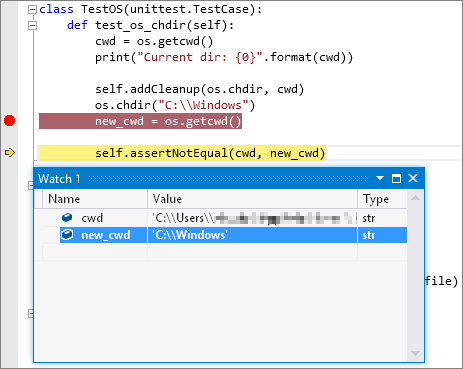
For more information:
- Docs: Unit testing tools for Python
- General Visual Studio feature docs: Unit test your code.
Azure SDK for Python
The Azure libraries for Python simplify consuming Azure services from Windows, macOS X, and Linux apps. You can use them to create and manage Azure resources, and to connect to Azure services.
Questions and answers
Q. Is Python support available with Visual Studio for Mac?
A. Not at this time, but you can up vote the request on Developer Community. The Visual Studio for Mac documentation identifies the current types of development that it does support. In the meantime, Visual Studio Code on Windows, Mac, and Linux works well with Python through available extensions.
Q. What can I use to build UI with Python?
A. The main offering in this area is the Qt Project, with bindings for Python known as PySide (the official binding) (also see PySide downloads) and PyQt. Python support in Visual Studio doesn’t include any specific tools for UI development.
Q. Can a Python project produce a stand-alone executable?
A. Python is generally an interpreted language, with which code is run on demand in a suitable Python-capable environment such as Visual Studio and web servers. Visual Studio itself doesn’t now provide the means to create a stand-alone executable, which essentially means a program with an embedded Python interpreter. However, the Python community supplied different means to create executables as described on StackOverflow. CPython also supports being embedded within a native application, as described on the blog post, Using CPython’s embeddable zip file.
Feedback
Submit and view feedback for
Tutorial: Work with Python in Visual Studio
Applies to: Visual Studio Visual Studio for Mac Visual Studio Code
Python is a popular programming language that is reliable, flexible, easy to learn, and free to use on all operating systems. Python is supported by both a strong developer community and many, free libraries. The language supports all kinds of development, including web applications, web services, desktop apps, scripting, and scientific computing. Many universities, scientists, casual developers, and professional developers use Python.
Visual Studio provides first-class language support for Python. This tutorial guides you through the following steps:
- Step 1: Create a Python project (this article)
- Step 2: Write and run code to see Visual Studio IntelliSense at work
- Step 3: Create more code in the Interactive REPL window
- Step 4: Run the completed program in the Visual Studio debugger
- Step 5: Install packages and manage Python environments
- Step 6: Work with Git
Prerequisites
Visual Studio with the Python workload installed. For instructions, see Install Python tools for Visual Studio.
Step 1: Create a new Python project
A project is how Visual Studio manages all the files that come together to produce a single application. Application files include source code, resources, and configurations. A project formalizes and maintains the relationships among all the project’s files. The project also manages external resources that are shared between multiple projects. A project allows your application to effortlessly expand and grow. Using projects is much easier than manually managing relationships in unplanned folders, scripts, text files, and your memory.
This tutorial begins with a simple project containing a single, empty code file.
- In Visual Studio, select File >New >Project (Ctrl+Shift+N), which brings up the New Project dialog. Here you browse templates across different languages, then select one for your project and specify where Visual Studio places files.
- To view Python templates, select Installed >Python on the left, or search for «Python». Using search is a great way to find a template when you can’t remember its location in the languages tree.
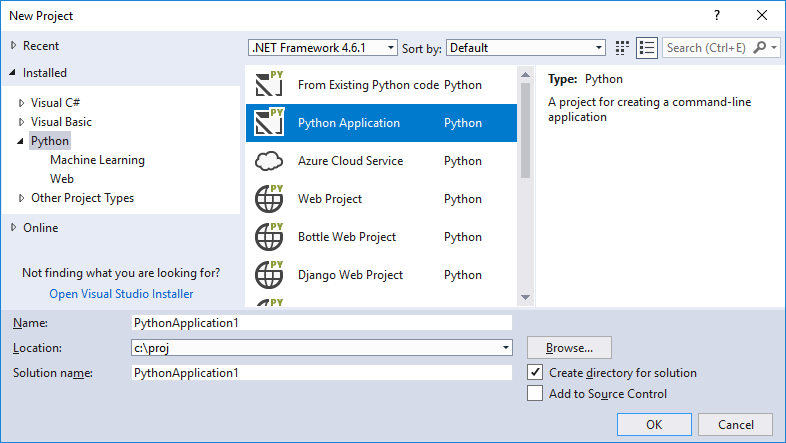 Python support in Visual Studio includes several project templates, including web applications using the Bottle, Flask, and Django frameworks. For the purposes of this walkthrough, however, let’s start with an empty project.
- Select the Python Application template, specify a name for the project, and select OK.
- After a few moments, Visual Studio shows the project structure in the Solution Explorer window (1). The default code file is open in the editor (2). The Properties window (3) also appears to show additional information for any item selected in Solution Explorer, including its exact location on disk.
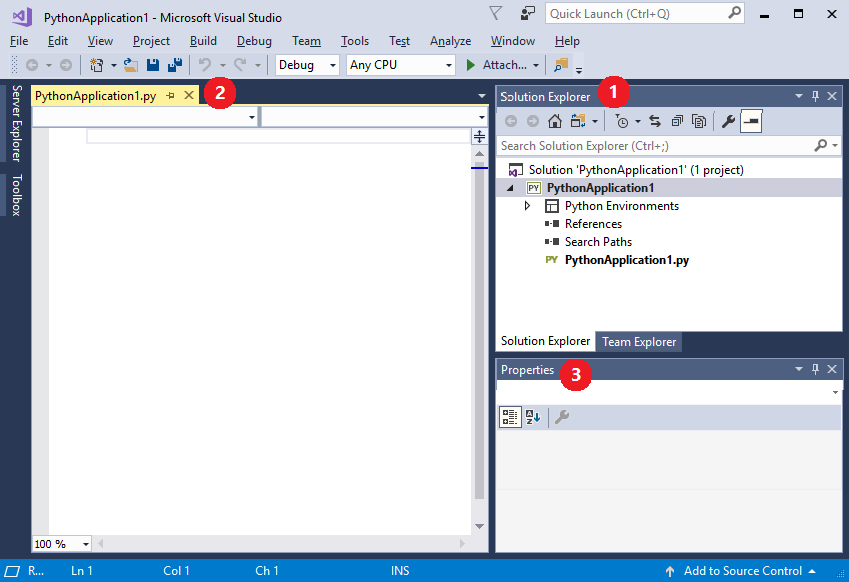
- Take a few moments to familiarize yourself with Solution Explorer, which is where you browse files and folders in your project.
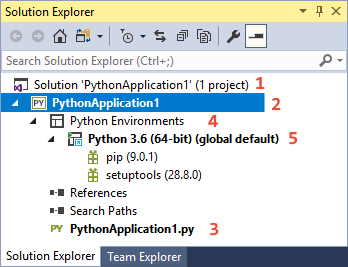 (1) Highlighted in bold is your project, using the name you gave in the New Project dialog. On disk, this project is represented by a .pyproj file in your project folder. (2) At the top level is a solution, which by default has the same name as your project. A solution, represented by a .sln file on disk, is a container for one or more related projects. For example, if you write a C++ extension for your Python application, that C++ project could be in the same solution. The solution might also contain a project for a web service, along with projects for dedicated test programs. (3) Under your project you see source files, in this case only a single .py file. Selecting a file displays its properties in the Properties window. Double-clicking a file opens it in whatever way is appropriate for that file. (4) Also under the project is the Python Environments node. When expanded, you see the Python interpreters that are available to you. Expand an interpreter node to see the libraries that are installed into that environment (5). Right-click any node or item in Solution Explorer to access a menu of applicable commands. For example, the Rename command lets you to change the name of any node or item, including the project and the solution.

- In Visual Studio, select File >New >Project or press Ctrl+Shift+N. The Create a new project screen displays, where you can search and browse templates across different languages.
- To view Python templates, search for python. Search is a great way to find a template when you can’t remember its location in the languages tree. Python web support in Visual Studio includes several project templates, such as web applications in the Bottle, Flask, and Django frameworks. When installing Python with the Visual Studio Installer, check «Python Web Support» under optional to install these templates. For this tutorial, start with an empty project.
- Select the Python Application template, and select Next.
- On the Configure your new project screen, specify a name and file location for the project, and then select Create. The new project opens in Visual Studio.
- The Visual Studio Solution Explorer window shows the project structure (1).
- The default code file opens in the editor (2).
- The Properties window shows more information for the item selected in Solution Explorer, including its exact location on disk (3).
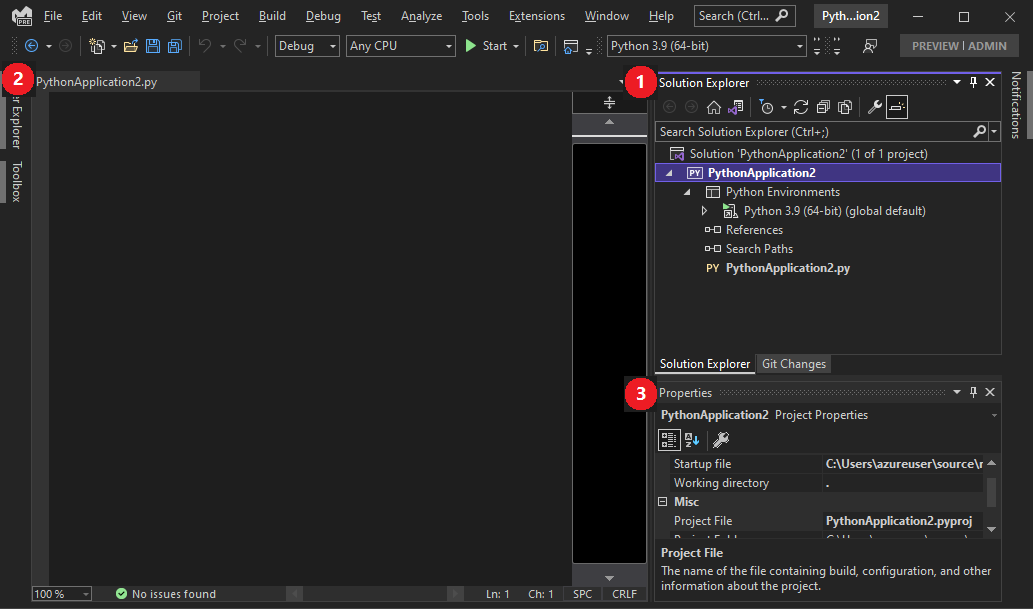

- At the top level is the solution, which by default has the same name as your project (1). A solution, which is shown as a .sln file on disk, is a container for one or more related projects. For example, if you write a C++ extension for your Python application, that C++ project can be in the same solution. The solution could also contain a project for a web service, and projects for dedicated test programs.
- Your project, with the name you gave in the Create a new project dialog box, displays in bold (2). On disk, the project is a .pyproj file in your project folder.
- Under your project are source files, in this case only a single .py file (3). Selecting a file displays its properties in the Properties window (if you do not see the Properties window, click the wrench in the Solution Explorer banner). Double-clicking a file opens it in whatever way is appropriate for that file.
- Also under the project is the Python Environments node (4). Expand the node to show the available Python interpreters.
- Expand an interpreter node to see the libraries installed in that environment (5).
Right-click any node or item in Solution Explorer to show a context menu of applicable commands. For example, Rename lets you change the name of a node or item, including the project and the solution.
Next step
Go deeper
- Python projects in Visual Studio.
- Learn about the Python language on python.org
- Python for Beginners (python.org)
Install Python interpreters
Applies to: Visual Studio Visual Studio for Mac Visual Studio Code
By default, installing the Python development workload in Visual Studio 2017 and later also installs Python 3 (64-bit). You can optionally choose to install 32-bit and 64-bit versions of Python 2 and Python 3, along with Miniconda (Visual Studio 2019) or Anaconda 2/Anaconda 3 (Visual Studio 2017), as described in Installation.
Alternately, you can install standard python interpreters from the Add Environment dialog. Select the Add Environment command in the Python Environments window or the Python toolbar, select the Python installation tab, indicate which interpreters to install, and select Install.
You can also manually install any of the interpreters listed in the table below outside of the Visual Studio installer. For example, if you installed Anaconda 3 before installing Visual Studio, you don’t need to install it again through the Visual Studio installer. You can also install an interpreter manually if, for example, a newer version of available that doesn’t yet appear in the Visual Studio installer.
Visual Studio supports Python version 3.7. While it is possible to use Visual Studio to edit code written in other versions of Python, those versions are not officially supported and features such as IntelliSense and debugging might not work.
For Visual Studio 2015 and earlier, you must manually install one of the interpreters.
Although Visual Studio offers to install the Anaconda distribution, your use of the distribution and additional packages from Anaconda Repository are bound by the Anaconda Terms of Service. These terms may require some organizations to pay Anaconda for a commercial license, or else configure the tools to access an alternate repository. See the Conda channels documentation for more information.
Visual Studio (all versions) automatically detects each installed Python interpreter and its environment by checking the registry according to PEP 514 — Python registration in the Windows registry. Python installations are typically found under HKEY_LOCAL_MACHINE\SOFTWARE\Python (32-bit) and HKEY_LOCAL_MACHINE\SOFTWARE\WOW6432Node\Python (64-bit), then within nodes for the distribution such as PythonCore (CPython) and ContinuumAnalytics (Anaconda).
If Visual Studio does not detect an installed environment, see Manually identify an existing environment.
Visual Studio shows all known environments in the Python Environments window, and automatically detects updates to existing interpreters.
| Interpreter | Description |
|---|---|
| CPython | The «native» and most commonly used interpreter, available in 32-bit and 64-bit versions (32-bit recommended). Includes the latest language features, maximum Python package compatibility, full debugging support, and interop with IPython. See also: Should I use Python 2 or Python 3?. Visual Studio 2015 and earlier don’t support Python 3.6+ and can give errors like Unsupported python version 3.6. Use Python 3.5 or earlier instead. |
| IronPython | A .NET implementation of Python, available in 32-bit and 64-bit versions, providing C#/F#/Visual Basic interop, access to .NET APIs, standard Python debugging (but not C++ mixed-mode debugging), and mixed IronPython/C# debugging. IronPython, however, doesn’t support virtual environments. |
| Anaconda | An open data science platform powered by Python, and includes the latest version of CPython and most of the difficult-to-install packages. If you’re unable to decide, we recommend using Anaconda. |
| PyPy | A high-performance tracing JIT implementation of Python that’s good for long-running programs and situations where you identify performance issues but cannot find other resolutions. Works with Visual Studio but with limited support for advanced debugging features. |
| Jython | An implementation of Python on the Java Virtual Machine (JVM). Similar to IronPython, code running in Jython can interact with Java classes and libraries. However, many of the libraries intended for CPython may not be accessible. Works with Visual Studio but with limited support for advanced debugging features. |
Developers that want to provide new forms of detection for Python environments, see PTVS Environment Detection (github.com).
Move an interpreter
If you move an existing interpreter to a new location using the file system, Visual Studio doesn’t automatically detect the change.
- If you originally specified the location of the interpreter through the Python Environments window, then edit its environment using the Configure tab in that window to identify the new location. See Manually identify an existing environment.
- If you installed the interpreter using an installer program, then use the following steps to reinstall the interpreter in the new location:
- Restore the Python interpreter to its original location.
- Uninstall the interpreter using its installer, which clears the registry entries.
- Reinstall the interpreter at the new location.
- Restart Visual Studio, which should autodetect the new location in place of the old location.
Following this process ensures that the registry entries that identify the interpreter’s location, which Visual Studio uses, are properly updated. Using an installer also handles any other side effects that may exist.
Related content
- Manage Python environments
- Select an interpreter for a project
- Use requirements.txt for dependencies
- Search paths
- Python Environments window reference