How To Resolve the PR_CONNECT_RESET_ERROR

For all of the moving parts of a browser, along with the myriad elements that make up a connection between servers, most people encounter surprisingly few errors when browsing the web. However, when errors like PR_CONNECT_RESET_ERROR do appear, they can act as a roadblock, especially when the fix isn’t obvious or intuitive. Luckily, this particular error isn’t a hard one to solve. In fact, much of the solution involves toggling elements on and off to get things working. The trick is to know which elements to modify and when. In this post, we‘re going to show you how to fix the PR_CONNECT_RESET_ERROR in Firefox. Why we’re focusing on the Firefox browser will become clear, although we’ll also mention other browsers too.
What Is the PR_CONNECT_RESET_ERROR?
The PR_CONNECT_RESET_ERROR shows up when a browser isn’t able to connect to a server. On the surface, it appears as though it’s similar to other connection errors, such as a whole host of 400 and 500 status codes. However, this error only displays in Firefox.
What you read above is correct, but other browsers can have a similar error of their own. For example, Chromium-based browsers (such as Microsoft Edge, Opera, Brave, and Chrome itself) will offer the ERR_CONNECTION_RESET error instead. This gives you more arguable clarity on what’s happening behind the scenes, although there are still some vagaries to dig into. Let’s do that in the next section.
What Are the Causes of the PR_CONNECT_RESET_ERROR?
Now that we’ve established that the PR_CONNECT_RESET_ERROR is a connection issue within the browser, you can begin to uncover more about what’s happening — and how to fix it. Because the client (in this case the browser) and the server (i.e. where the website “lives”) can’t connect, something must be stopping it. In most cases, you’ll find this is a firewall or other security issue. It’s not normally going to be something that’s hidden away under the hood, evading detection. That being said, in some cases, you’ll find that the PR_CONNECT_RESET_ERROR is the result of “geoblocking.” This is where a streaming service will restrict the feed to certain geographical areas for any number of different reasons. Because the PR_CONNECT_RESET_ERROR involves a halted connection, it’s one you’ll see if geoblocking restricts your location from viewing certain content. By extension, you may also see this error with some virtual private network (VPN) connections. Here, you’ll come across the PR_CONNECT_RESET_ERROR if you look to access a site using both a standard connection and a VPN or proxy at the same time. You might also find that TCP protocol filtering is a cause of errors. It’s something you might use in various antivirus apps, and it should filter out data that’s deemed as superfluous to your connection. However, sometimes it can cause an interruption by mistaking some data packets you actually need as surplus. The result is the PR_CONNECT_RESET_ERROR.
1. Clear Your Browser Cache
Regardless of the issue, you have with your internet experience in-browser, clearing the cache leads to a quick win in many cases. Your cache contains files and settings that you’ll access and use often. Because of this, your browser will sometimes pull data from the cache that’s out of date. Clearing this cache is a good solution for when you access a site through two different connections. Once it’s been cleared, you can access the site again and rebuild the cache. To begin, close down every tab within Firefox and open a fresh one. From here, open up the settings using the hamburger menu on the right-hand side, then look for either Settings or Options in the menu. 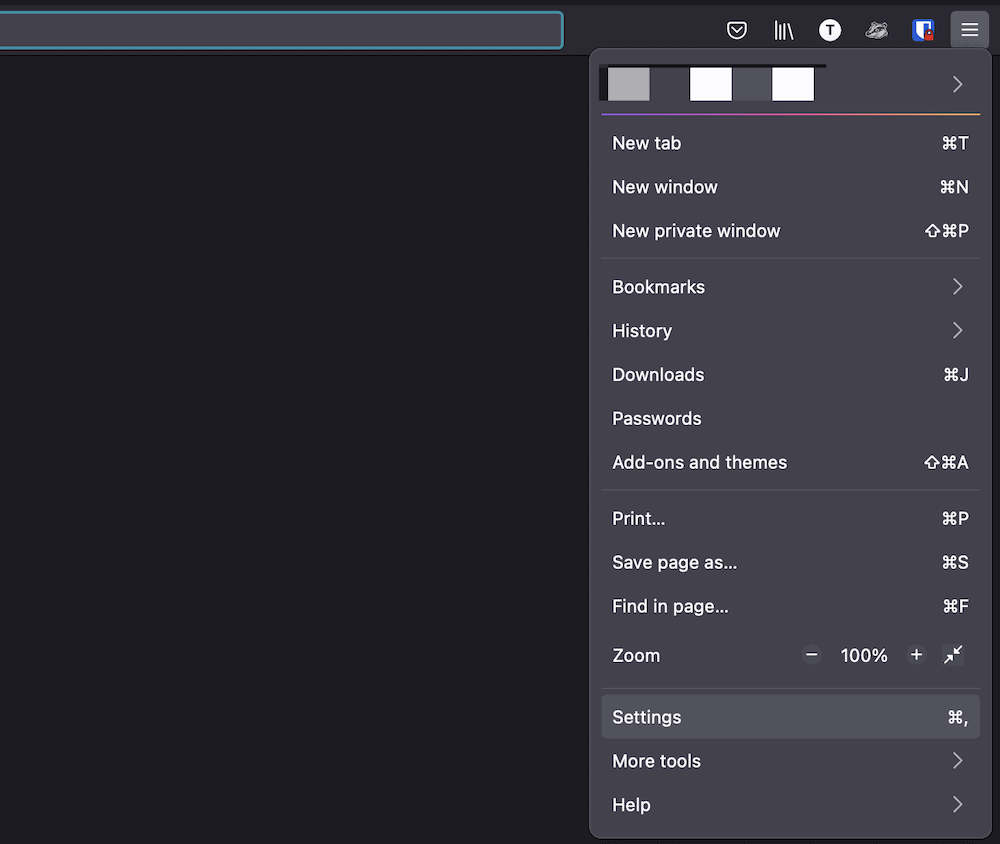 This will bring up the about:preferences screen, which contains a number of tabs to help manage and set up Firefox.
 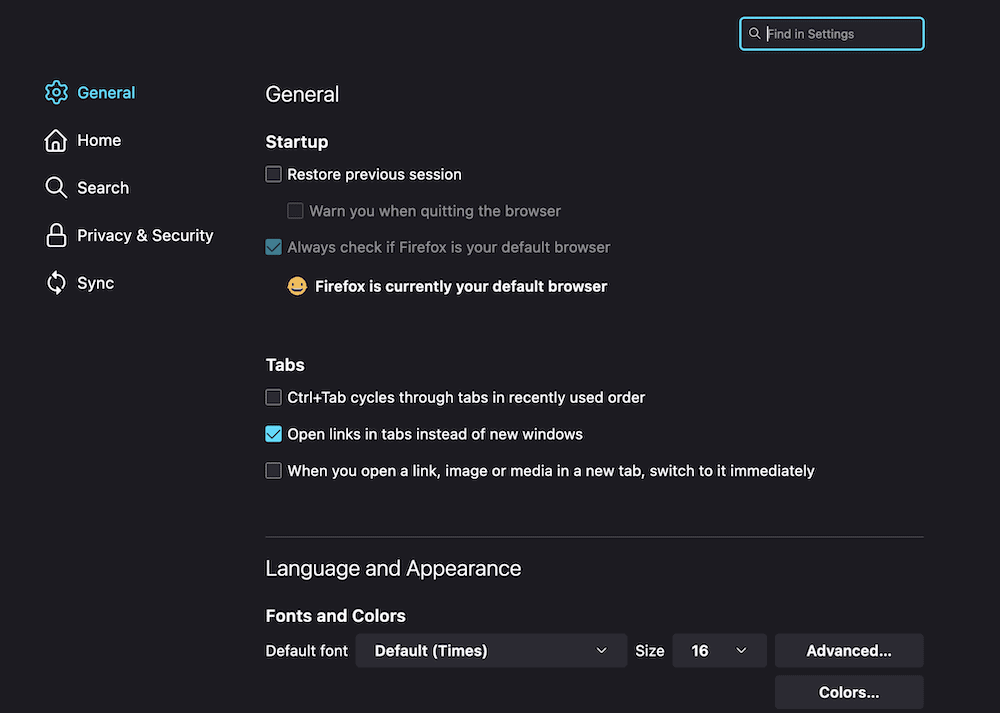 Here, you’ll want to access the Privacy & Security tab.
 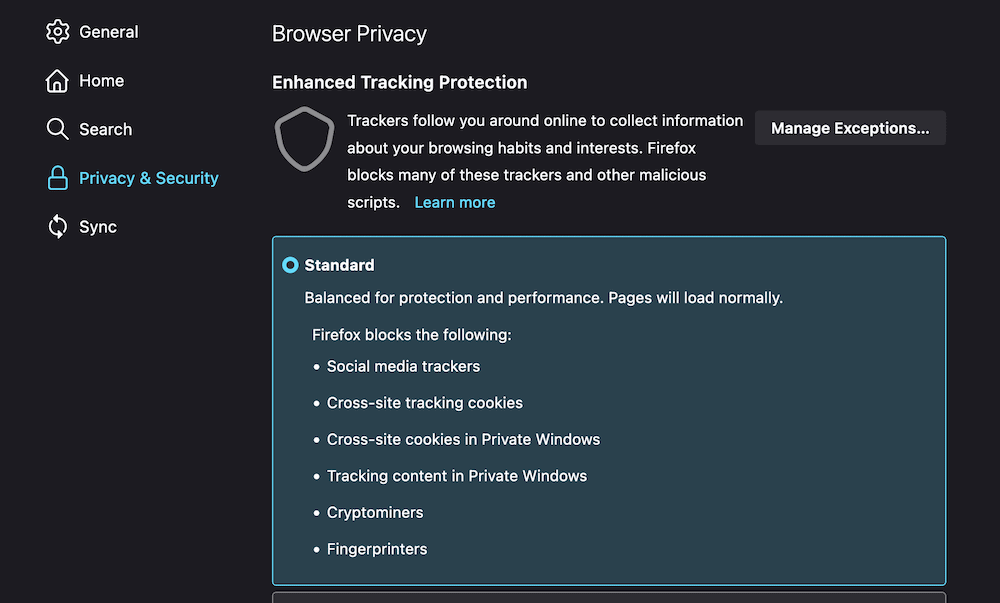 There are lots of settings here relating to your browsing experience and how secure it is. The section you need is Cookies and Site Data.
 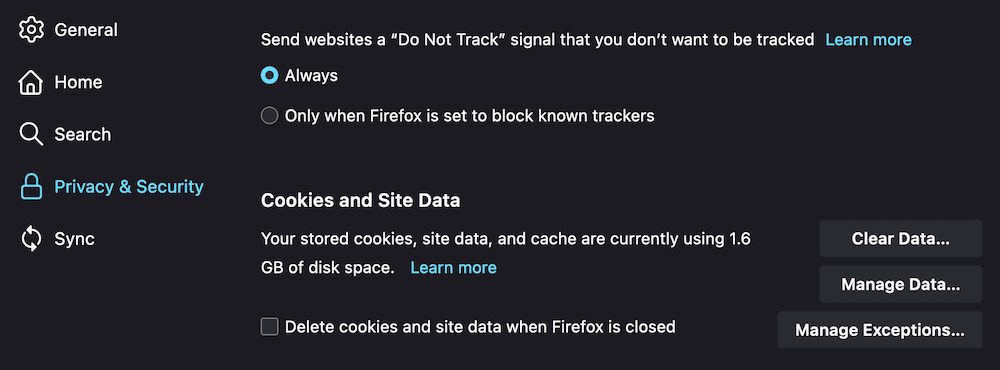 While both boxes will show a tick by default, you don’t actually want to clear the Cookies and Site Data cache, so uncheck that box and leave only the box for Cached Web Content ticked.
 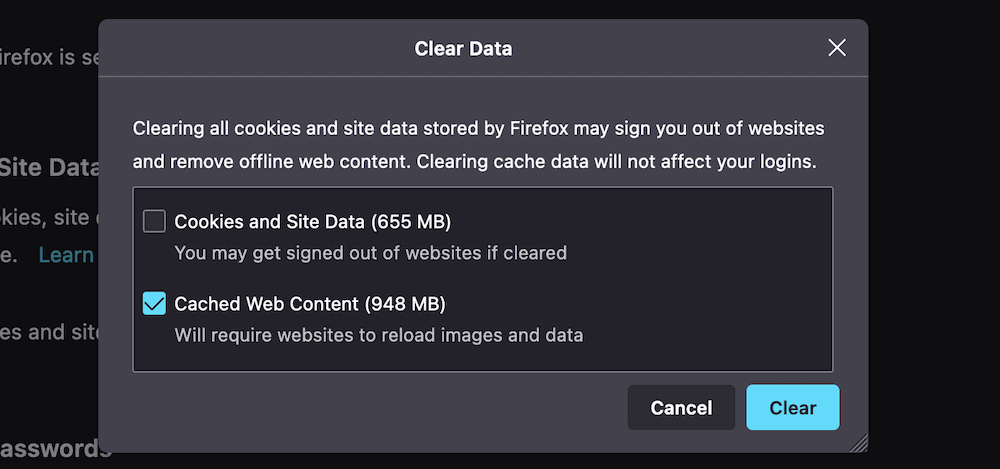 Once you click the Clear button, the browser will empty the cached web content. Now, restart your computer and see if the PR_CONNECT_RESET_ERROR occurs again.
2. Use a Different Network
Info
Note that all major OSs have access to a built-in firewall — and this isn’t what we’re talking about here. You may want to revisit this method later if you have no luck with the other solutions in this article and try disabling the built-in firewall too. You’ll want to uninstall your firewall and security software on a temporary basis. This is because a firewall can still have an effect on your browsing experience despite being disabled, due to the “rules” it already has in place. The process for this is going to be different depending on your OS and chosen firewall/security solution. However, our advice is to use a dedicated uninstaller if there is one for your software. This will give you a clean slate to work from while you diagnose the PR_CONNECT_RESET_ERROR. Once it’s been uninstalled, check for the error again
4. Disable Your VPN or Proxy
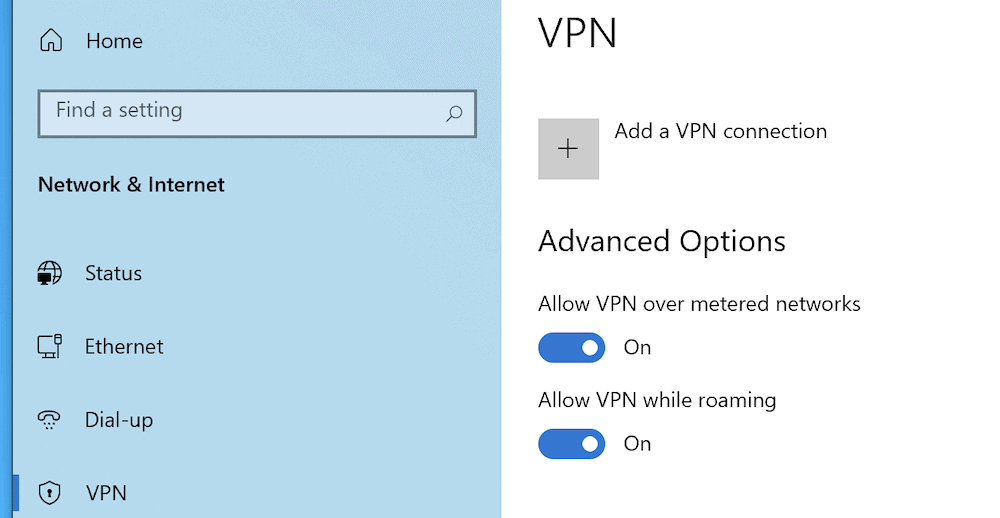
Not all users will have a VPN or proxy server active, although if you do, it’s worth disabling them to see if they’re causing the PR_CONNECT_RESET_ERROR. On a Mac, you’ll manage the state of your VPN through the System Preferences > Network screen. 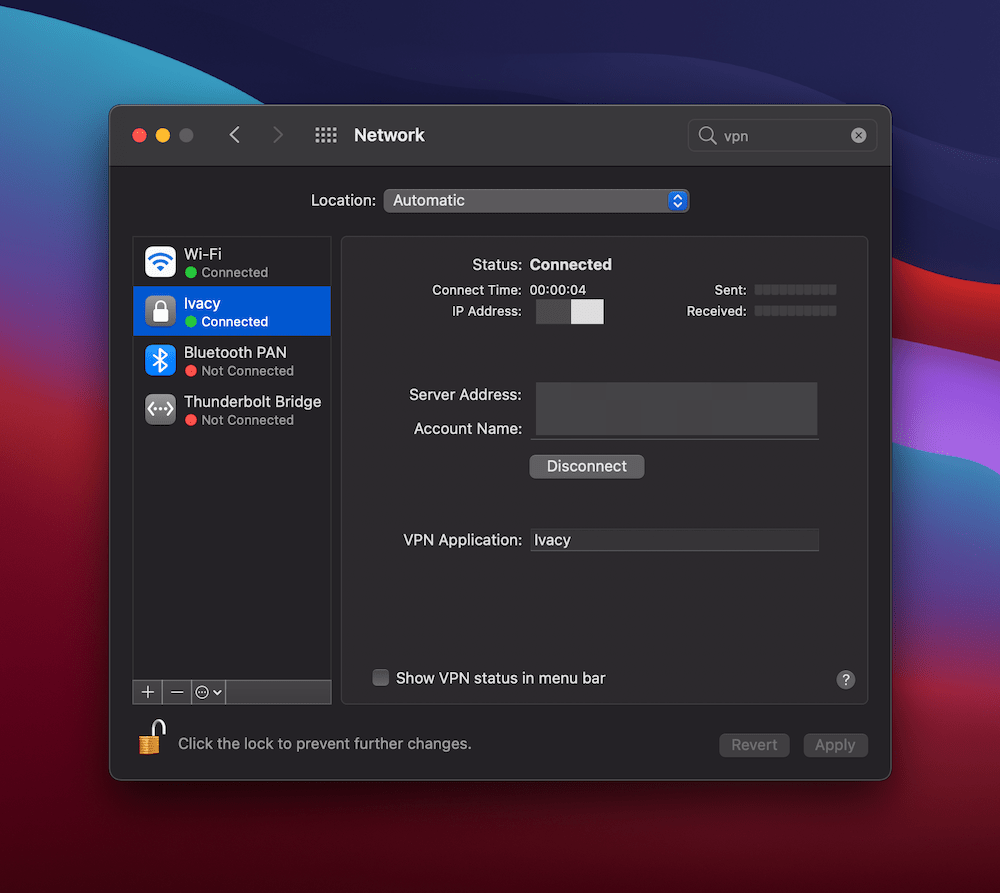 Here, you can click the Disconnect button to stop the VPN. As with your extensions, you might not need to uninstall the VPN at all (but keep this as an option in the bag if necessary). For Windows, you can find the VPN settings on the Settings > Network & Internet screen.
 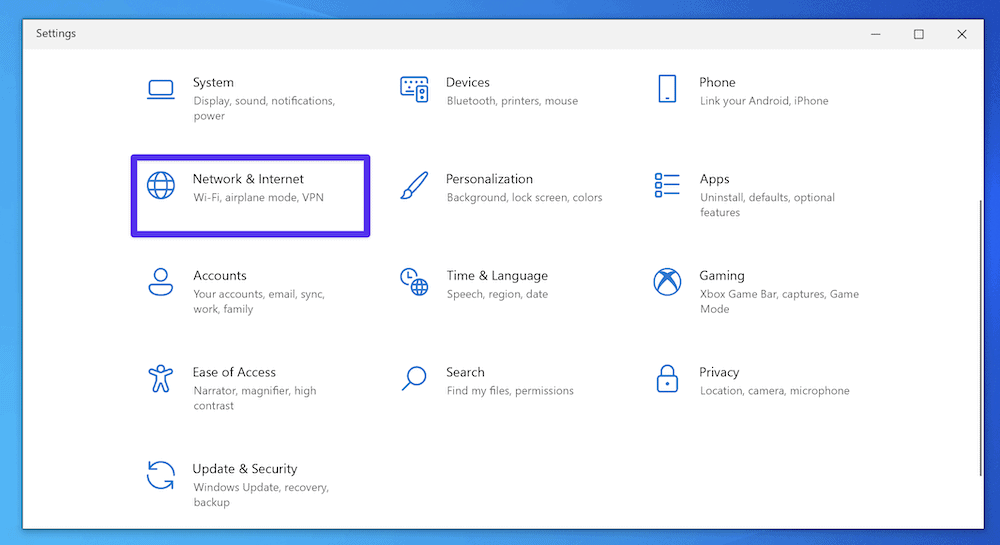 Here, locate the VPN option on the left-hand side.
 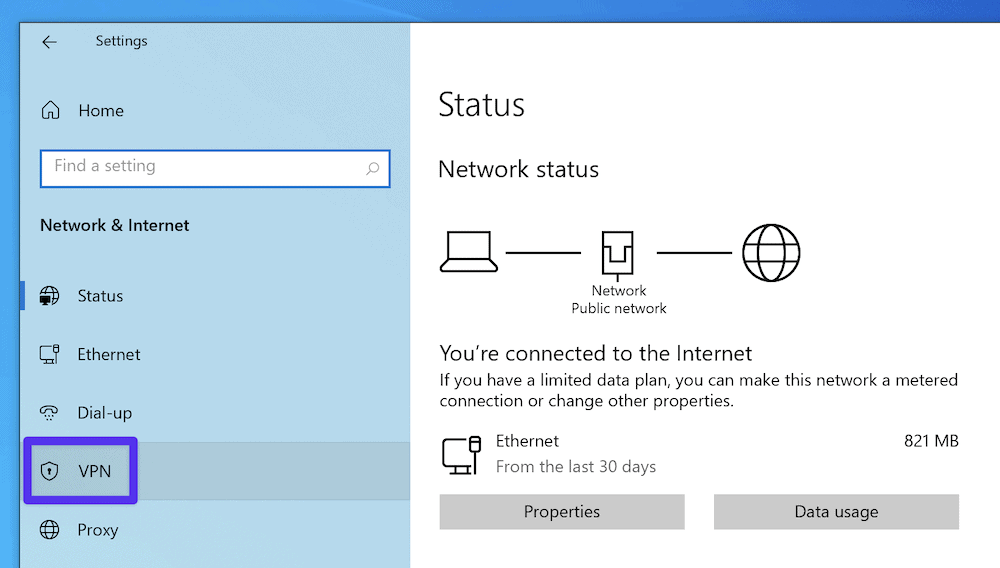 On this screen, you can toggle off all of the relevant “on” switches.
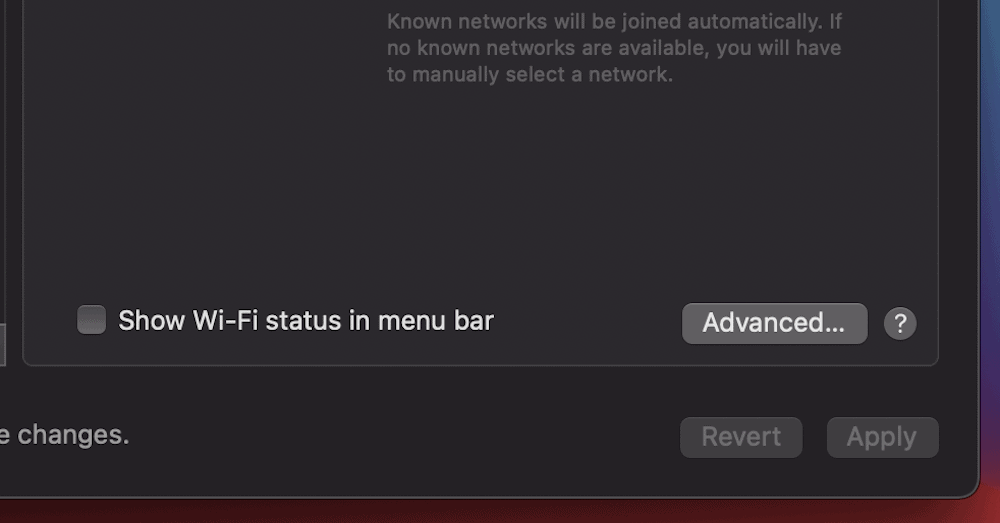
  As for proxy settings, you’ll again need to head to the System Preferences > Network screen on macOS, and this time click the Advanced button.
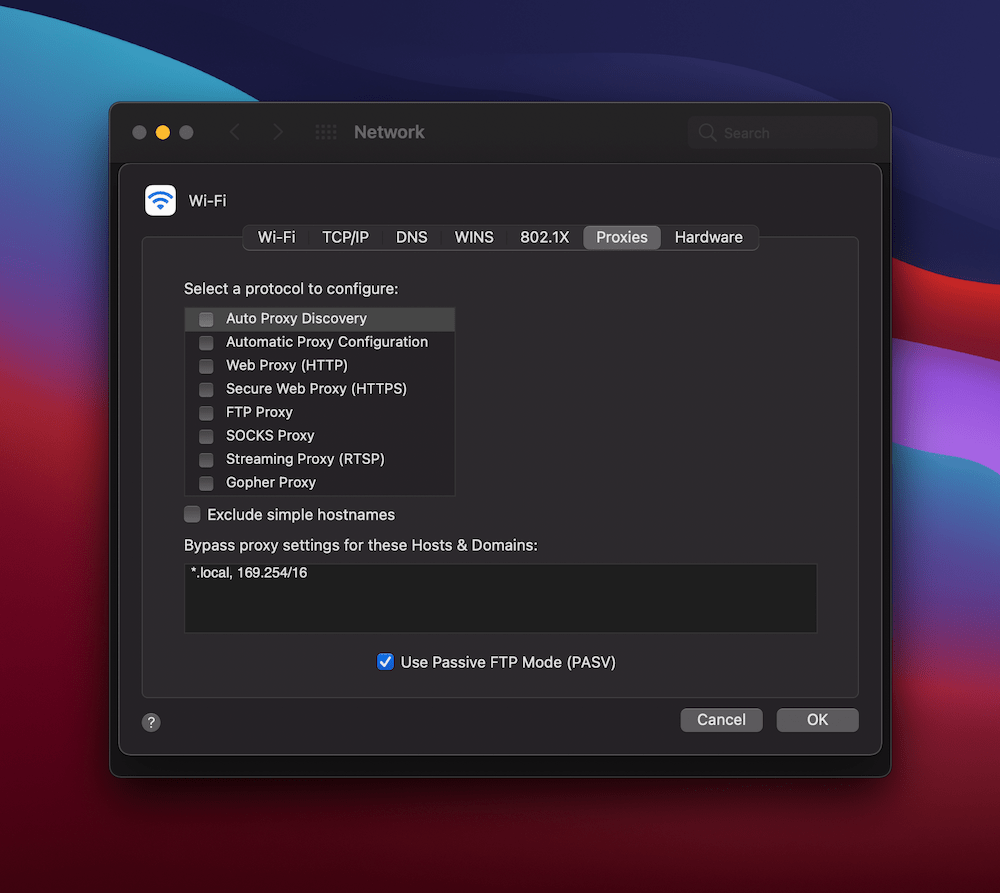
  Here, go to the Proxies tab, and uncheck every protocol on the list that’s active.
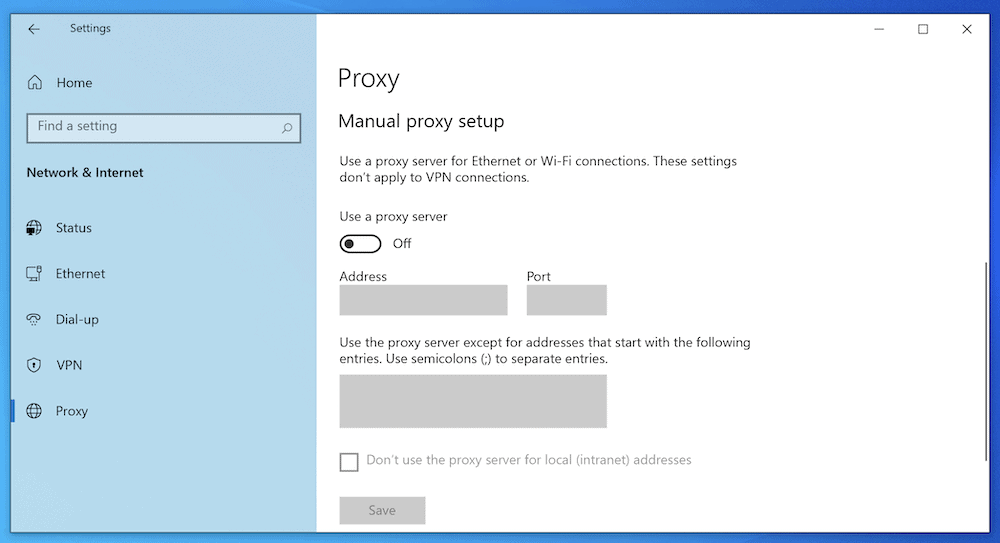
  For Windows, you’ll again want to head to the Network & Internet screen, this time to the Proxy section on the left-hand side. Next, scroll to the Manual proxy setup section and toggle the Use a proxy server option to “Off”.
  Once you carry out these steps, check again for the PR_CONNECT_RESET_ERROR. With luck, it’ll be gone.
5. Disable Firefox Extensions and Add-Ons
While it may not be a necessary step, there’s still no harm in disabling any add-ons or themes you use with Firefox. This is for many of the same reasons as uninstalling your firewall: It helps to give your browser no excuses for showing the error and can rule out any of the various additional tools you use. To do this, head back into Firefox’s hamburger menu and choose Add-ons and themes. 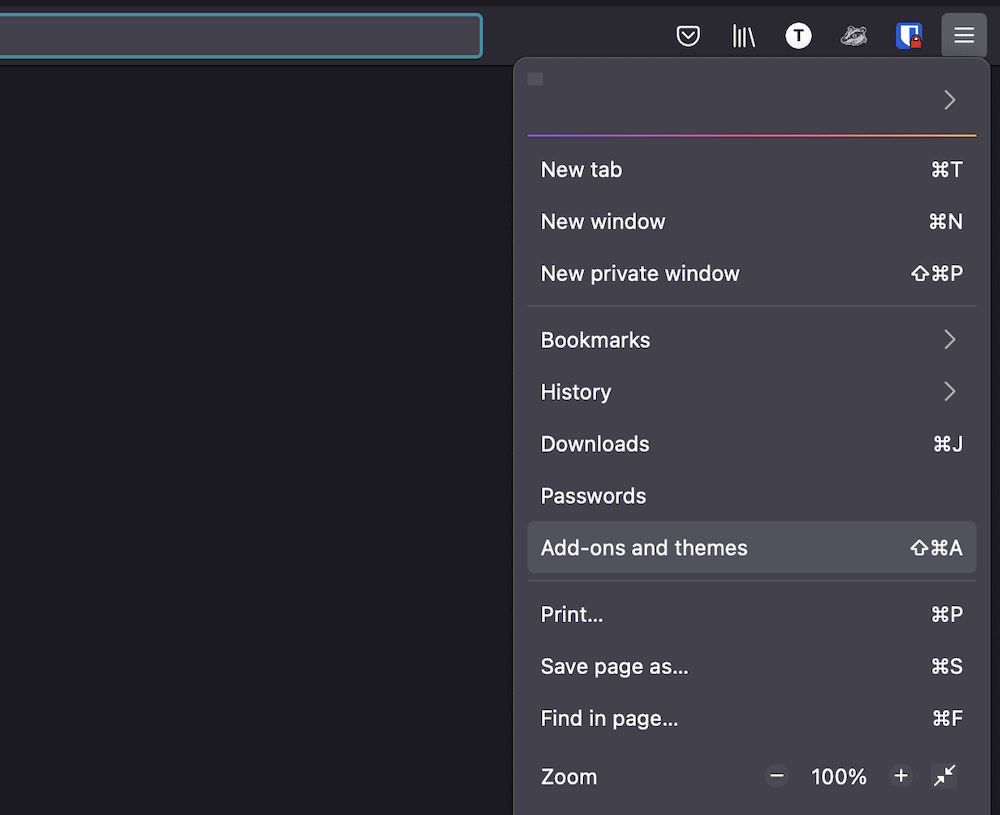 The process here is more straightforward than it is for your firewall. Instead of uninstalling the extensions you have, you can simply disable them using the toggle switches.
 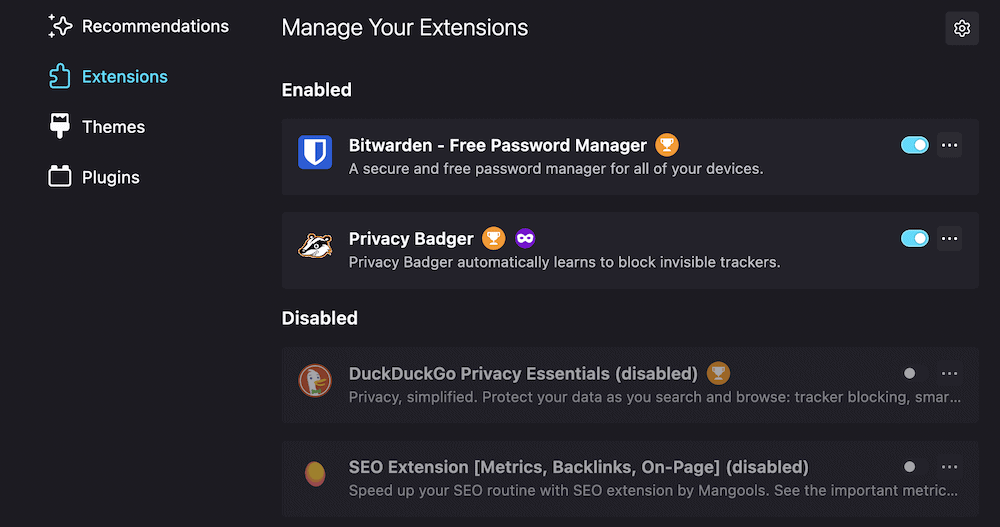 You can test out whether the PR_CONNECT_RESET_ERROR is still occurring by refreshing the site. If it’s gone, re-enable the extensions one by one, refreshing the site each time, to catch the culprit.
Summary
- Easy setup and management in the MyKinsta dashboard
- 24/7 expert support
- The best Google Cloud Platform hardware and network, powered by Kubernetes for maximum scalability
- An enterprise-level Cloudflare integration for speed and security
- Global audience reach with up to 35 data centers and 260 PoPs worldwide
Get started with a free trial of our Application Hosting or Database Hosting. Explore our plans or talk to sales to find your best fit.
Как исправить PR CONNECT RESET ERROR в Mozilla Firefox?
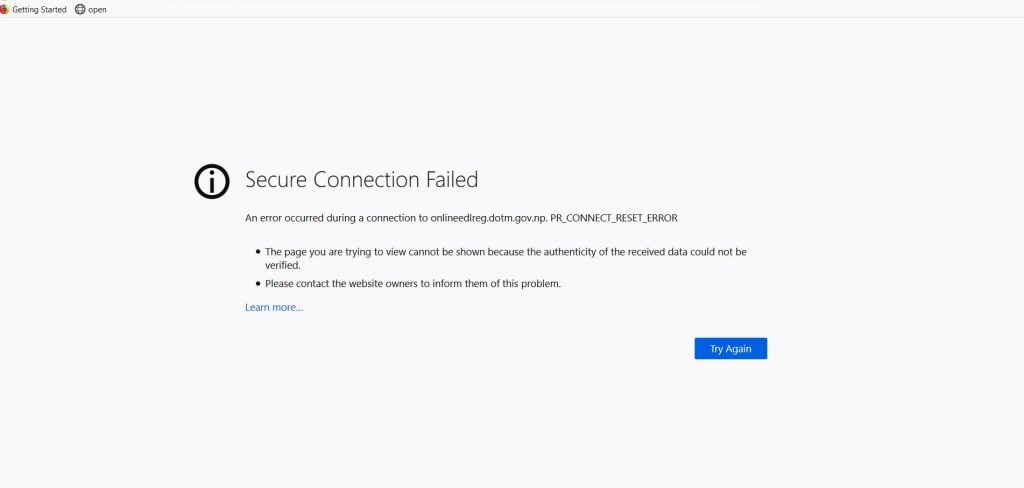
Пользователи браузеров Mozilla Firefox жалуются, что во время серфинга в интернете перед ними возникает ошибка PR CONNECT RESET ERROR. У некоторых подобная ошибка появляется при переходе на абсолютно любые веб-ресурсы, у других — при переходе на определенные сайты.
Ошибка PR CONNECT RESET ERROR означает, что пир, т.е. ваш ПК, получил необходимые данные от сервера сайта, на который вы попытались перейти, но не смог обработать их должным образом. В сегодняшней статье мы расскажем вам о нескольких рабочих решениях для этой ошибки.
Решение ошибки PR CONNECT RESET ERROR
Решение №1 Проверка сетевых кабелей и перезапуск Wi-Fi маршрутизатора
Давайте начнем с вами с чего-то действительно тривиального. Убедитесь, что все сетевые кабели корректно подключены к вашему ПК и Wi-Fi маршрутизатору. Кроме того, мы рекомендуем пару-тройку раз перезагрузить сам роутер: он мог начать работать с ошибками и буквально препятствовать подключению к некоторым или всем веб-ресурсам.
Решение №2 Отключение прокси-сервера
Некоторые пользователи утверждают, что у них получилось избавиться от ошибки PR CONNECT RESET ERROR, выключив прокси-сервер в настройках параметров локальной сети. Чтобы отключить прокси-сервер, необходимо выполнить следующее:
- нажмите Windows+R, чтобы вызвать перед собой окошко «Выполнить»;
- пропиши в пустую строку значение control и нажмите Enter;
- в режиме просмотра выберите крупные или мелкие значки (поверьте, так будет легче);
- откройте раздел «Свойства браузера»;
- перейдите во вкладку «Подключения» и нажмите на кнопку «Настройка сети»;
- уберите галочку с опции «Использовать прокси-сервер для локальных подключений (не применяется для коммутируемых или VPN-подключений)»;
- сохраните изменения и закройте все ранее открытые окна;
- перезагрузите компьютер.
Откройте свой Mozilla Firefox и проверьте наличие ошибки PR CONNECT RESET ERROR.
Решение №3 Очистка кэша DNS и сброс настроек протокола TCP/IP
Если вы столкнулись с какими-то сетевыми неполадками, то вам определенно стоит попробовать сбросить DNS-кэш и сетевые настройки протокола TCP/IP на своем компьютере. Делается это с помощью парочки элементарных команд. Сделайте следующее:
- нажмите Win+R;
- пропишите значение cmd и нажмите комбинацию Ctrl+Shift+Enter;
- выполните следующий ряд команд:
- netsh int ip reset
- netsh int ip reset resettcpip.txt
- netsh int ipv4 reset
- netsh int ipv6 reset
- ipconfig /flushdns
Такой способ способен разрешить целую кучу самых разных сетевых неполадок. Откройте свою «мозиллу» и попробуйте перейти на нужный веб-ресурс. Ошибка PR CONNECT RESET ERROR к этому моменту могла исчезнуть.
Решение №4 Увеличение MTU
Еще поговаривают, что от ошибки PR CONNECT RESET ERROR помогает избавиться увеличение значений MTU (Maximum Transmission Unit) и RWIN (TCP Window Receive). Делается это следующим образом:
- нажмите Windows+R;
- пропиши control и нажмите Enter;
- откройте раздел «Центр управления сетями и общим доступом»;
- кликните на ссылку «Изменение параметров адаптера»;
- скопируйте точное название своего сетевого подключения, например, в текстовый документ;
- еще раз нажмите Win+R;
- пропишите cmd и нажмите Ctrl+Shift+Enter;
- впишите команду netsh interface IPv4 set subinterface “НАЗВАНИЕ СЕТЕВОГО ПОДКЛЮЧЕНИЯ” mtu=1472 store=persistent и нажмите Enter.
Решение №5 Отключение AppEx Networks Accelerator
AppEx Networks Accelerator широко известен в интернете тем, что способен замедлять скорость сетевого подключения, причем, как отмечают пользователи, аж на 70-80%. Давайте попробуем с вами отключить данный компонент и посмотрим, что из этого выйдет.
- нажмите Windows+R;
- пропишите control и нажмите Enter;
- откройте раздел «Центр управления сетями и общим доступом»;
- кликните на ссылку «Изменение параметров адаптера»;
- нажмите ПКМ на свое сетевое подключение и выберите «Свойства»;
- найдите в списке компонентов «AppEx Networks Accelerator» и уберите с него галочку;
- сохраните изменения и перезагрузите компьютер.
Решение №6 Обновление драйвера сетевого адаптера
Возможно, вы сталкиваетесь с ошибкой PR CONNECT RESET ERROR из-за того, что драйвер вашего сетевого адаптера начал работать не совсем корректно. В большинстве случаев достаточно обновить этот драйвер через диспетчер устройств, что можно сделать вот так:
- нажмите Win+R;
- пропишите devmgmt.msc и нажмите Enter;
- раскройте раздел «Сетевые адаптеры»;
- нажмите ПКМ на свой сетевой адаптер и выберите «Обновить драйвер»;
- в новом окошке выберите опцию «Автоматический поиск обновленных драйверов», после чего следуйте инструкциям на экране;
- перезагрузите компьютер после обновления драйвера сетевого адаптера.
How to Fix PR CONNECT RESET ERROR on Mozilla Firefox?
The PR_CONNECT_RESET_ERROR issue is encountered when the user tries to use Mozilla Firefox to connect to a website server with the HTTPS protocol but the request gets denied. This error message essentially means that the peer or some middlebox in between (most likely a firewall) is terminating the connection forcibly.
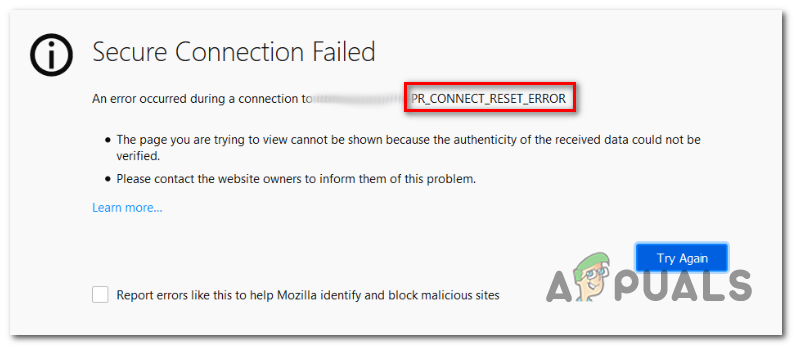
As it turns out, TCP protocol filtering can be responsible for interrupting the connection between the end-user (you) and the webserver you’re attempting to access due to a false positive. In this case, you should be able to fix the issue by accessing the advanced settings of your AV and disabling protocol filtering. ESET AV is known to have this feature enabled by default.
The issue may also be caused by certain temporary files which can interfere with new webserver connections. This typically happens if the user tries to access the same website with both a regular connection and one filtered through a VPN / Proxy. In this case, you can fix the issue by clearing your browser cache.
An overprotective firewall can also be responsible for the interruption between the end-user and the webserver. A false positive can be responsible for this behavior. If this scenario is applicable, you can fix the problem by uninstalling the 3rd party firewall and reverting back to the default Windows firewall.
Certain websites take security precautions against end-users that filter their connection through a VPN or proxy. It’s possible that you’re encountering this issue due to the fact that you’re using a VPN or proxy. In this case, you can fix the issue by disabling the proxy server or uninstalling the VPN client.
Depending on your ISP, there’s also a chance that you’re seeing this Firefox error due to a geo lock that is preventing you from accessing some web-servers from certain locations. In this case, you can change your location via a VPN tool in order to access the website.
This issue is quite common among users that are attempting to access certain web servers from a university or work environment. Some restricted networks such as these will block users from accessing certain websites. Brave browser is a good alternative in this case.
1. Disable Protocol Filtering (if applicable)
As it turns out, one popular reason that will ultimately call this issue is some kind of TCP protocol filtering that ultimately ends interrupting the connection between the peer (you) and the server you’re attempting to access.
In most cases, this ends up being caused by an overprotective AV suite that has Protocol Filtering enabled by default. This security feature will end up checking the security of all your browser communications and block any suspicious activity.
This is perfectly fine when it works as advertised. But some AV (most commonly ESET) are known to cause a lot of false positives that will end up preventing users from accessing certain websites.
If you’re using ESET Antivirus as your default 3rd party security suite, follow the instructions below to disable Protocol Filtering:
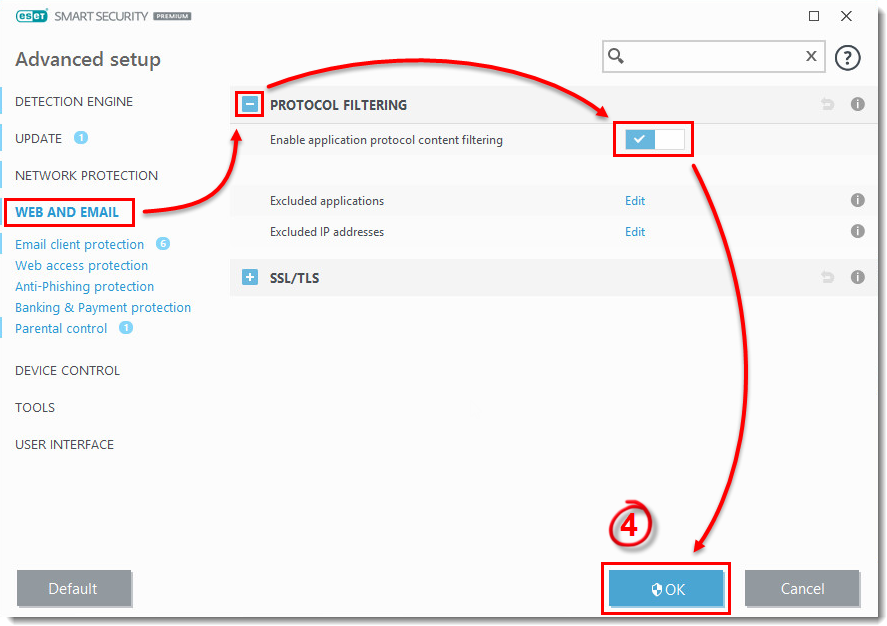
- Open the main ESET antivirus program.
- Access the Advanced setup manually or by pressing F5.
- Once you are inside the Advanced setup window, start by clicking on Web and Email.
- Next, expand the Protocol Filtering section and click on the associated slider bar next to Enable application protocol content filtering to disable the feature.
- Click Ok to save the changes, then see if the issue has been resolved by trying to access the same website that was previously triggering the error. NOTE: If you’re using a different AV that is deploying protocol filtering, the steps above will obviously not apply. in this case, search online for specific steps on disable protocol filtering according to the 3rd party AV that you’re using.
If this operation wasn’t applicable or you determined that ESET’s protocol filtering wasn’t causing the PR_CONNECT_RESET_ERROR, move down to the next potential fix below.
2. Clear Browser Cache
As it turns out, this particular issue can also be caused by a temporary file that is interfering with new connections. In most cases, this will occur if you attempt to access the same web server with both a regular connection and a VPN.
If this scenario is applicable to your current situation, you can probably fix the issue by clearing Firefox’s web cache. Here’s a quick guide on how to do this in order to fix the PR_CONNECT_RESET_ERROR :
Note: If you know exactly which file is causing the problem, here’s how to clear the cache on a single website.
- Start by ensuring that every Firefox tab is closed except from one new tab that we are going to use.
- Click on the action button (top-right corner of the screen) and select Options from the newly appeared context menu.
- Once you manage to get inside the Settings menu, select the Privacy & Security menu from the left-hand table. Next, scroll down to the Cookies and Data menu and click on Clear data.
- Inside the Clear data menu, start by unchecking the box associated with Cookies and Site Data, but ensure that you check the box next to Cached Web Content.
- Click on Clear to begin the process of cleaning your web content data.
- Restart your computer and see if the issue is resolved at the next system startup.
In case the same issue is still occurring, move down to the next potential fix below.
3. Uninstall 3rd party firewall (if applicable)
If you were to break down the error code piece by piece, you’ll realize that it’s really signalling an interruption between the end-user and the server. In the vast majority of cases, this problem is facilitated by an overprotective firewall that ends up interrupting the connection due to a false positive.
If you’re certain that the website you’re trying to visit is legitimate and you’re using a 3rd party firewall instead of the default Windows firewall, you should investigate to see if the external tool is not actually creating the problem.
Keep in mind that contrary to the behaviour of an AV suite, disabling the real-time protection of a firewall will not stop this behaviour from occurring. Chances are the same security rules will remain in place.
The only way to thoroughly make sure that your third party firewall suite has nothing to do with the issue is to temporarily uninstall it. Here’s a quick guide on making this possible:
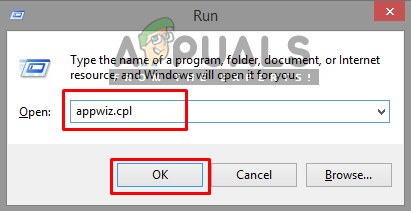
- Open up a Run dialogue box by pressing Windows key + R. Next, type ‘appwiz.cpl’ and press Enter to open up the Programs and Features window.

- After you manage to get inside the Programs and Features screen, move down through the list of installed applications and locate the 3rd party suite that you are currently using. Once you manage to locate it, right-click on it with your mouse and choose Uninstall from the next context menu.
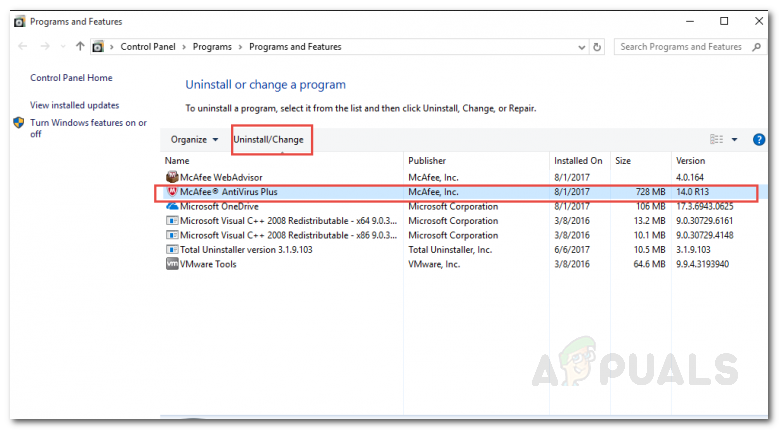
- Once you manage to get inside the uninstallation menu, follow the on-screen instructions to complete the uninstallation process.
- After the process is complete, you can also follow the instructions (here) to ensure that you’re not leaving behind any leftover files that might still cause the same behaviour.
- As soon as the operation is complete, restart your computer and see if the issue is resolved at the next system startup.
If this scenario wasn’t applicable or you’re still encountering this problem even after following the instructions above, move down to the next potential fix.
4. Disable Proxy / VPN (if applicable)
Another potential reason that might end up triggering the PR_CONNECT_RESET_ERROR issue is the host refusal to let end-users connect through VPN or Proxy servers. VPNs are not easily detected, but Proxy servers are nowadays restricted with several high-profile websites.
If you’re using a proxy server or VPN client to browse anonymously online, chances are that’s the reason why you are dealing with the PR_CONNECT_RESET_ERROR issue. To test this theory, you should disable your proxy or VPN client and see if the problem goes away on your way.
Since the two processes are different, we created two separate guides. Feel free to follow whichever guide is applicable to your scenario.
Removing the VPN client
- Press Windows key + R to open up a Run dialogue box. Next, type ‘appwiz.cpl’ inside the text box and press Enter to open up the Programs and Features menu. Once you’re inside the User Account Control (UAC) prompt, click Yes to grant administrative privileges.
- Once you arrive inside the Programs and Features screen, go ahead and scroll through the list of installed software and locate the active VPN client that you’re currently deploying. Once you manage to locate it, right-click on it and choose Uninstall from the context menu.
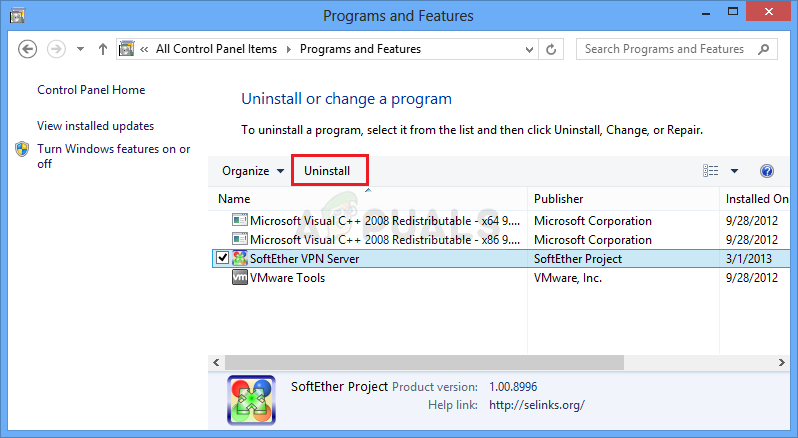
- Inside the uninstallation wizard, follow the on-screen instruction in order to complete the uninstallation of the VPN client.
- Once the process is complete, restart your machine and see if the problem is fixed at the next startup.
Removing the Proxy server
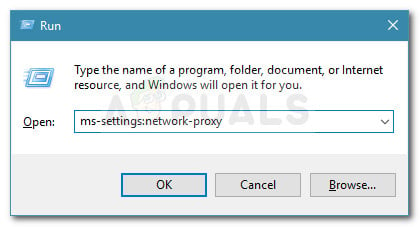
- Press Windows key + R to open up a Run dialogue box. Next, type ‘ms-settings:network-proxy’ inside the text box and press Enter to open up the Proxy tab of the Settings app.
- When you’re inside the Proxy tab of the Settings menu, move down to the Manual Proxy Setup section. Once you’re there, navigate to the right-hand section of the screen and disable the toggle associated with the Use a proxy server.
- After you do this, restart your computer and wait for the operation to complete. After the next startup sequence is complete, repeat the action that was previously causing the PR_CONNECT_RESET_ERROR error.
In case the same issue is persisting or none of the issues was applicable to your current situation, move down to the next potential fix below.
5. Bypass the ISP lock (if applicable)
Just how a VPN client can be responsible for causing the PR_CONNECT_RESET_ERROR issue, it can also serve as a tool capable of getting you out of this predicament. It’s possible that you’re seeing this error message due to the fact that your ISP ends up discarding the IP address of the web server that you’re trying to visit.
This is very common in instances where there’s a geo-lock in place. Several users finding themselves in a similar situation have confirmed that they were finally able to access the website without encountering the same error after installing and using a VPN solution.
If you want to try this workaround, we found a free alternative that will allow you to explore this potential fix without investing money in a VPN client. Here’s a quick guide on using a free VPN solution to bypass the geo-lock causing the PR_CONNECT_RESET_ERROR issue:
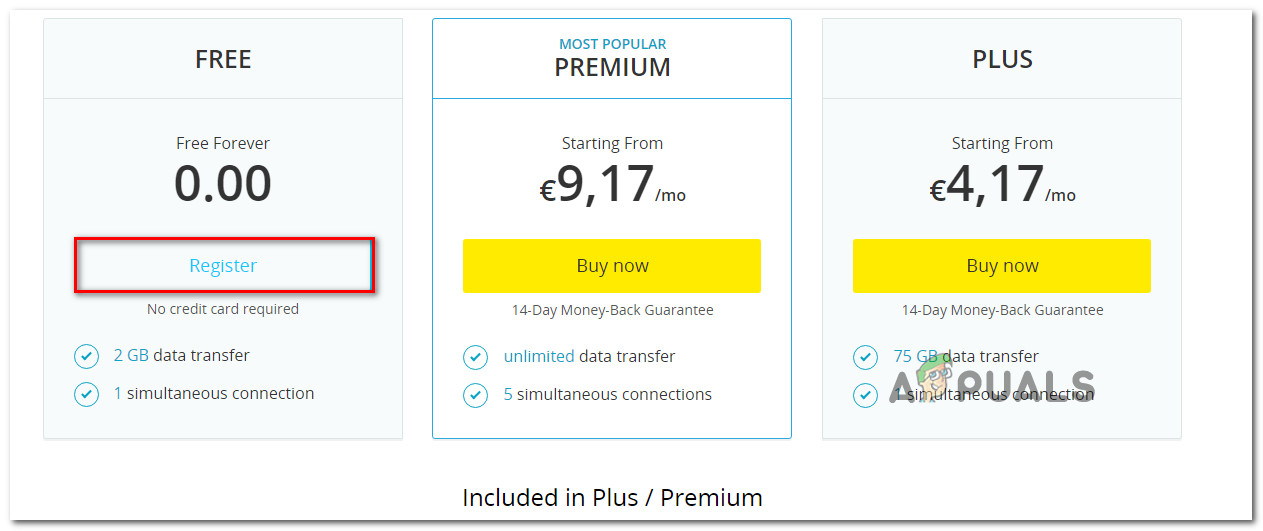
- Start by accessing this link (here) and click on the Download Now button to start the process of downloading the installation executable. Once you get to the next screen, click on the Register button that’s associated with the Free account.
- Once you get to the next screen, enter your email address to complete the initial registration.
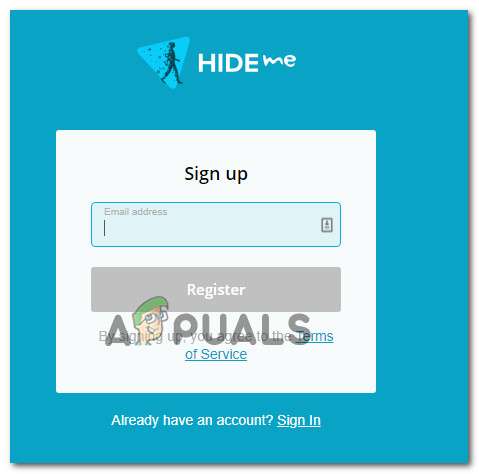 Note: At this step, it’s crucial that you use a valid email address to complete the initial registration. This will be later used to verify the account.
 - Once the correct email is inserted, access your inbox and look for the verification email that you got from Hide.me. Check your Spam folder if you can’t see it inside the Inbox / Updates folder.
- After you manage to locate your email, open it and click on Activate my account to verify the VPN registration.
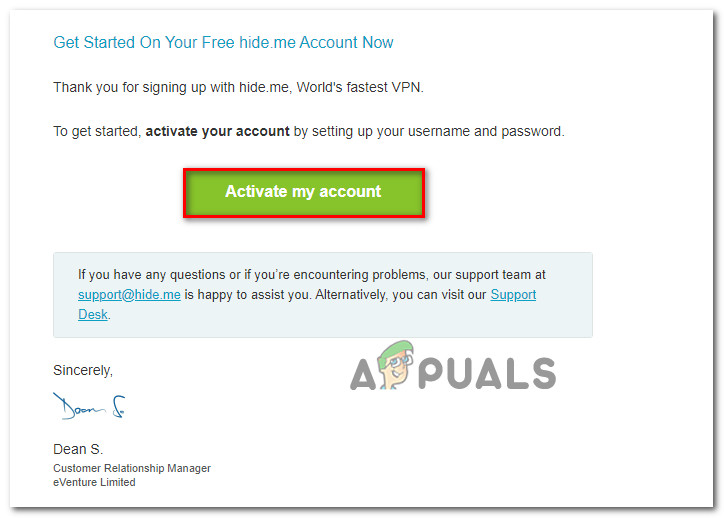 Note: It might take several minutes for the email to arrive, so wait patiently until the process is complete.
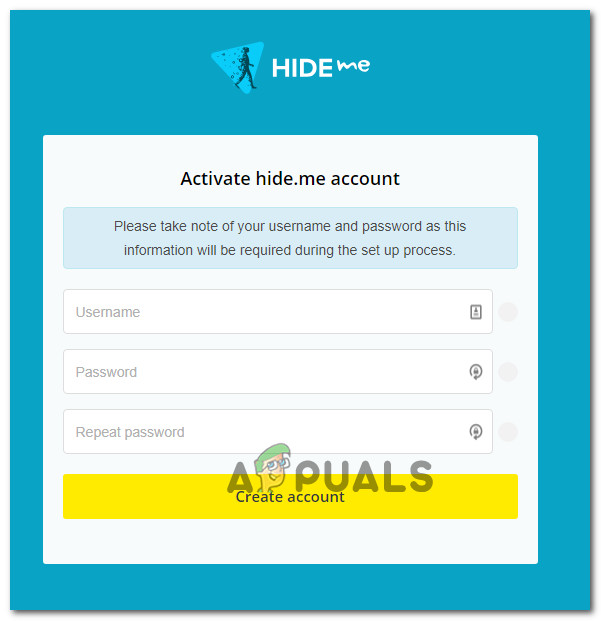
 - On the next screen, you will need to select an appropriate user and password that will be used for your Hide.me account. After you are finished with this, click on Create account.
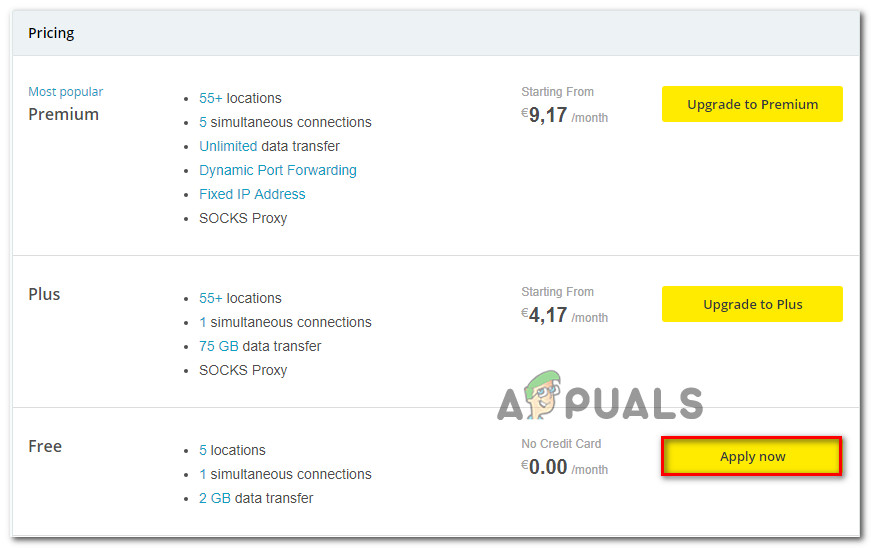
- Now that you are successfully signed into the account that you have previously configured and verified, go to Pricing > Free section. Inside, click on Apply Now in order to activate the free plan.
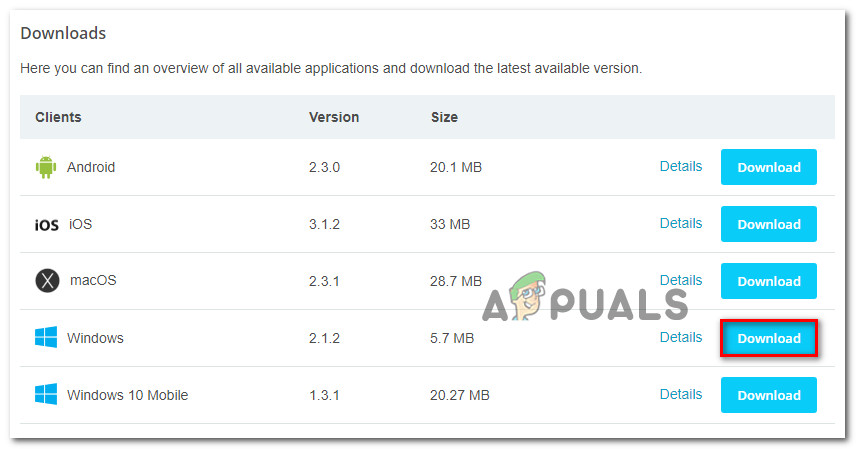
- With the Free plan activated, move over to the Download clients section and click on the Download Now button appropriate to the OS that you’re currently using with your computer.
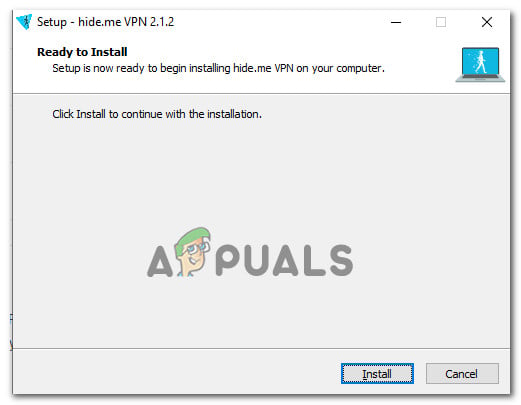
- Once the download is complete, double-click on the installation executable. Next, follow the on-screen prompts to complete the operation on your computer.
- After the installation is finished, open the application and sign-in with the account that you previously created.
- Finally, click on Start your free trial, select a suitable region that is not geo-locked by the web server and you are good to go.
In case this operation was not applicable to your current situation or it didn’t resolve the PR_CONNECT_RESET_ERROR issue, move down to the next method below.
6. Connect to a different network
As it happens, the issue can also be beyond your control. If you’re connected to a closed/restricted network at work or university, chances are certain websites will show the PR_CONNECT_RESET_ERROR when you attempt to access through Firefox.
If this scenario is applicable, you can attempt to connect to a different network and see if the issue no longer occurs. Creating a hotspot from your phone and connecting your laptop is a mobile way of testing it.
In case the issue no longer occurs, you can try to use Brave browser (instead of Firefox) to circumvent limited work or university closed networks. Several affected users have confirmed that this allowed them to access web servers that were previously blocked.
Как исправить ошибку PR_CONNECT_RESET_ERROR

Веб-страницы, которые мы посещаем в Интернет они становятся все более изощренными и сложными, с более высокими техническими требованиями. Эта эволюция приводит к лучшему пользовательскому опыту, но имеет некоторые недостатки. Одна из них — выше вероятность ошибок. Одна из этих ошибок — PR_CONNECT_RESET_ERROR, решение которого мы покажем позже.
Роль Сообщения об ошибках заключается в том, чтобы сообщить нам о своем происхождении. Эти сообщения не всегда легко понять среднему пользователю Интернета, которому не обязательно иметь слишком глубокие знания о работе Интернета.
Это может быть именно случай ошибки PR_CONNECT_RESET_ERROR. Чтобы пролить свет на проблему, мы собираемся проанализировать причины, по которым может возникнуть эта ошибка, и способы ее решения.
- 1 Что означает PR_CONNECT_RESET_ERROR?
- 2 PR_CONNECT_RESET_ERROR: Возможные решения
- 2.1 Проверьте настройки прокси
- 2.2 Очистить кеш браузера
- 2.3 Временно отключите брандмауэр
Что означает PR_CONNECT_RESET_ERROR?
Это случается чаще, чем вы думаете. Мы попытались открыть веб-страницу и обнаружили следующее сообщение: «Произошла ошибка при подключении к (имя веб-страницы) PR_CONNECT_RESET_ERROR. Возникает вопрос: что случилось?
Что означает PR_CONNECT_RESET_ERROR?
Информация, которую передает нам это сообщение, заключается в том, что было невозможно правильно установить соединение. Это относительно частая ошибка в Google Chrome., хотя это также может происходить в других браузерах, таких как Mozilla Firefox или Internet Explorer. В этих случаях появляются похожие сообщения об ошибках.
La техническое объяснение заключается в том, что при попытке установить соединение с запрошенной страницей браузер получает пакет с приказом завершить. Это протокол управления передачей (TCP) используется для сообщения пользователю об окончании соединения.
Содержание в любом случае то же: возникла проблема с подключением. Несколько лишняя информация, потому что, читая ее, мы уже прекрасно понимаем, что происходит. Что нам нужно знать, так это его происхождение и, прежде всего, как мы можем его решить.
PR_CONNECT_RESET_ERROR: Возможные решения
Правда в том, что Причины этой ошибки многочисленны. Поэтому лучше всего в таких случаях пробовать одно за другим наиболее распространенные решения. С помощью этого процесса мы исключим различные причины и попробуем разные методы, пока не найдем наиболее подходящий.
Однако, прежде всего, мы должны исключить простейшие причины, которые мы иногда упускаем из виду. В предварительные проверки прежде чем пробовать другие более сложные решения. Проверьте работоспособность страницы, которую вы безуспешно пытались открыть. Возможно, проблема не в вашем подключении, а в доступности интернета. Для этого попробуйте доступ с другого компьютера или через другой браузер.
- Если выскакивает ошибка, значит проблема со страницей. Лучше всего в этом случае связаться с администратором, чтобы сообщить им об этом.
- С другой стороны, если ошибка не появляется при смене браузера, возможно, наша система несет ответственность за прерывание соединения.
Прежде чем пробовать решения, перечисленные ниже, не помешает попробовать перезагрузите роутер. Простой, но эффективный. Вполне возможно, что этого достаточно, чтобы сообщение об ошибке не появилось.
Проверьте настройки прокси
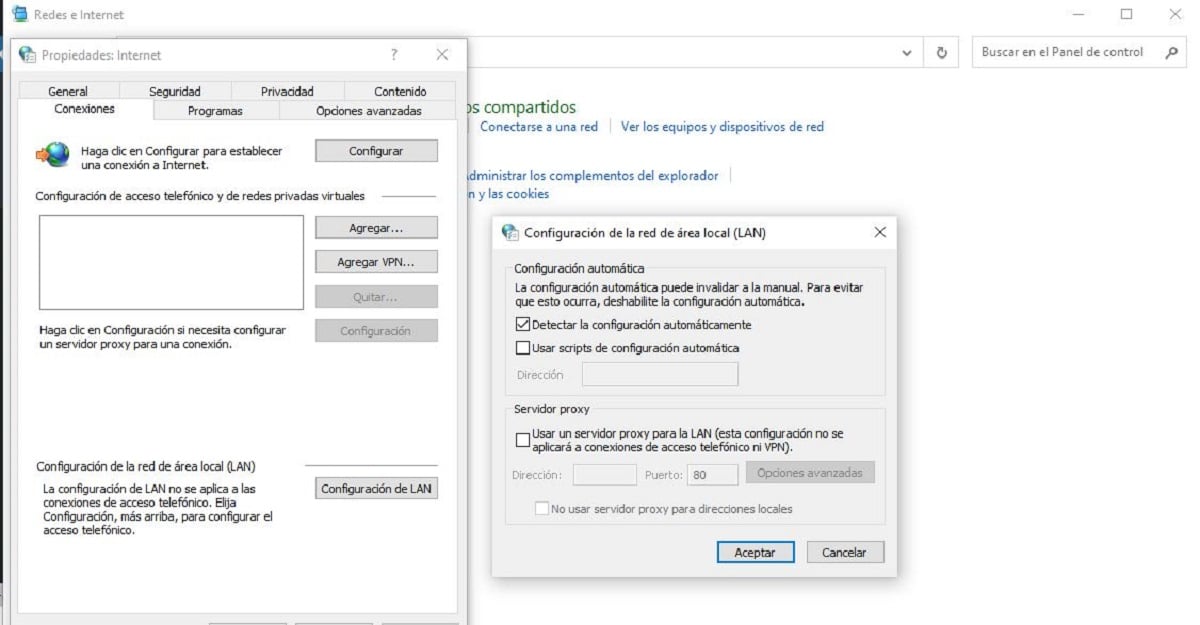
Исправьте ошибку PR_CONNECT_RESET_ERROR, сбросив настройки прокси
Первое решение, которое следует попробовать, это это, поскольку обычно именно здесь чаще всего находится источник ошибки PR_CONNECT_RESET_ERROR. Соединение может быть прервано из-за настройки, определенные на прокси-сервере.
Причин может быть несколько. Скорее всего, это происходит из конфигурации, добавляемой автоматически через плагины, установленные в браузере, без нашего ведома. Если да, то вам нужно проверить настройки прокси. Вот шаги, которые необходимо выполнить:
- Мы открываем Панель управления в Windows и в меню выбираем «Настройки интернета».
- Далее открываем вкладку «Связи» и в нем выбираем «Настройки LAN».
- В появившемся меню мы видим настройки прокси нашей команды с вашей текущей конфигурацией. Если поле «Использовать прокси-сервер для локальной сети » активирован, его необходимо деактивировать.
- Наконец, мы проверим действие, нажав кнопку «Принять».
После этого мы снова попытаемся получить доступ к Интернету. Если проблема была в прокси, без проблем подключимся. Если нет, вам нужно будет попробовать другой метод.
Очистить кеш браузера

Очистите кеш браузера, чтобы исправить ошибку PR_CONNECT_RESET_ERROR
Плюс пароли, файлы cookie и история загрузок, кеш-память браузера также сохраняет данные о посещенных страницах. Если страница, на которой появляется ошибка PR_CONNECT_RESET_ERROR, уже была посещена нами ранее, очистить кэш может решить проблему. Таким образом удаляется устаревшая информация и исчезает блокировка.
В Chrome вот что нужно делать:
- Открываем меню конфигурации (нажав на иконку с тремя точками).
- Затем выбираем «Инструменты».
- В меню выбираем опцию «Очистить данные браузера».
В третьем пункте, прежде чем нажимать на «очистить данные», важно отметить все категории и определить «все периоды» в опции временного интервала.
Временно отключите брандмауэр
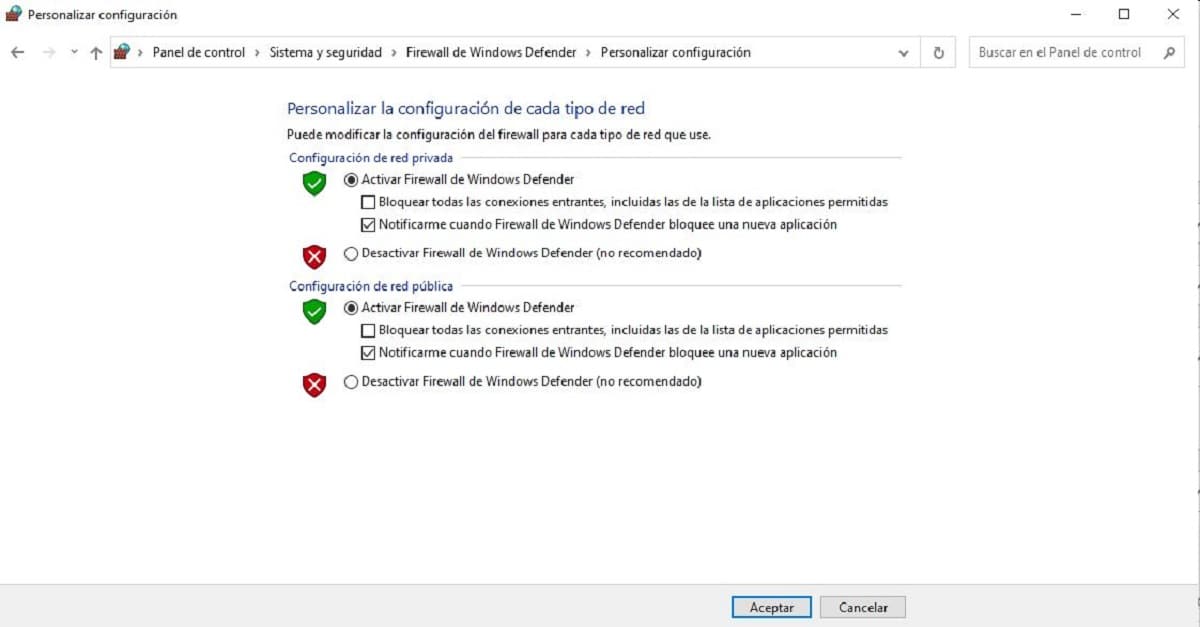
Антивирусы и их брандмауэры — очень полезные инструменты, хотя иногда их «чрезмерное рвение» может вызвать у нас определенные проблемы. Так же, как они защищают нас от несанкционированного доступа или вредоносного программного обеспечения, иногда они также блокируют доступ к страницам, которые не представляют никакой опасности для наших компьютеров. Одним из последствий является появление ERR_CONNECTION_RESET.
Способ проверки наличия ошибки временно отключить брандмауэр. Если это Windows (которая используется чаще всего), мы должны сделать это так:
-
- В поисковике пишем «Брандмауэр Windows».
- Мы выбираем «Брандмауэр Защитника Windows».
- На открывшемся экране нажимаем «Включение или отключение брандмауэра Защитника Windows», выбрав соответствующие опции
- Наконец, мы нажмем кнопку «Принять».
Если после отключения брандмауэра доступ в Интернет стал бесплатным и ошибка исчезла, нам доступны два варианта: переустановить программное обеспечение или попробовать другой антивирус.
Содержание статьи соответствует нашим принципам редакционная этика. Чтобы сообщить об ошибке, нажмите здесь.
Полный путь к статье: Мобильный форум » Интернет » Как исправить ошибку PR_CONNECT_RESET_ERROR
Будьте первым, чтобы комментировать