Восстановление и переустановка Microsoft Store в Windows 10 после его удаления через PowerShell

26.10.2021

itpro

PowerShell, Windows 10

комментариев 39
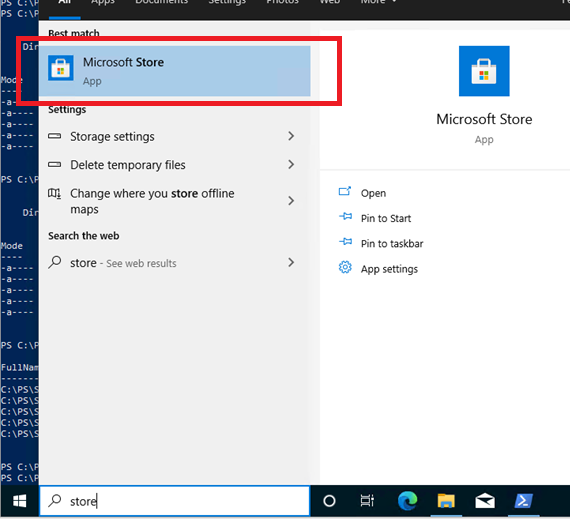
Многие пользователи Windows 10 при удалении встроенных приложений случайно удаляют и магазин приложений (Microsoft Store). Чаще всего это происходит при бездумном запуске сторонних утилит или PowerShell скриптов вида Get-AppXProvisionedPackage -online | Remove-AppxProvisionedPackage -online , которые удаляют все современные APPX приложения без исключения (см. статью по корректному удалению предустановленные APPX приложения в Windows 10). Если Microsoft Store отсутствует в Windows 10 или работает с ошибками, вы можете установить его или сбросить состояние в соответствии с инструкциями из этой статьи.
Сброс приложения Microsoft Store в Windows 10
Если приложение Microsoft Store в Windows 10 не запускается, или работает с ошибками, вы можете попробовать сбросить его настройки на дефолтные и удалить сохраненные данные:
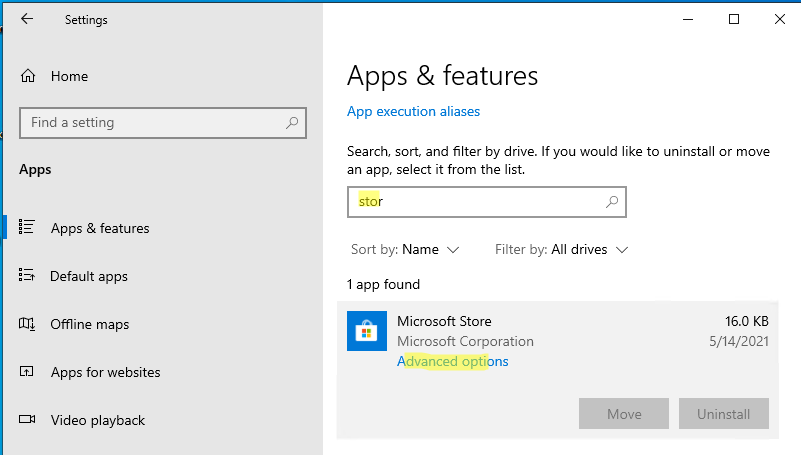
- Перейдите в меню Settings -> Apps -> Apps & features;
- Найдите приложение Microsoft Store и нажмите на ссылку Advanced options;
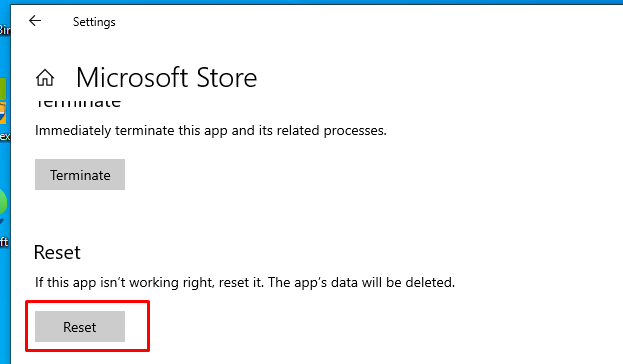
- В открывшемся окне нажмите на кнопку Reset и подтвердите удаление всех старых настроек.
Также вы можете сбросить настройки Microsoft Store из команды строки с помощью команды:
Восстановление Microsoft Store в Windows 10 с помощью PowerShell
При удалении системных APPX приложений с помощью PowerShell командлета Remove-AppxPackage , Windows на самом деле не удаляет приложения с диска, а просто отменяет их регистрацию. Можно попробовать перерегистрировать приложение WindowsStore с помощью XML файла манифеста приложения.
-
Проверьте, что файлы приложения остались на месте:
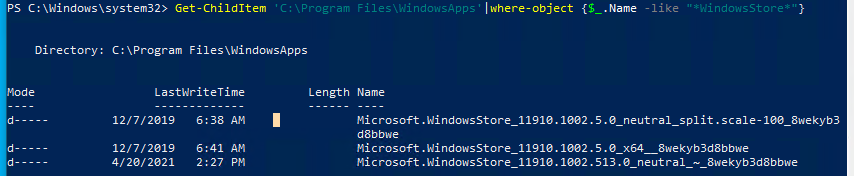
Get-ChildItem ‘C:\Program Files\WindowsApps’|where-object
Get-AppXPackage *WindowsStore* -AllUsers | Foreach
Совет. Если вы выполнении команды Add-AppxPackage появится ошибка с отказом доступа, попробуйте с помощью утилиты icacls предоставить своей учетной записи права владельца на каталог C:\Program Files\WindowsApps\.
Ручная установка Microsoft Store в Windows 10 после полного удаления
Если в каталоге каталог C:\Program Files\WindowsApps не сохранилось каталога с файлами Windows Store, то при попытке зарегистрировать приложение с помощью Add-AppxPackage появятся ошибки вида:
Add-AppxPackage : Cannot find path.
Add-AppxPackage : Deployment failed with HRESULT: 0x80073CF6, Package could not be registered.
Сannot register the Microsoft.WindowsStore package because there was a merge failure.
В этом случае вы можете вручную скачать файлы WindowsStore и все зависимости с сайта Microsoft, и установить APPX приложения вручную.
Также этот способ подойдет тем, у кого современные приложения изначально были удалены из образа Windows, а также владельцем редакции Windows 10 LTSC Enterprise, в которой предустановленные UWP приложения отсутствуют в принципе.
- Откройте консоль PowerShell с правами администратора;
- Выполните следующую команду, чтобы убедиться, что приложение WindowsStore полностью удалено:
Get-AppXPackage -AllUsers |where-object
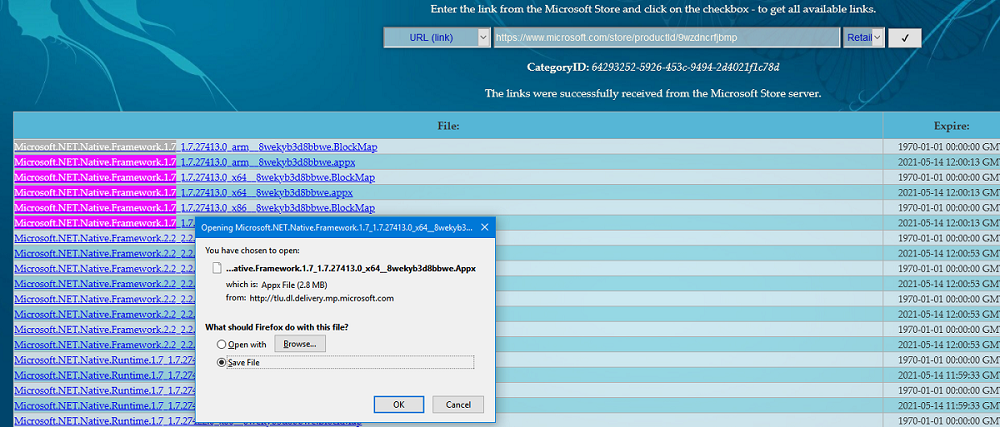
- Перейдите на сайт https://store.rg-adguard.net/ (сайт позволяет получить прямые ссылки и скачать установочные APPX файлы приложений магазина с сайта Microsoft) , вставьте в строку поиска ссылку на Microsoft Store ( https://www.microsoft.com/store/productId/9wzdncrfjbmp ), в выпадающем списке выберите Retail;
- Для корректной работы Store вам нужно скачать шесть APPX файлов c зависимостями для вашей версии Windows (x64 или x86): Microsoft.NET.Native.Framework.1.7 , Microsoft.NET.Native.Framework.2.2 , Microsoft.NET.Native.Runtime.1.7 , Microsoft.NET.Native.Runtime.2.2 , Microsoft.VCLibs , Microsoft.UI.Xaml.2.4 ;
Microsoft.NET.Native.Framework.1.7_1.7.27413.0_x64__8wekyb3d8bbwe.Appx Microsoft.NET.Native.Framework.2.2_2.2.29512.0_x64__8wekyb3d8bbwe.Appx Microsoft.NET.Native.Runtime.1.7_1.7.27422.0_x64__8wekyb3d8bbwe.Appx Microsoft.NET.Native.Runtime.2.2_2.2.28604.0_x64__8wekyb3d8bbwe.Appx Microsoft.VCLibs.140.00_14.0.29231.0_x64__8wekyb3d8bbwe.Appx Microsoft.UI.Xaml.2.4_2.42007.9001.0_x64__8wekyb3d8bbwe.Appx
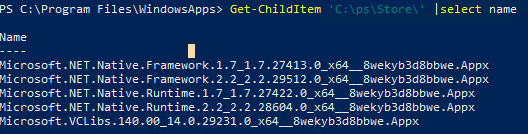
$Path = ‘C:\PS\Store’
Get-Childitem $Path -filter *.appx| %
Get-Childitem $Path -filter *.appxbundle | %

Если при установке Microsoft.WindowsStore появятся ошибки с зависимостями, скачайте и установите указанные appx пакеты вручную.
Если у вас есть корпоративная подписка VLSC (Software Assurance), вы можете скачать с сайта Microsoft ISO образ Windows 10 Inbox Apps. В данном офлайн образе содержатся все встроенные приложения, в том числе магазин Microsoft.
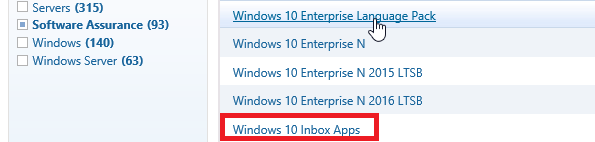
Для установки Windows Store с такого ISO образа можно использовать следующую команду:
Add-AppxProvisionedPackage -Online -PackagePath «E:\x86fre\Microsoft.WindowsStore_8wekyb3d8bbwe.appxbundle» –LicensePath «E:\x86fre\Microsoft.WindowsStore_8wekyb3d8bbwe.xml»
 Предыдущая статья Следующая статья
Устранение проблем с приложениями из Microsoft Store
Если в Windows 11 у вас возникли проблемы с приложением из Microsoft Store, воспользуйтесь следующими обновлениями и исправлениями.
Сначала войте в свою учетную запись Майкрософт. Затем используйте следующие решения в указанном порядке.
- Убедитесь, что система Windows обновлена
Нажмите кнопку Пуск >Параметры >Центр обновления Windows >Проверить наличие обновлений. Если есть доступное обновление, выберите Установить сейчас. - Убедитесь, что ваше приложение совместимо с Windows 11.
Дополнительные сведения см. в статье Ваше приложение несовместимо с Windows. - Обновите Microsoft Store
Нажмите кнопку Пуск, затем в списке приложений выберите Microsoft Store. В Microsoft Store выберите Библиотека >Получить обновления. Если доступно обновление для Microsoft Store, автоматически запустится процесс установки. - Устранение неполадок с играми
Если при установке игры возникли проблемы, см. статью Устранение неполадок при установке игр в Windows. - Восстановление или сброс приложений
См. Восстановление или удаление программ в Windows. - Переустановка приложений
В Microsoft Store выберите Библиотека. Выберите приложение, которое нужно переустановить, затем выберите Установить.
Вот дополнительная справка
- Если вы не можете найти Microsoft Store, см. статью Не удается найти приложение Microsoft Store в Windows.
- Если у вас возникли проблемы при открытии Microsoft Store, см. статью Microsoft Store не запускается.
- Если вы можете запустить Microsoft Store, но не получается найти или установить приложение, см. статью Не удается найти или установить приложение из Microsoft Store.
Если у вас возникли проблемы с приложением из Microsoft Store в Windows 10, воспользуйтесь следующими обновлениями и исправлениями.
Сначала войте в свою учетную запись Майкрософт. Затем используйте следующие решения в указанном порядке.
- Убедитесь, что в Windows установлены последние обновления: выберите Проверить наличие обновлений сейчас, затем выберите Проверить наличие обновлений. Также можно нажать кнопку Пуск и выбрать Параметры >Обновление и безопасность >Центр обновления Windows >Проверить наличие обновлений. Если есть доступное обновление, выберите Установить сейчас.
- Убедитесь, что ваше приложение работает с Windows 10. Дополнительные сведения см. в статье Ваше приложение несовместимо с Windows 10.
- Обновите Microsoft Store: нажмите кнопку Пуск и в списке приложений выберите Microsoft Store. В Microsoft Store выберите Подробнее >Загружаемые компоненты и обновления >Получить обновления. Если доступно обновление для Microsoft Store, автоматически запустится процесс установки.
- Устранение неполадок с играми: если при установке игры возникли проблемы, см. статью Устранение неполадок при установке игр в Windows 10.
- Восстановление или сброс приложений: см. Восстановление или удаление программ в Windows 10.
- Переустановите приложения: в Microsoft Store выберите Подробнее >Моя библиотека. Выберите приложение, которое нужно переустановить, а затем выберите Установить.
- Запустите средство устранения неполадок. Нажмите кнопку Пуск , выберите Параметры >Обновление и безопасность >Устранение неполадок, затем в списке выберите Приложения Магазина Windows >Запустить средство устранения неполадок.
Вот дополнительная справка
- Если вам удается найти Microsoft Store, см. статью Не удается найти Microsoft Store в Windows 10.
- Если у вас возникают проблемы при запуске Microsoft Store, см. статью Microsoft Store не запускается.
- Если вы можете запустить Microsoft Store, но не получается найти или установить приложение, см. статью Не удается найти или установить приложение из Microsoft Store.
How to reinstall Microsoft Store
Since I manage Windows 10 and do not use Microsoft Store applications in my business, I deleted them all with the following command.
Get-AppxPackage | findstr PackageFullName
Remove-AppxPackage -Package «XXXXXXX»
Get-ProvisionedAppPackage -Online | findstr PackageName
Remove-ProvisionedAppxPackage -Online -PackageName «XXXXXXXX»
However, since the end user requested to use the store application, I would like to reinstall it.
Could you please tell me how to reinstall the applications available from the Microsoft Store or Microsoft Store?
Windows 10
A Microsoft operating system that runs on personal computers and tablets.
9,520 questions
Sign in to follow
Windows 10 Setup
Windows 10: A Microsoft operating system that runs on personal computers and tablets. Setup: The procedures involved in preparing a software program or application to operate within a computer or mobile device.
1,855 questions
Sign in to follow
13 comments Hide comments for this question Report a concern
I have the same question 6
ForTheBroken 176 Reputation points
2022-12-22T20:13:11.903+00:00
Hi everyone. I FOUND A SOLUTION THAT ACTUALLY WORKS: Even though my windows microsoft store app was completely missing, my «Xbox» app was still available. Simply launch the xbox app and follow the steps until you get to the dashboard. Once in the dashboard, you’ll see any number of yellow notices stating that you’re system is missing the following applications in order to run/function properly. And right next to each item, it has an install button. YES THIS INCLUDES THE WINDOWS STORE! Worked perfectly for me. YOU’RE WELCOME!
25 votes Report a concern
Proton 6 Reputation points
2022-12-29T17:37:54.327+00:00
Where is the Dashboard?
0 votes Report a concern
lex 1 Reputation point
2023-01-06T18:45:36.127+00:00
just know that i love u, stayed up all night to fix it but nothing worked but ur method worked in secondssssssssssss
0 votes Report a concern
PawelSandra 1 Reputation point
2023-01-07T10:07:57.203+00:00
Here is what helped me, where nothing else worked: (Basically Close Minecraft launcher > open Xbox Game Bar (press Windows and type that app name, then open it), in Settings > Accounts I have signed out, then reopened Minecraft): level 1 Ellie_May666 ·5 mo. ago Hey I got this code and how I fixed it was by : 1-removing the account from my login.
2-going to xbox log in and logging in there.
3-making sure every thing was up to date there.
4- closing and Re opening minecraft.
5- logging in. This worked for me I hope it works for you. https://www.reddit.com/r/Minecraft/comments/wc6scp/error_code_unknown_code_deep_ocean/
0 votes Report a concern
PawelSandra 1 Reputation point
2023-01-07T10:08:15.517+00:00
Here is what helped me, where nothing else worked: (Basically Close Minecraft launcher > open Xbox Game Bar (press Windows and type that app name, then open it), in Settings > Accounts I have signed out, then reopened Minecraft): level 1 Ellie_May666 ·5 mo. ago Hey I got this code and how I fixed it was by : 1-removing the account from my login.
2-going to xbox log in and logging in there.
3-making sure every thing was up to date there.
4- closing and Re opening minecraft.
5- logging in. This worked for me I hope it works for you. https://www.reddit.com/r/Minecraft/comments/wc6scp/error_code_unknown_code_deep_ocean/
0 votes Report a concern
Molefe Mkhwanazi 0 Reputation points
2023-02-17T09:56:45.38+00:00
I reinstalled Windows 10 and when I started with the device Microsoft Store was missing. Trying to find and reinstall Microsoft Store was a mission. The Xbox method worked like a charm after numerous trial and errors
0 votes Report a concern
Reiff Lorenz 101 Reputation points
2023-02-21T13:27:47.08+00:00
If you’ve tried the above fixes and it doesn’t work, you might not have the proper Windows Store (aka Microsoft Store) re-installation components on your local computer. This will re-download the Windows Store components and install them. Run this in an administrator PowerShell session:
winget install 9WZDNCRFJBMP I hope this helps.
0 votes Report a concern
Nathan Alvarado 0 Reputation points
2023-04-23T22:08:09.4666667+00:00
just got a new pc and windows 11, go to xbox, then go to settings, theres a notice at the bottom with all the apps you need to download. cheers.
0 votes Report a concern
CATAPRETA Sergio 0 Reputation points
2023-05-06T00:26:53.16+00:00
Go to Apps & Features, search for Microsoft Store, go for Advanced Options, click on Repair or Reset
0 votes Report a concern
Marianne Valk 0 Reputation points
2023-09-02T22:49:24.99+00:00
This works!! Thank you so much!
0 votes Report a concern
PREET KAWAL 0 Reputation points
2023-09-28T03:24:06.74+00:00
download xbox app first if you cant find it. This really works. Thanks to @ForTheBroken
0 votes Report a concern

El Gato 0 Reputation points
2023-11-29T21:48:17.01+00:00
i am on the first version of windows 10 and i am trying to install minecraft edu but it is not launching
0 votes Report a concern
Dennis Willoughby 0 Reputation points
2023-11-30T07:38:04.76+00:00
I keep getting errr 000000 is every time I try to go to Microsoft store and update
0 votes Report a concern
Show 8 more comments
8 answers
Sort by: Most helpful
Most helpful Newest Oldest
ForTheBroken 176 Reputation points
2022-12-22T20:13:28.713+00:00
Hi everyone. I FOUND A SOLUTION THAT ACTUALLY WORKS: Even though my windows microsoft store app was completely missing, my «Xbox» app was still available. Simply launch the xbox app and follow the steps until you get to the dashboard. Once in the dashboard, you’ll see any number of yellow notices stating that you’re system is missing the following applications in order to run/function properly. And right next to each item, it has an install button. YES THIS INCLUDES THE WINDOWS STORE! Worked perfectly for me. YOU’RE WELCOME!
11 comments Show comments for this answer Report a concern
Jonathan Domian 5 Reputation points
2023-01-21T17:01:58.2466667+00:00
This works. Download the Xbox app here in case you uninstalled both the store and the Xbox app like I did. Then once the Xbox app is launched, at the bottom, it prompts you to reinstall features. From there you can select the Microsoft Store and other items to reinstall. Xbox Link:
[https://www.xbox.com/en-US/apps/xbox-app-for-pc
1 vote Report a concern
Ginho 5 Reputation points
2023-01-25T09:41:31.6133333+00:00
Just so you know how grateful i am, this is the first time EVER i comment on anything here! Not even my companie’s tech support found a way to do this, maybe it’s time to hire other people. Worked perfectly, done in seconds! Thank you sir! Life saver! There should be a prize here for people like you! Wish you the best!
1 vote Report a concern
Karen J 5 Reputation points
2023-02-05T03:04:36.08+00:00
For those who posted the Xbox idea … THANK YOU! THANK YOU!! I have never posted anything in a forum but I had to thank someone. Powershell did nothing except create more frustration. The Xbox idea worked in minutes!
1 vote Report a concern
Jeremy Holmes 0 Reputation points
2023-02-11T00:51:54.6266667+00:00
ForTheBroken wins the interwebs today. Thanks so much! It worked!
0 votes Report a concern
Keith Webber 0 Reputation points
2023-04-24T16:29:55.11+00:00
I don’t have the xbox app either
0 votes Report a concern
Trung Nguyen 0 Reputation points
2023-05-09T04:22:25.6233333+00:00
Yes, thank ForTheBroken. It actually works. For those don’t have xbox app, just download it from it’s website. After login, you will see a green line which ask you to update missing application at the bottom of the app. Click install then everything is solved!
0 votes Report a concern
s1r1us 0 Reputation points
2023-07-03T23:04:48.08+00:00
I worked, thanks! For those who cannot find it. Click your profile icon (top left corner)/Settings/General
0 votes Report a concern

Chris 0 Reputation points
2023-07-22T23:16:57.3066667+00:00
that cool i will do that next time
0 votes Report a concern
Qwerty 0 Reputation points
2023-07-30T09:07:33.77+00:00
i just want to add, if you dont have the Xbox app, you can download it without the microsoft store here: https://www.xbox.com/en-AU/apps/xbox-app-for-pc
0 votes Report a concern
Jer Schultz 5 Reputation points
2023-09-06T18:46:24.6266667+00:00
This worked for me. Literal months trying to fix this after a Windows update borked my PC. Thank you!!
1 vote Report a concern
Bakkes 0 Reputation points
2023-10-01T20:05:14.69+00:00
@ForTheBroken I Did just open xbox app ,then it said it needed a update and boom MS store is back to normal was last step after everything googled and tried ( Can update apps and download new ones again )
0 votes Report a concern
Show 6 more comments

Limitless Technology 38,861 Reputation points
2022-06-16T15:25:30.003+00:00
- Go to settings> Update and Security> troubleshoot > Additional troubleshooter> Then click Windows Store apps
- Temporarily Disable the Anti-virus (If you have third party anti viru)
- Run Powershell
- On Powershell(admin), copy and paste the command below:
Method 2. repair Windows Store and update components
Open Powershell with Admin or CMD with Admin (Press Windows key + X then click Windows Powershell(Admin))
Copy each line of command to Powershell then press enter (one line at a time)
net stop bits
net stop wuauserv
net stop appidsvc
net stop cryptsvc
Del «%ALLUSERSPROFILE%\Application Data\Microsoft\Network\Downloader*.*»
rmdir %systemroot%\SoftwareDistribution /S /Q
rmdir %systemroot%\system32\catroot2 /S /Q
regsvr32.exe /s atl.dll
regsvr32.exe /s urlmon.dll
regsvr32.exe /s mshtml.dll
netsh winsock reset
netsh winsock reset proxy
net start bits
net start wuauserv
net start appidsvc
net start cryptsvc
-Once done restart the device and check
If none will work from the above solution I suggest to do an in-place upgrade wherein it will upgrade the device to the latest version and repair all issues without deleting any files.
Note: before doing this make sure to create a restore point: https://support.microsoft.com/en-hk/help/402753…
- go to this link: https://www.microsoft.com/en-us/software-downlo…
- Select Download tool, and select Run. You need to be an administrator to run this tool.
- On the License terms page, if you accept the license terms, select Accept.
- On the What do you want to do? page, select Upgrade this PC now, and then select Next.
- After downloading and installing, it should fix the issue.
Reference: https://www.microsoft.com/en-us/software-downlo…
Note: if you receive error: “This Pc can’t be upgrade, follow the steps below”
Method 1. Go to C:\$WINDOWS.~BT\Sources\Panther then delete the file name compatscancache.dat
Then try again or reboot the PC first then try again.
You might not see the folder as it is hidden, make sure to show hidden files first.
—If the reply is helpful, please Upvote and Accept as answer—
Как вернуть магазин приложений в Windows 11?
Нам часто пишут с просьбой помочь в восстановлении магазина приложений Microsoft Store после удаления по советам «продвинутых» коллег или установке его в LTSC редакциях Windows 10/11. Сделать это можно несколькими способами.
Советы и инструкции
| 26 января 2022 в 11:49
При помощи утилиты wsreset
Самый простой способ восстановить магазин Windows (Microsoft Store) — выполнить в консоли PowerShell от имени администратора команду:
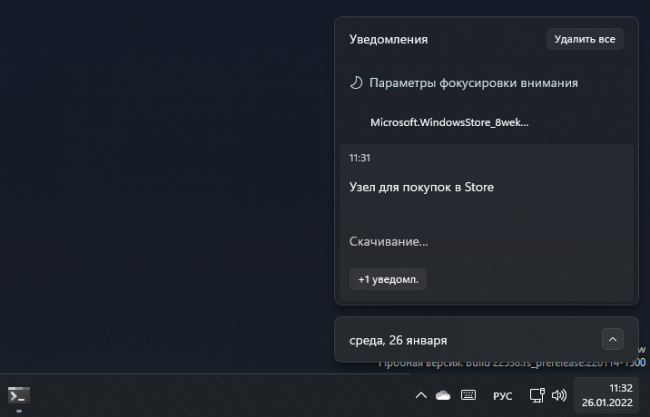
Для завершения операции потребуется подключение к интернету и некоторое время, необходимое для загрузки и развёртывания пакетов установки приложения, а также всех его дополнительных компонентов. Как только система приступит к установке магазина, в Центре действий появятся соответствующие уведомления.
Ручная установка пакетов
Второй способ сложнее и предполагает ручную загрузку всех необходимых пакетов с серверов Microsoft с последующим их развёртыванием. В этом случае порядок действий такой:
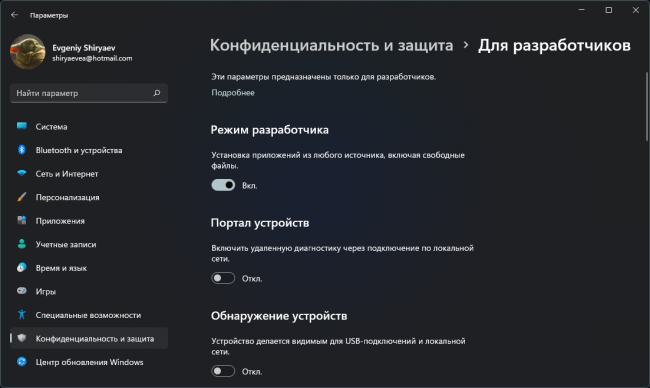
- Включить Режим разработчика в панели Параметры → Конфиденциальность и защита → Для разработчиков. В случае с Windows 10: Параметры → Обновление и безопасность → Для разработчиков
- Перейти на сайт store.rg-adguard.net , в поисковую строку URL (link) вставить ссылку на магазин приложений Microsoft Store , в выпадающем списке рядом выбрать Retail и запустить поиск.
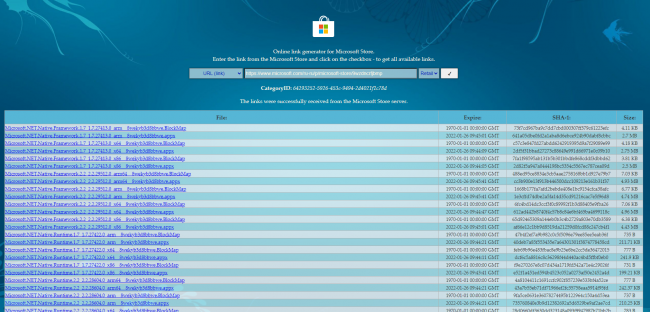
- Из результатов поиска скачать пакеты Microsoft.WindowsStore с расширением .MSIXBUNDLE (.APPXBUNDLE для Windows 10), Microsoft.NET.Native.Framework, Microsoft.NET.Native.Runtime, Microsoft.VCLibs с расширением .APPX. Пакеты выбирайте только для нужной вам архитектуры: x86, x64 или ARM.
- Для совершения покупок в магазине понадобится ещё один пакет — Microsoft.StorePurchaseApp с расширением .APPXBUNDLE. Его на сайте store.rg-adguard.net можно найти по идентификатору (ProductID) — 9NBLGGH4LS1F.
- В папке с загруженными файлами запуститьPowerShell и выполнить эти команды:
Get-ChildItem *.appx | ForEach-Object
Get-ChildItem *bundle | ForEach-Object
Если всё сделано правильно, по завершению выполнения команд, ярлык Microsoft Store вернётся в меню Пуск. Уже из магазина можно восстановить и другие, удалённые по совету знатоков или вдруг понадобившиеся в LTSC приложения.