Install the .NET Framework on Windows 10 and Windows Server 2016 and later
The .NET Framework is required to run many applications on Windows. The instructions in this article should help you install the .NET Framework versions that you need. The .NET Framework 4.8 is the latest available version.
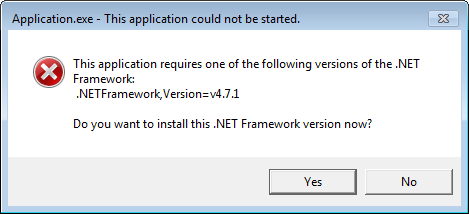
You may have arrived on this page after trying to run an application and seeing a dialog on your machine similar to the following one:
.NET Framework 4.8
.NET Framework 4.8 is included with:
- Windows 10 May 2021 Update
- Windows 10 October 2020 Update
- Windows 10 May 2020 Update
- Windows 10 November 2019 Update
- Windows 10 May 2019 Update
.NET Framework 4.8 can be used to run applications built for the .NET Framework 4.0 through 4.8.
- Windows 10 October 2018 Update (version 1809)
- Windows 10 April 2018 Update (version 1803)
- Windows 10 Fall Creators Update (version 1709)
- Windows 10 Creators Update (version 1703)
- Windows 10 Anniversary Update (version 1607)
- Windows Server 2019
- Windows Server, version 1809
- Windows Server, version 1803
- Windows Server 2016
The .NET Framework 4.8 is not supported on:
- Windows 10 1507
- Windows 10 1511
If you’re using Windows 10 1507 or 1511 and you want to install .NET Framework 4.8, you first need to upgrade to a later Windows 10 version.
.NET Framework 4.6.2
The .NET Framework 4.6.2 is the latest supported .NET Framework version on Windows 10 1507 and 1511.
The .NET Framework 4.6.2 supports apps built for the .NET Framework 4.0 through 4.6.2.
.NET Framework 3.5
Follow the instructions to install .NET Framework 3.5 on Windows 10.
The .NET Framework 3.5 supports apps built for the .NET Framework 1.0 through 3.5.
Additional information
.NET Framework 4.x versions are in-place updates to earlier versions. That means the following:
- You can only have one version of the .NET Framework 4.x installed on your machine.
- You cannot install an earlier version of the .NET Framework on your machine if a later version is already installed.
- 4.x versions of the .NET Framework can be used to run applications built for the .NET Framework 4.0 through that version. For example, .NET Framework 4.7 can be used to run applications built for the .NET Framework 4.0 through 4.7. The latest version (the .NET Framework 4.8) can be used to run applications built with all versions of the .NET Framework starting with 4.0.
For a list of all the versions of the .NET Framework available to download, see the .NET Downloads page.
Help
If you cannot get the correct version of the .NET Framework installed, you can contact Microsoft for help.
See also
- .NET Downloads
- Troubleshoot blocked .NET Framework installations and uninstallations
- Install the .NET Framework for developers
- Determine which .NET Framework versions are installed
Collaborate with us on GitHub
The source for this content can be found on GitHub, where you can also create and review issues and pull requests. For more information, see our contributor guide.
Install the .NET Framework 3.5 on Windows 11, Windows 10, Windows 8.1, and Windows 8
You may need the .NET Framework 3.5 to run an app on Windows 11, Windows 10, Windows 8.1, and Windows 8. You can also use these instructions for earlier Windows versions.
Download the offline installer
The .NET Framework 3.5 SP1 offline installer is available on the .NET Framework 3.5 SP1 Download page and is available for Windows versions prior to Windows 10.
Install the .NET Framework 3.5 on Demand
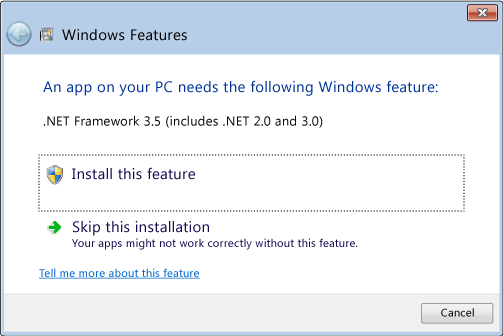
You may see the following configuration dialog if you try to run an app that requires .NET Framework 3.5. Choose Install this feature to enable .NET Framework 3.5. This option requires an Internet connection.
Why am I getting this pop-up?
The .NET Framework is created by Microsoft and provides an environment for running applications. There are different versions available. Many companies develop their apps to run using the .NET Framework, and these apps target a specific version. If you see this pop-up, you’re trying to run an application that requires .NET Framework version 3.5, but that version is not installed on your system.
Enable the .NET Framework 3.5 in Control Panel
You can enable the .NET Framework 3.5 through the Windows Control Panel. This option requires an Internet connection.
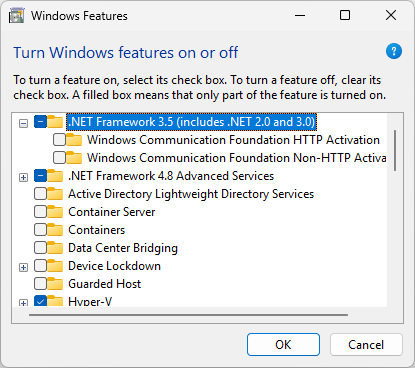
- Press the Windows key on your keyboard, type «Windows Features», and press Enter. The Turn Windows features on or off dialog box appears.
- Select the .NET Framework 3.5 (includes .NET 2.0 and 3.0) check box, select OK, and reboot your computer if prompted. You don’t need to select the child items for Windows Communication Foundation (WCF) HTTP Activation and Windows Communication Foundation (WCF) Non-HTTP Activation unless you’re a developer or server administrator who requires this functionality.
Troubleshoot the installation of the .NET Framework 3.5
During installation, you may encounter error 0x800f0906, 0x800f0907, 0x800f081f, or 0x800F0922, in which case refer to .NET Framework 3.5 installation error: 0x800f0906, 0x800f0907, or 0x800f081f to see how to resolve these issues.
If you still can’t resolve your installation issue or you don’t have an Internet connection, you can try installing it using your Windows installation media. For more information, see Deploy .NET Framework 3.5 by using Deployment Image Servicing and Management (DISM). If you’re using Windows 7, Windows 8.1, the latest release Windows 10, or Windows 11, but you don’t have the installation media, create an up-to-date installation media here: Create installation media for Windows. Additional information about Windows 11 and Windows 10 Features on Demand: Features on Demand.
If you’re not relying on Windows Update as the source for installing .NET Framework 3.5, you must ensure to strictly use sources from the same corresponding Windows operating system version. Using sources from a different Windows operating system version will either install a mismatched version of .NET Framework 3.5 or cause the installation to fail, leaving the system in an unsupported and unserviceable state.
Collaborate with us on GitHub
The source for this content can be found on GitHub, where you can also create and review issues and pull requests. For more information, see our contributor guide.
Install .NET Framework on Windows 11
.NET Framework 4.8 is included with Windows 11, and runs any .NET Framework 4.x app.
.NET Framework 3.5
Follow the instructions to install .NET Framework 3.5 on Windows 11.
.NET Framework 3.5 supports apps built for .NET Framework 2.0 through 3.5.
See also
- .NET Downloads
- Troubleshoot blocked .NET Framework installations and uninstallations
- Install .NET Framework for developers
- Determine which .NET Framework versions are installed
Collaborate with us on GitHub
The source for this content can be found on GitHub, where you can also create and review issues and pull requests. For more information, see our contributor guide.
Install the .NET Framework on Windows 8 and Windows Server 2012
The .NET Framework is required to run many applications on Windows. You can use the following instructions to install it. You may have arrived on this page after trying to run an application and seeing the following dialog on your machine.
These instructions will help you install the .NET Framework versions you need. .NET Framework 4.8 is the latest version. It is supported on Windows Server 2012 but is not supported on Windows 8. It’s included with Windows 11 and in Windows 10 starting with the May 2019 Update.
.NET Framework 4.8
.NET Framework 4.8 is supported on Windows Server 2012. It is not supported on Windows 8.
.NET Framework 4.8 can be used to run applications built for .NET Framework 4.0 or later.
.NET Framework 4.6
The .NET Framework 4.6 is the latest supported .NET Framework version on Windows 8.
The .NET Framework 4.6 supports apps built for .NET Framework 4.0 through 4.6.
.NET Framework 3.5
The .NET Framework 3.5 supports apps built for .NET Framework 1.0 through 3.5.
Help
You can contact Microsoft for help if you cannot get the correct version of the .NET Framework installed.
See also
- Download the .NET Framework
- Troubleshoot blocked .NET Framework installations and uninstallations
- Install the .NET Framework for developers
Collaborate with us on GitHub
The source for this content can be found on GitHub, where you can also create and review issues and pull requests. For more information, see our contributor guide.